How to Load User Membership
Enable User Membership Loading
To load a user's groups, you can right-click on the report name and choose Customize Report from the context menu. In the Report Wizard, navigate to the Membership page.
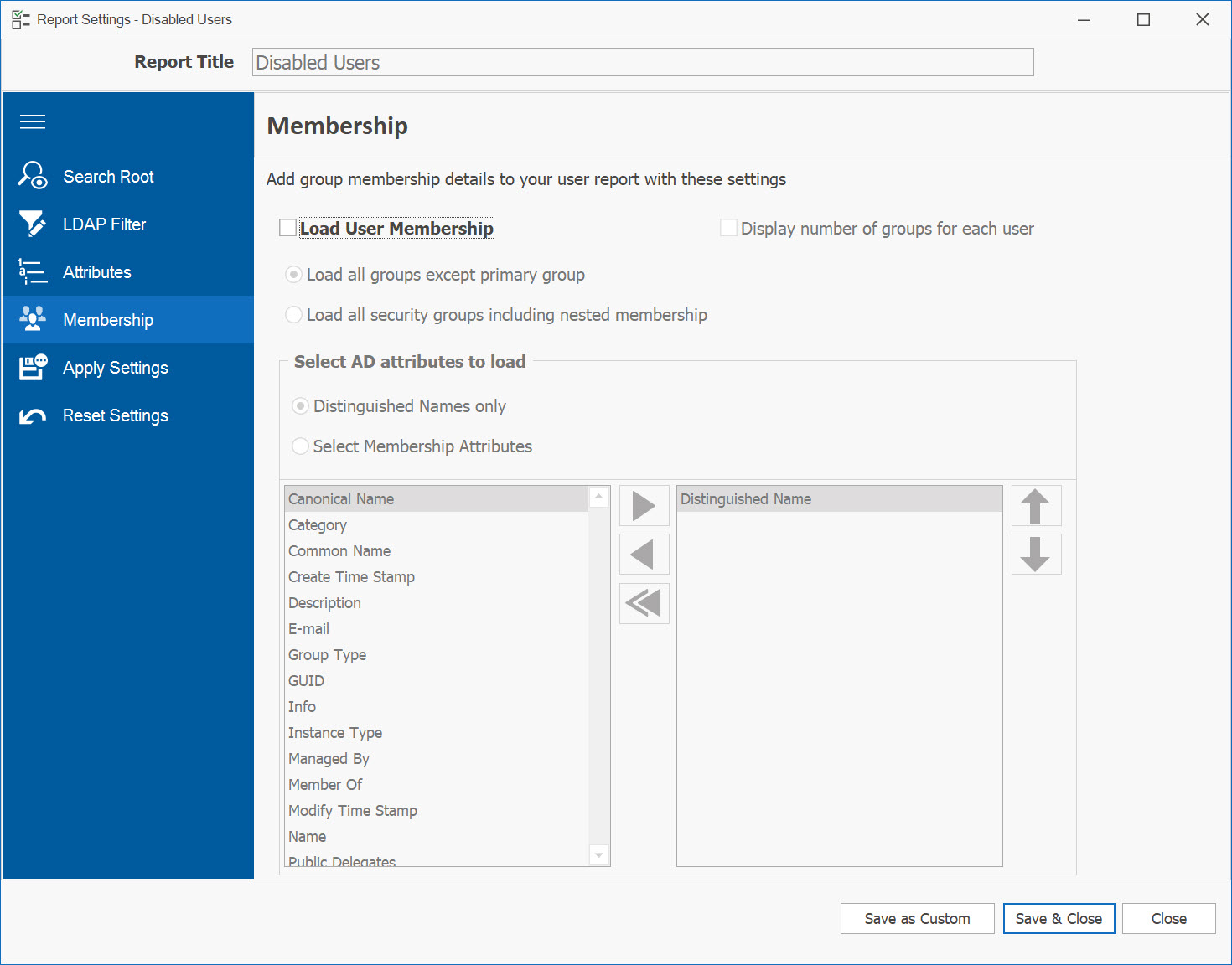
To activate the loading of membership for the selected report, simply check the Load User Membership checkbox.
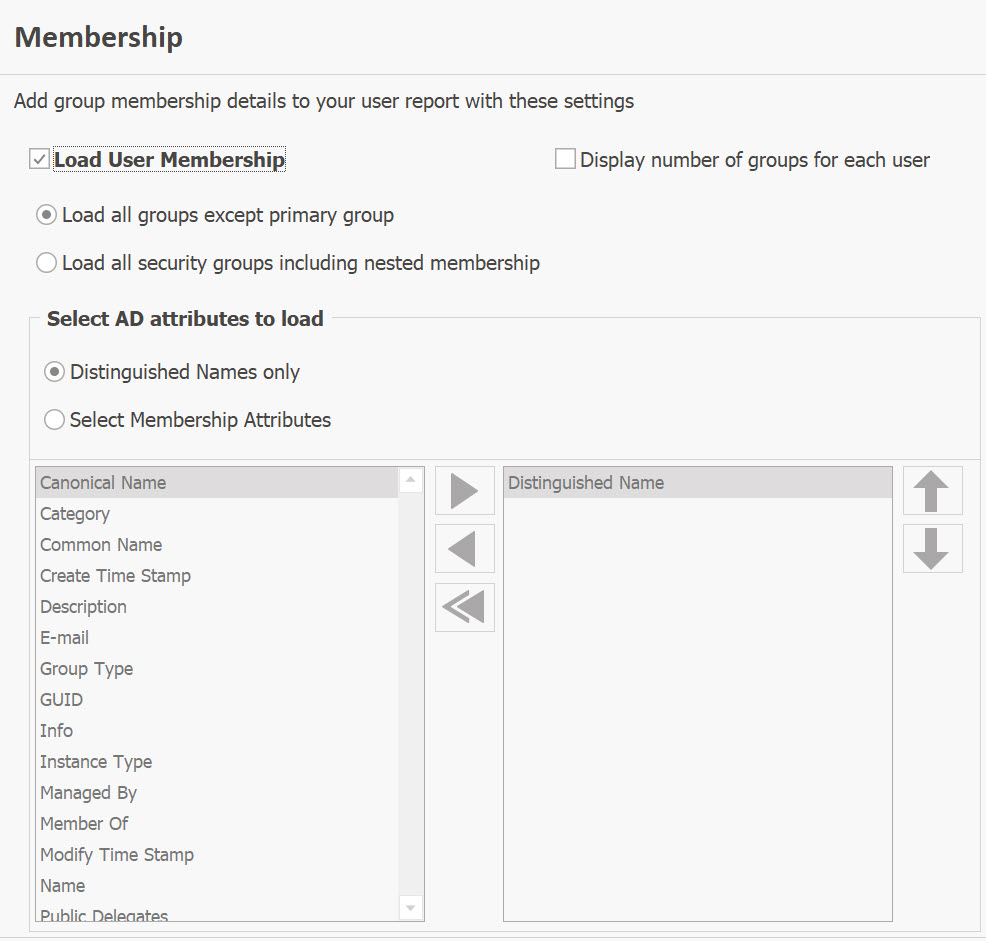
Membership Settings
The available membership settings are:
Load all groups except primary group
Load all security groups including nested group membership
Distinguished Names only
When selected, the "Load User Membership" option loads only the Distinguished Names of the groups for the users of the selected report.
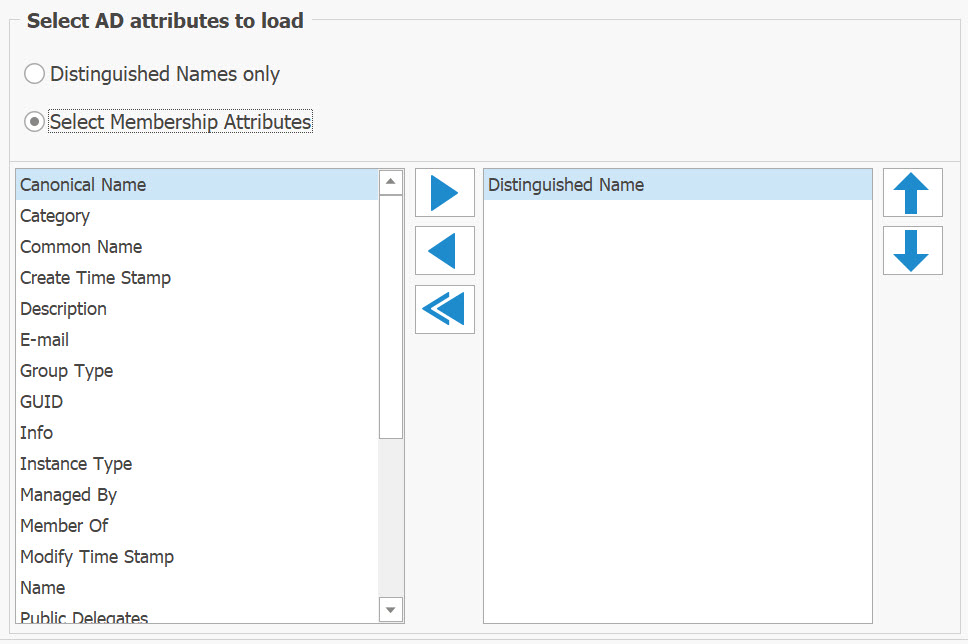
Select Membership Attributes
Enabling this option will activate the Group Membership panel, allowing you to choose the desired columns/attributes to load for the membership.
Display number of groups for each user
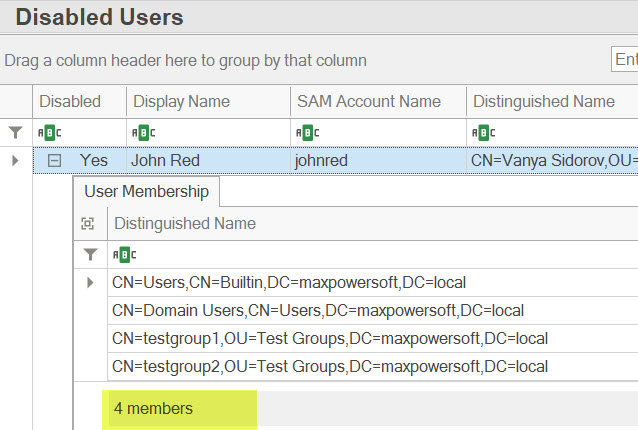
Enabling this option will show the number of groups for each user at the footer of the detailed grid.
View the Results
Click the Save & Close button to save the report settings for the selected report. The report will be reloaded with the saved membership settings. If the small plus button is active, you can click it to expand the group membership of the selected user.

To preview the print layout of this report, click on the Print Preview button.
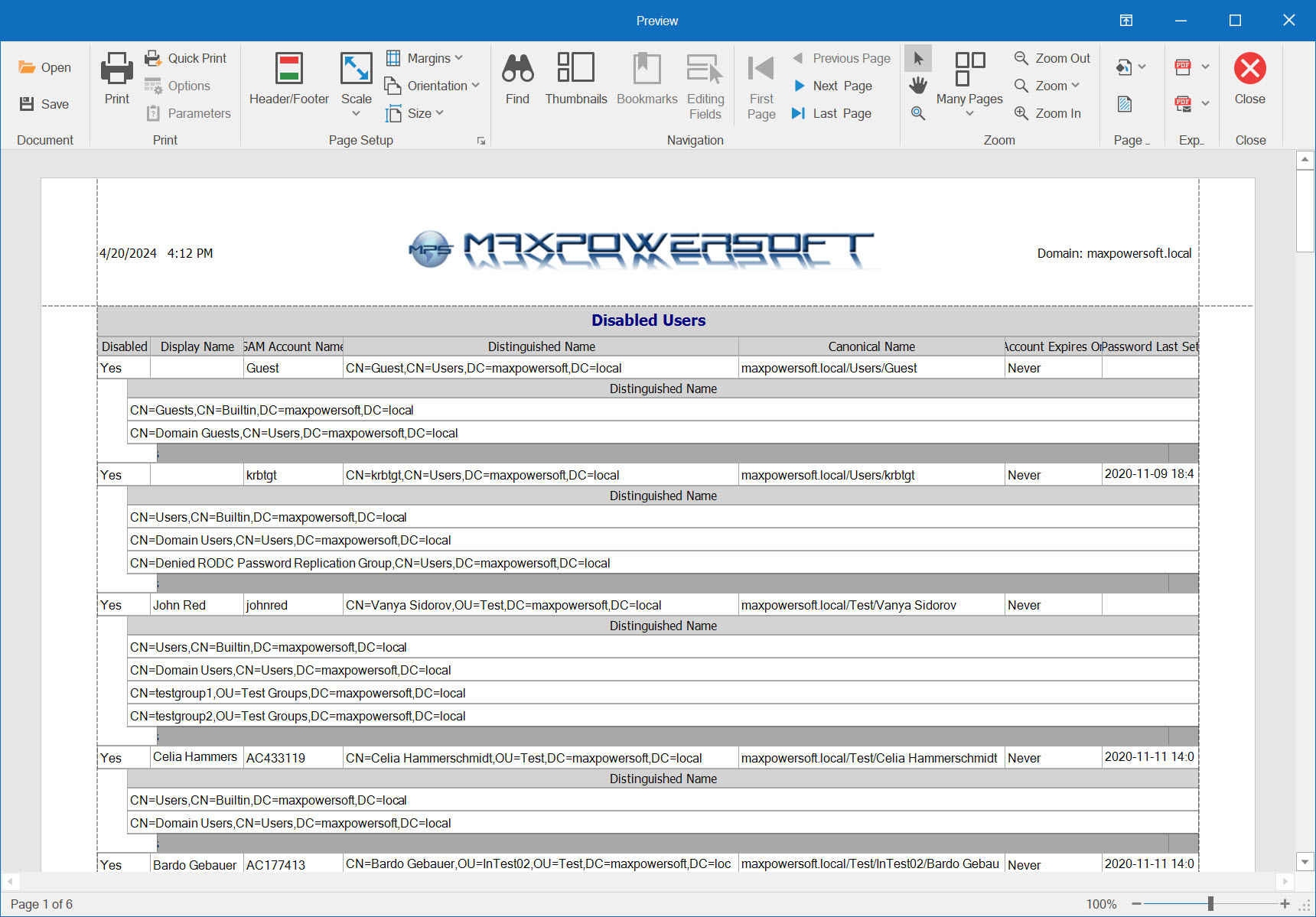
Alternatively, you can export the report directly from the grid by clicking on the Export Report To button.