How to Load Group Members
Enable Group Members Loading
To load group members, right-click on the report name and choose Customize Report from the context menu. Then, within the Report Wizard, navigate to the Membership page.
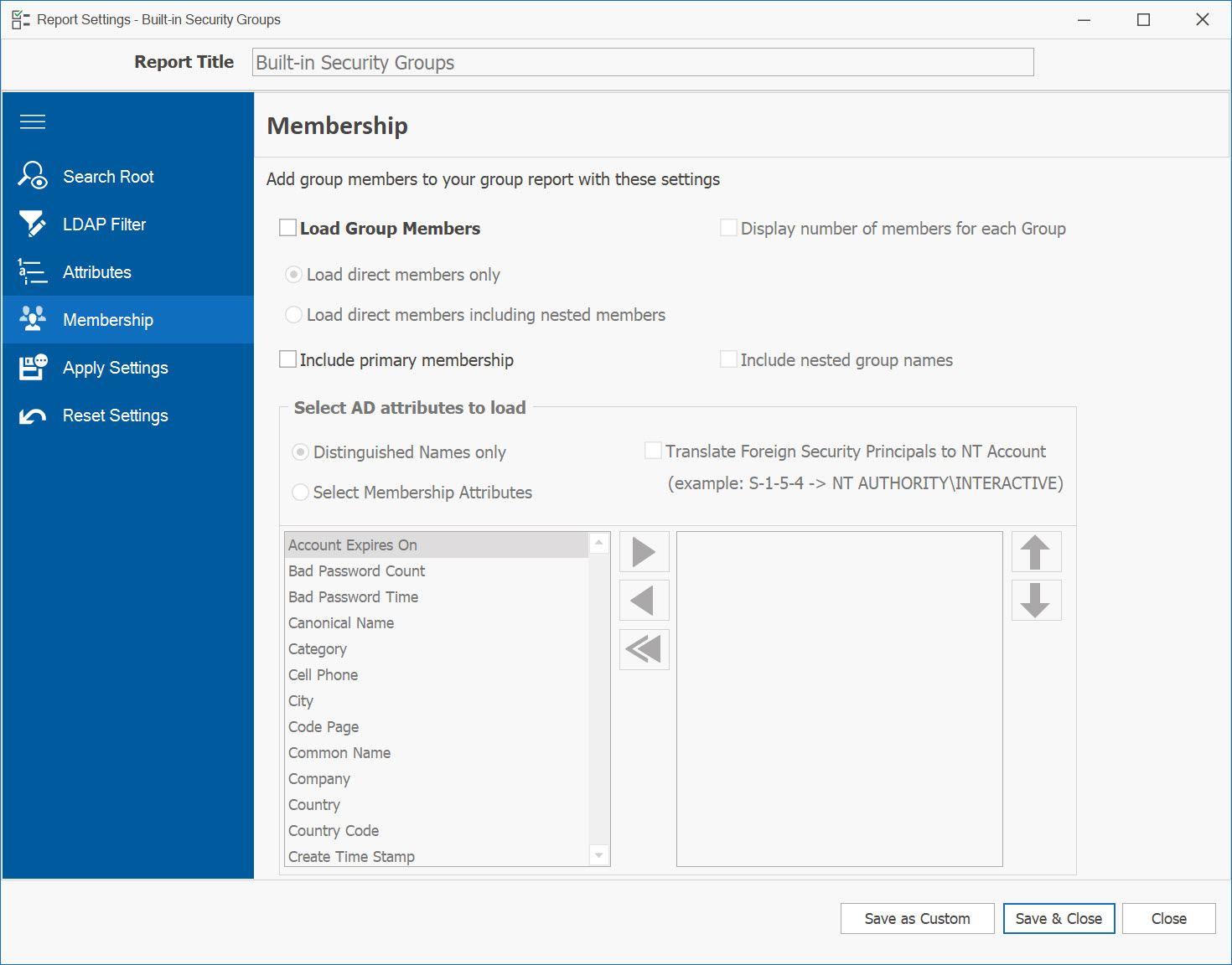
To activate the loading of membership for the selected report, check the Load Group Members checkbox.
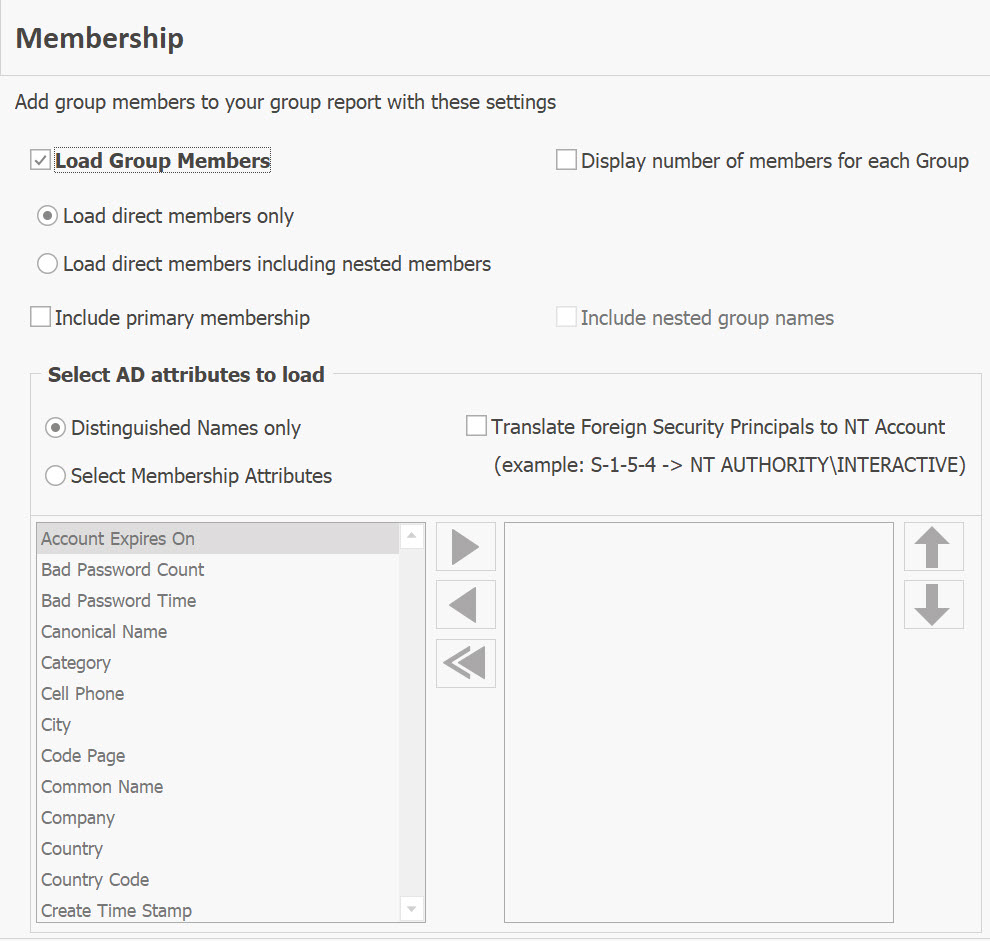
Membership Settings
The available membership settings are:
Load direct members only
When this option is selected, only direct group members will be loaded, excluding any nested groups.
Load direct members including nested members
When this option is selected, both direct group members and nested group members will be loaded.
Include nested group names
This option is enabled when the Load direct members including nested members is selected. In addition to nested group members, the names of nested groups will also be loaded.
Include primary membership
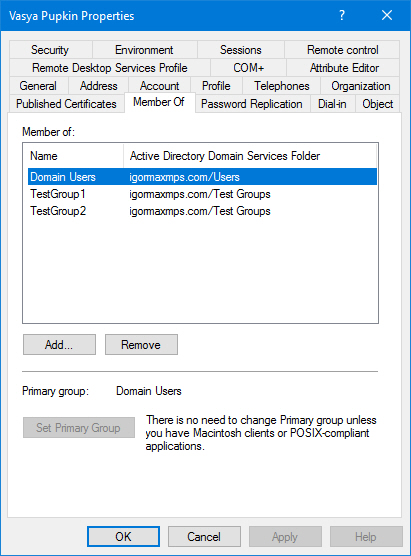
If a selected group serves as the primary group for certain members, those members will be loaded for the selected group. For instance, in the properties of the test user within Active Directory Users and Computers, it is evident that "Domain Users" functions as the primary group for this user.
Distinguished Names only
When selected, the option loads only the Distinguished Names of the group members.
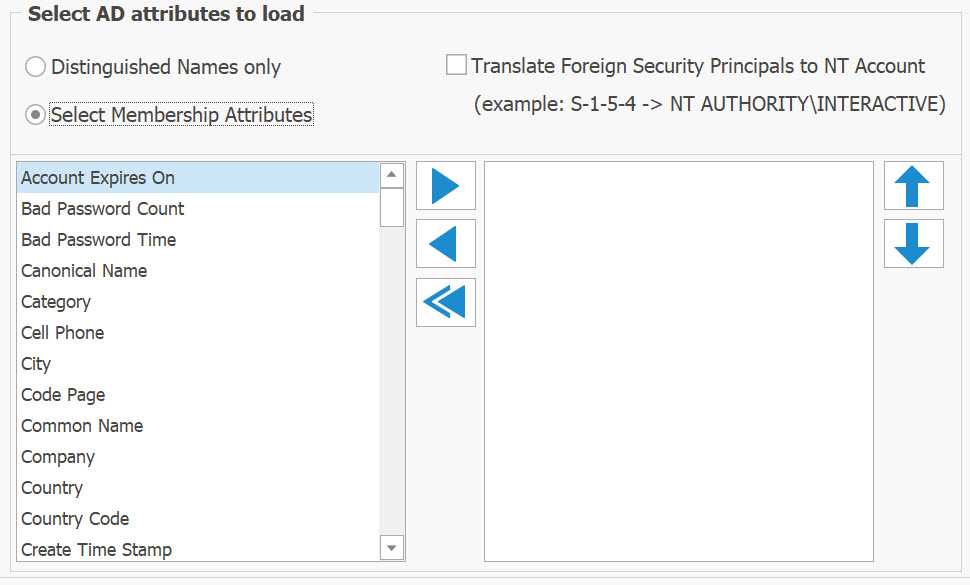
Select Member Attributes
Enabling this option will activate the Group Members panel, allowing you to choose the desired columns/attributes to load for the members.
Translate Foreign Security Principals to NT Account
This option improves the readability of names and converts them accordingly.
From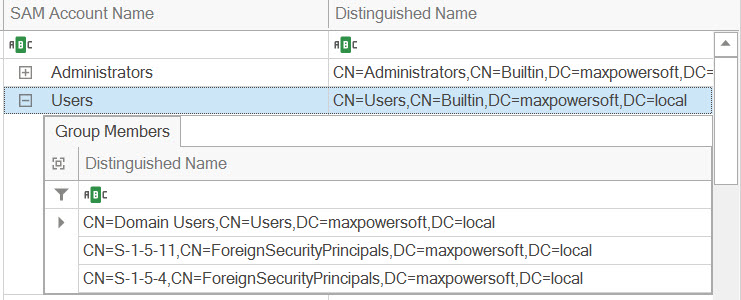
To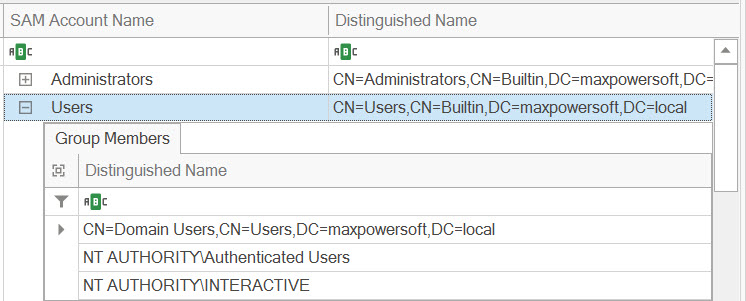
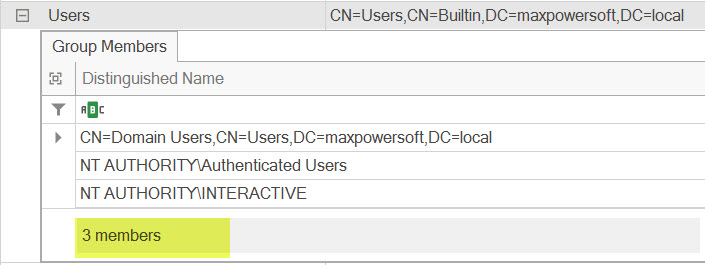
Display number of members for each Group
Enabling this option will show the number of members for each group at the footer of the detailed grid.
View the Results
Click the Save & Close button to save the report settings for the selected report. The report will be reloaded with the saved membership settings. If the small plus button is active, you can click it to expand the members of the selected group.
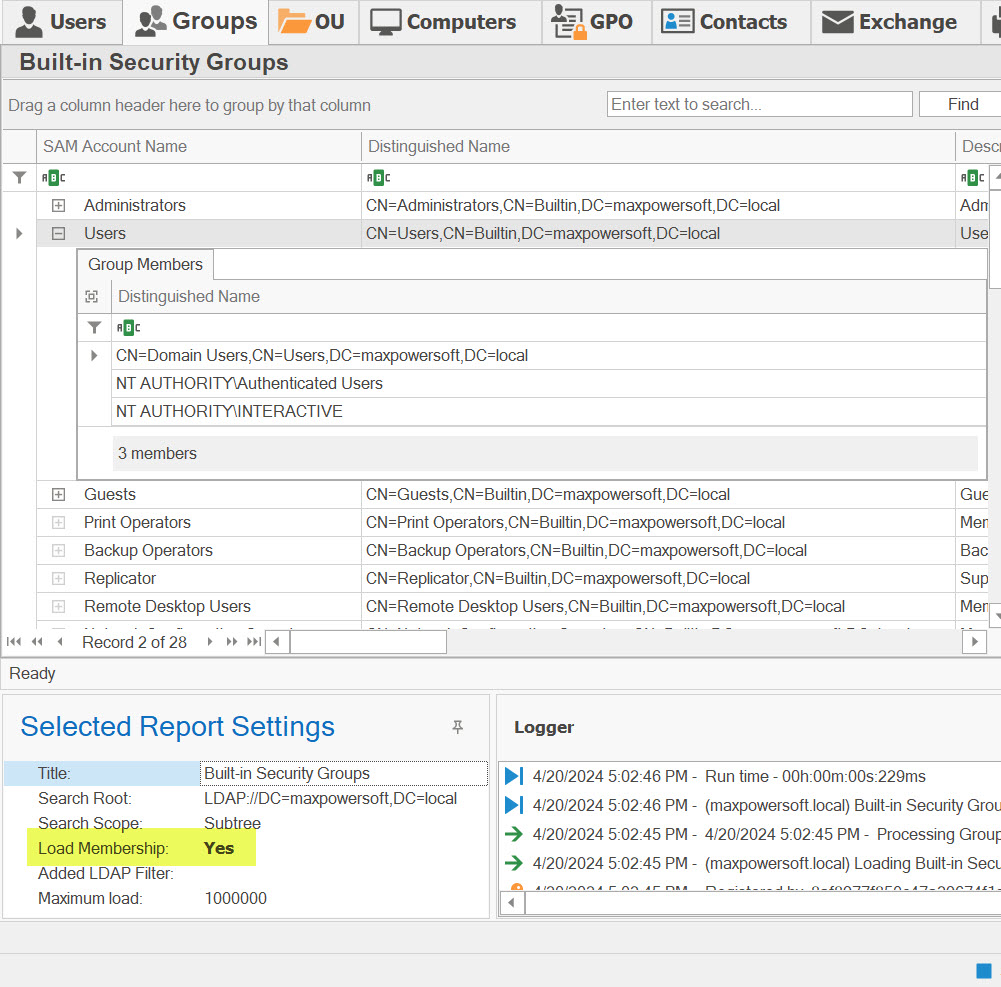
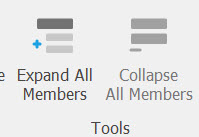
Expand All Members / Collapse All Members New in 7.5.4 — the AD Reports ribbon can open every “+” row at once instead of clicking them one at a time. It handles up to 500 rows; on a larger report it explains that Print Preview or an export already lists every member. The window stays responsive while expanding, and Esc stops it.
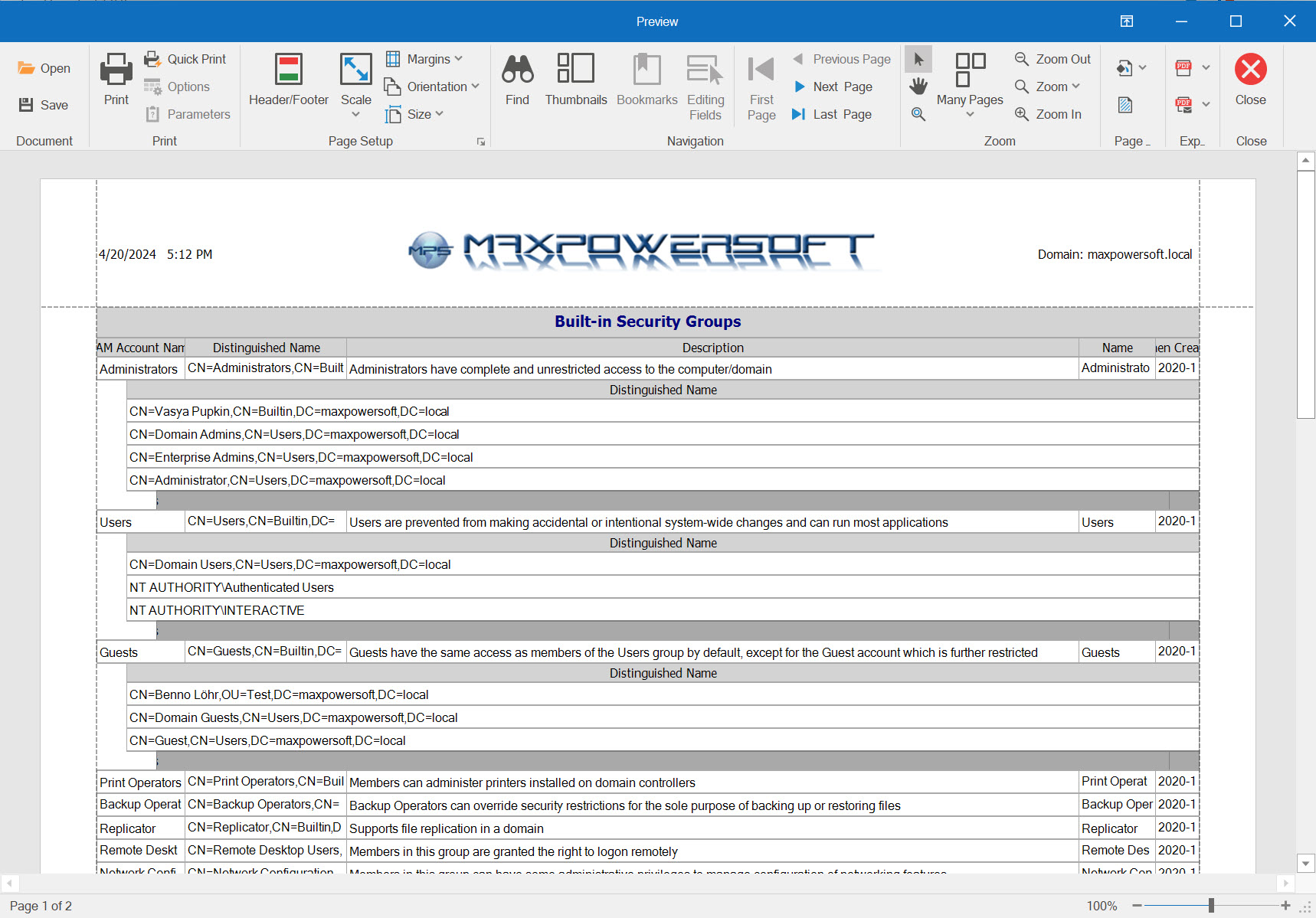
To preview the print layout of this report, click on the Print Preview button.
Alternatively, you can export the report directly from the grid by clicking on the Export Report To button. From there, you can choose any of the available exporting options to save the report in your desired format.