Scheduler Job History
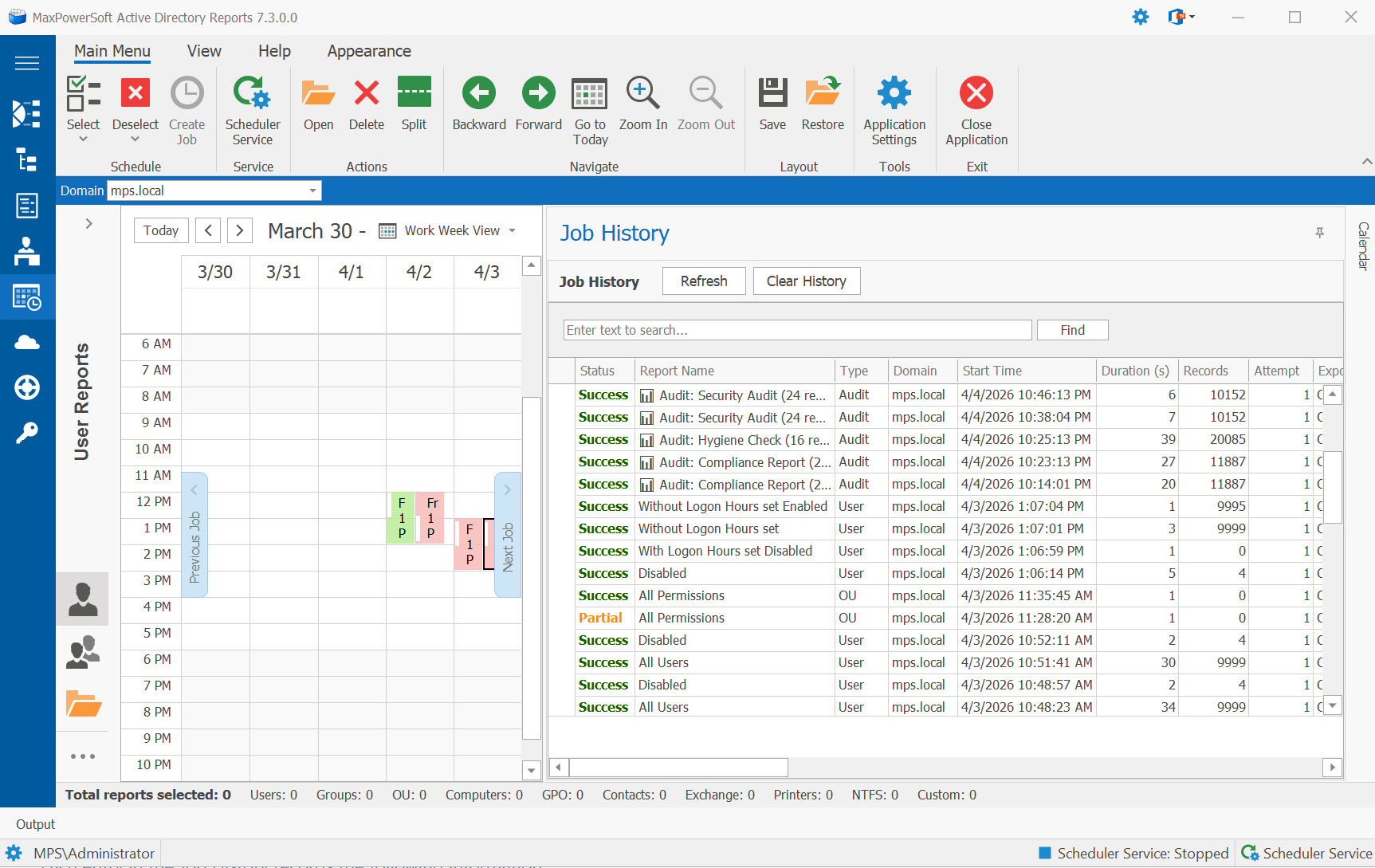
AD Reports maintains a persistent execution history for every scheduled report and audit profile. The Job History panel on the Scheduler page shows the status, duration, record count, and any errors for each run — whether executed from the UI or by the background Windows Service.
Open the Job History Panel
Navigate to the Scheduler page. The Job History panel appears as a collapsible dock panel on the right side of the Scheduler view. Click the panel header to expand or collapse it.
The panel position is saved and restored across sessions, so it will remain in the same state the next time you open AD Reports.
Understand Status Colors
Each job history entry is color-coded by execution status:
- • Success — the report ran and returned data, export and email (if configured) completed successfully
- • Partial — the report ran successfully but email delivery failed (e.g., expired OAuth token)
- • Failed — the report could not complete (network error, DC unreachable, etc.)
- • Empty — the report ran successfully but returned no data
- • Canceled — the run was stopped with Cancel Job; no file was written, no e-mail was sent, and the schedule itself is unchanged
- • Skipped — the run did not start, and the reason is recorded: the Scheduler is paused, that schedule is disabled, or the copy of AD Reports is unregistered or its license has expired
History Details
Each entry in the Job History records the following information:
- Report Name — the name of the report or audit profile that was executed
- Domain — the target domain the report was run against
- Start / End Time — when the job started and finished
- Duration — total execution time
- Record Count — number of rows returned by the report
- Export File — path to the exported file (if export was configured)
- Email Status — whether the email was sent successfully
- Errors — any error messages encountered during execution
- Retry Attempt — whether this was a retry (failed reports are automatically retried once after a 30-second delay)
Automatic Retry Logic
When a scheduled report fails (e.g., a domain controller is temporarily unreachable), AD Reports automatically retries the report once after a 30-second delay. The retry attempt is recorded in the Job History with the retry count displayed.
If the retry also fails, the job is marked as Failed with the error details preserved for troubleshooting.
Windows Service History
Job History is recorded from both the AD Reports UI and the background Windows Scheduler Service. The panel auto-refreshes every 30 seconds to pick up entries created by the Windows Service while the application is open.
Use the Refresh button to manually update the history, or the Clear History button to remove all entries.
Export New in 7.5.4 — the Export button beside Refresh saves the history in the same formats as every other page (Excel, CSV, PDF and more), so a month of scheduled runs can be handed to an auditor or attached to a support ticket.
Skipped Runs and Licensing
Scheduled jobs run only on a registered copy with a valid license. The Scheduler Service reads a copy of your registration status that AD Reports refreshes each time it starts and every few minutes while it is open; on an unregistered or expired copy, jobs are recorded as Skipped with the reason. After updating, open AD Reports once so the service receives that status. See How to Register AD Reports if a job is skipped for licensing reasons.