How to Use Diagnostics & Create a Support Package
The Support section of ADReports lets you load and inspect application and service log files, search and filter log entries by date, severity, and keyword, and create a compressed support package that you can send to technical support.
Opening the Diagnostics Screen
- Launch ADReports.
- In the left-hand navigation bar, locate and click Support.
- The Diagnostics screen loads automatically inside the main panel.
Understanding the Screen Layout
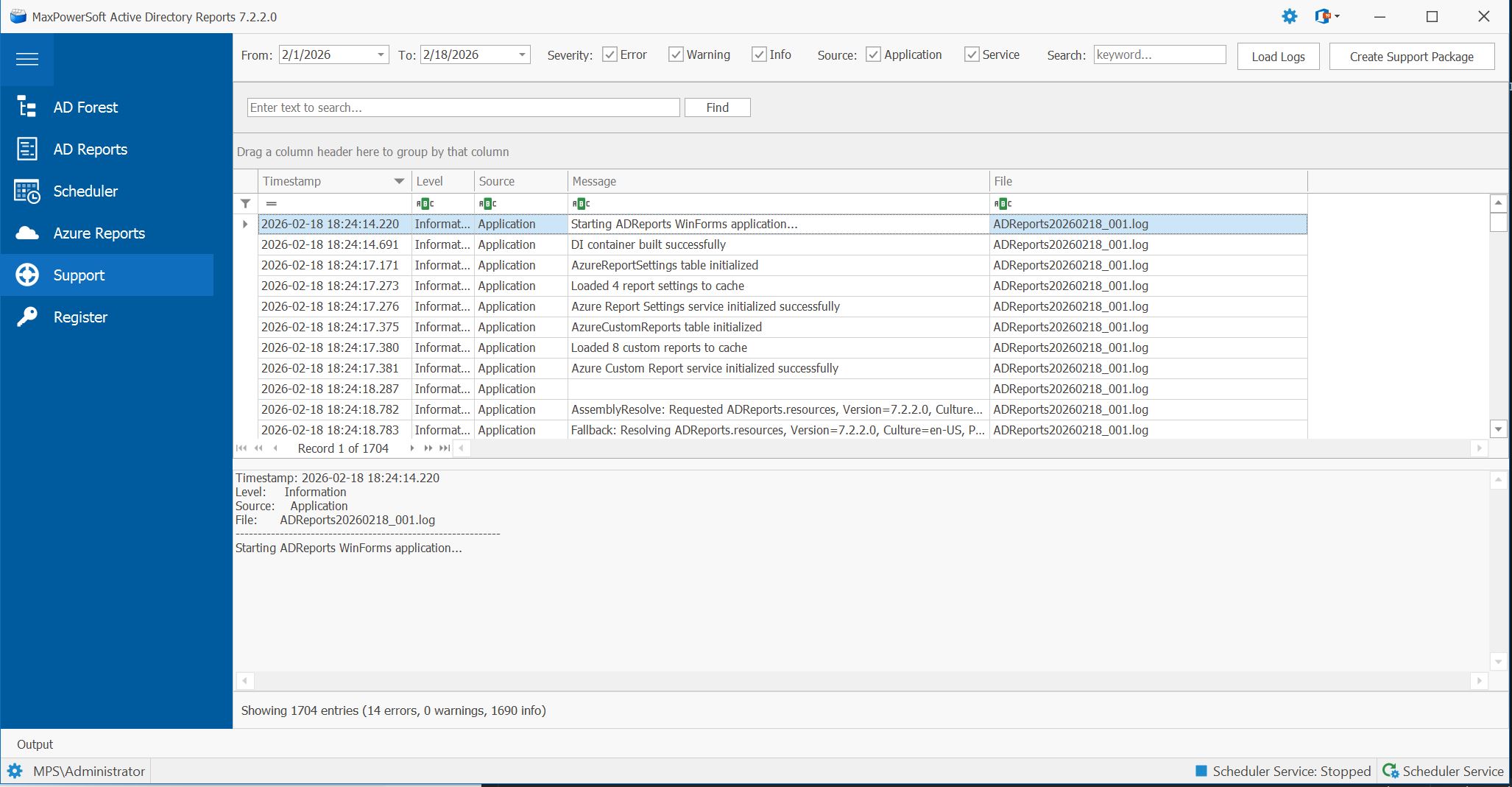
The Diagnostics screen is divided into four areas:
| Area | Description |
|---|---|
| Filter bar (top) | Controls for date range, severity, source, keyword, and action buttons. |
| Log Entries grid (middle) | Tabular list of all loaded log entries, sortable and searchable. |
| Entry Details panel (bottom) | Full text of the currently selected log entry, including stack traces. |
| Status bar (very bottom) | Shows the current state — Ready, loading progress messages, or a result summary. |
Setting the Date Range
The From and To date pickers at the left of the filter bar control which log files are read.
- Click the From date field and select the start date from the calendar popup.
- Click the To date field and select the end date.
Both fields default to today's date when you first open the screen. You can also type a date directly into either field.

Choosing Severity Levels
Three severity checkboxes appear in the Severity group:
| Checkbox | Includes |
|---|---|
| Error | Error and Fatal entries |
| Warning | Warning entries |
| Info | Informational entries |
| Debug New in 7.5.4 | Debug entries — only written while the Log level is set to Debug (see step 14) |
Error, Warning and Info are checked by default; Debug is unchecked so verbose entries stay out of the way. Uncheck one or more to narrow the results — for example, uncheck Info and Warning to see only errors — and check Debug after reproducing a problem with Debug logging on, then uncheck it again afterwards.

Choosing Log Sources
The Source group has two checkboxes:
| Checkbox | Log files read |
|---|---|
| Application | Logs produced by the ADReports desktop application. |
| Service | Logs produced by the ADReports background scheduler service. |
Both are checked by default. You must leave at least one source checked — if you uncheck both, the load will not start.

Searching by Keyword
The Search field (labeled keyword...) filters entries by text content.
- Click the Search field to the right of the Source checkboxes.
- Type a keyword, error code, username, or any text fragment.
- Press Enter (or click Load Logs). Only entries whose message text contains the keyword will be loaded.
Leave the field blank to load all entries matching the other filters. The search is case-insensitive.

Loading Log Entries
Once your filters are set:
- Click the Load Logs button at the right of the filter bar.
- The status bar at the bottom of the screen shows progress as each log file is read.
- When loading is complete, the status bar displays a summary such as:
Showing 342 entries (15 errors, 27 warnings, 300 info)

Reading the Log Grid
Loaded entries appear in the grid with the following columns:
| Column | Description |
|---|---|
| Timestamp | Date and time of the entry (yyyy-MM-dd HH:mm:ss.fff). Sorted newest-first by default. |
| Level | Severity: Information, Warning, Error, or Fatal. |
| Source | Which component wrote the entry: Application or Service. |
| Message | First line of the log message. |
| File | Name of the originating log file (e.g., ADReports20250207.log). |
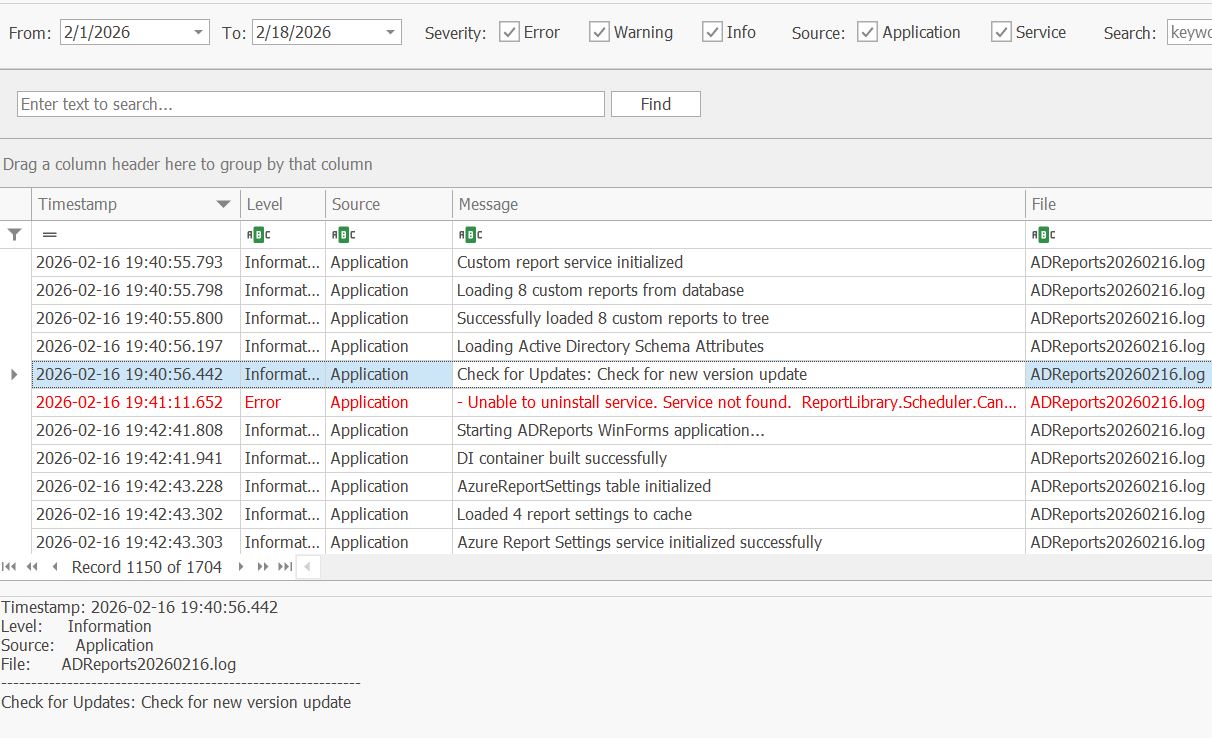
Color coding: Error and Fatal entries appear in red, Warning entries in dark orange, and Informational entries in normal text.
Click any column header to sort by that column. Use the auto-filter row (the blank row directly below the column headers) to type a quick filter on any column without reloading. Use the Find panel to search across all columns simultaneously, and the navigator bar at the bottom of the grid to page through results.
Viewing Entry Details
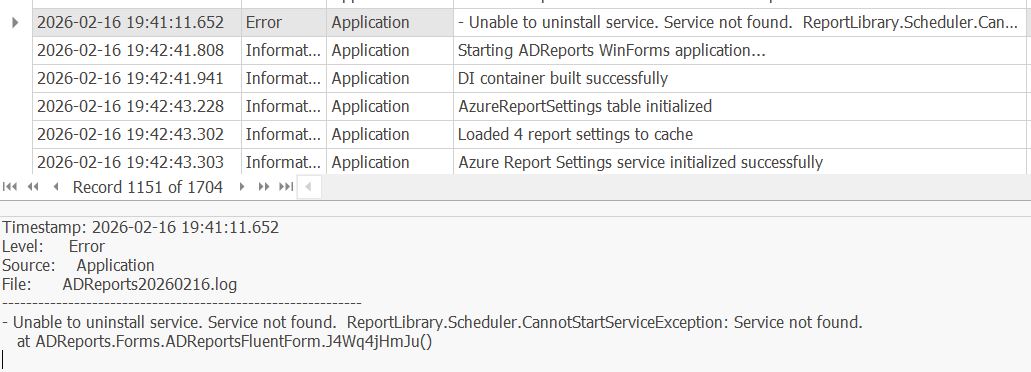
Clicking any row in the grid displays the full entry text in the Entry Details panel below the grid. This panel shows the full-precision timestamp, severity level, source, originating log file name, and the complete log message — including multi-line stack traces and exception details.
Cancelling a Load in Progress
If loading is taking a long time (e.g., a very wide date range):
- Click the Cancel button that replaces the Load Logs button during loading.
- The status bar shows Cancelling... briefly, then displays a partial-results summary:
Showing 120 entries (3 errors, 8 warnings, 109 info) — partial results (loading was cancelled) - The entries loaded so far remain in the grid and can still be used to create a support package.
Creating a Support Package
A Support Package is a ZIP archive that bundles the filtered log data with system information. You can send this file to technical support for faster diagnosis.
- Load the logs using your desired filter settings (see steps 3–7 above).
- Click the Create Support Package button at the far right of the filter bar.
- A confirmation dialog appears showing a summary of the package contents: time range covered, total number of entries, sources included, any active keyword search, and estimated file size.
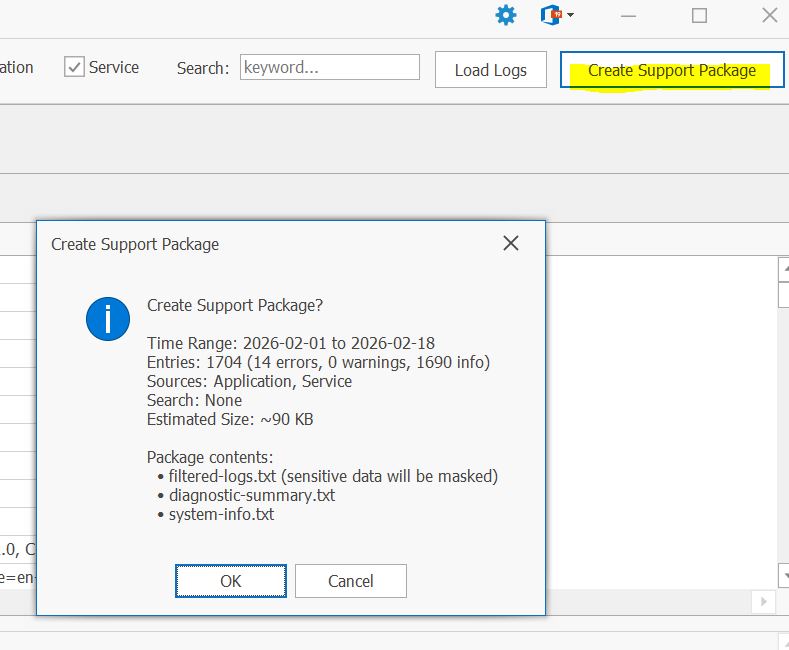
- Click OK to proceed, or Cancel to go back.
- The package is created immediately — there is no Save As dialog any more 7.5.4. It is saved to a Support folder beside your log files, and its name includes the date and time, so a second package never overwrites the first.
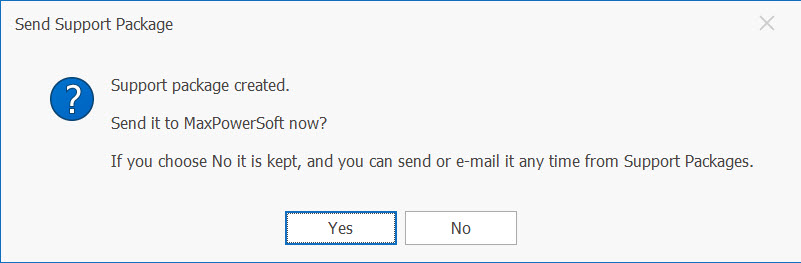
- You are then asked whether to send the package to MaxPowerSoft. Click Yes and it uploads over HTTPS and shows a reference number to quote when you contact us. Click No and the package is simply kept on disk — you can send, e-mail or delete it later from Support Packages.
What the package contains:
| File | Contents |
|---|---|
filtered-logs.txt |
All displayed log entries. Sensitive data (passwords, tokens, etc.) is automatically masked before inclusion. |
diagnostic-summary.txt |
Starts with a Findings section New in 7.5.4 listing known problems recognised in your log — what is wrong, how to fix it, and how often it happened — followed by the statistics and filter criteria used to produce the log set. |
job-history.txt New in 7.5.4 |
Recent scheduled runs with their status and any error, plus a summary of how e-mail is configured. Passwords are never included. |
system-info.txt |
OS version, .NET version, machine name, the Windows account the application runs as, and other environment details useful for support. |
Send, E-mail or Delete Packages Later New in 7.5.4
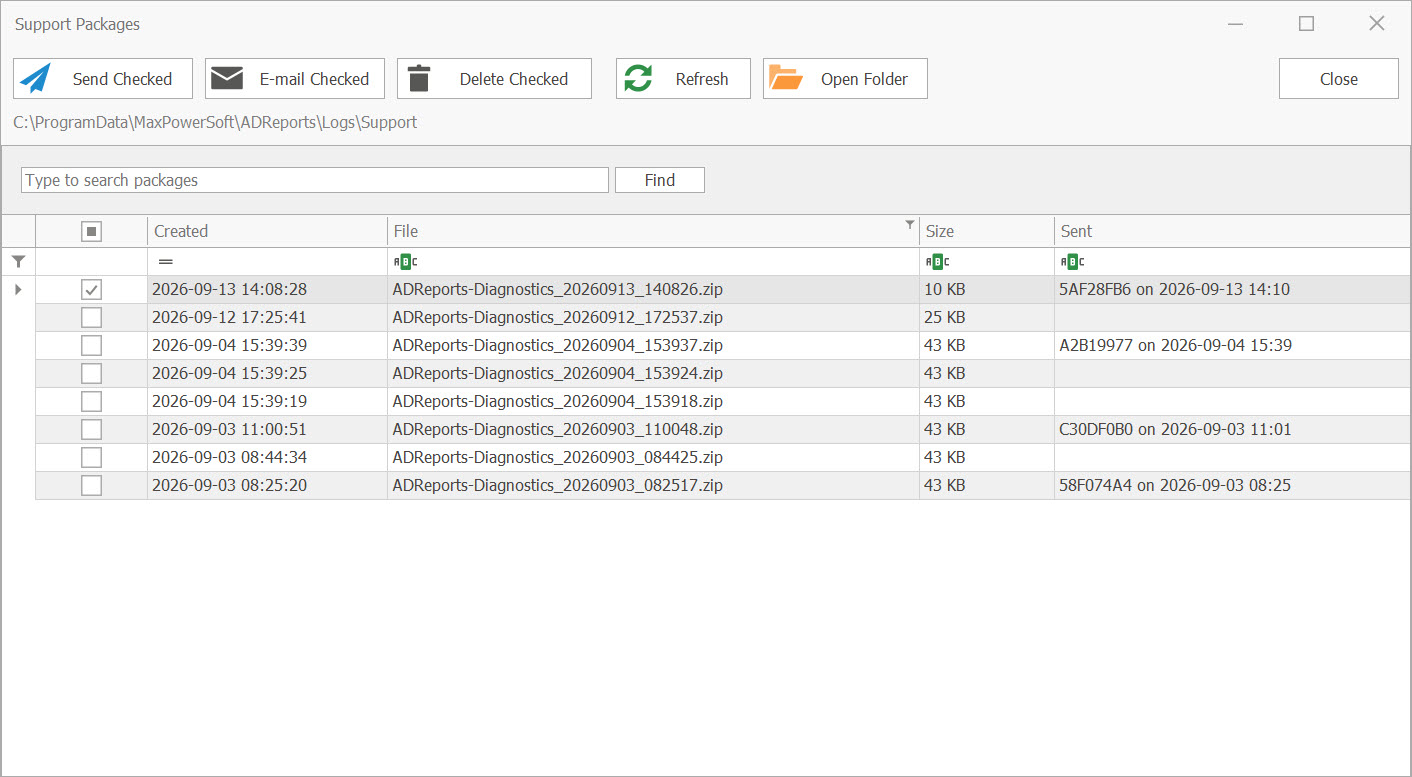
Click Support Packages on the Support ribbon to see every package on this machine. Check the ones you want and use the buttons above the list:
- Send Checked — uploads the checked packages to MaxPowerSoft over HTTPS and shows the reference number for each. A package that failed to send earlier can simply be sent again — there is no need to rebuild it.
- E-mail Checked — e-mail the checked packages yourself instead of uploading them.
- Delete Checked — removes the checked packages from disk.
The list shows which packages were already sent and their reference number, and it can be sorted, searched and filtered like any other list in the application.
Check Which Windows Account Is Running AD Reports New in 7.5.4
The bottom of the Support page shows the Windows account the application is running as and the log folder it writes to. Support packages report both as well.
Choose How Much Detail Is Logged New in 7.5.4
Settings → General now has a Log level setting: Debug, Information, Warning or Error. It applies immediately to both the application and the Scheduler Service — no restart needed.
The typical support workflow:
- Set the Log level to Debug.
- Reproduce the problem.
- On the Support page, check the Debug severity, load the logs and create a support package.
- Set the Log level back to Information — Debug logging is verbose and makes the log files grow quickly.

Tips & Troubleshooting
| Situation | What to do |
|---|---|
| No entries found | Widen the date range, or ensure at least one severity and one source are checked. |
| "From date cannot be after To date" error | Correct the date fields so that From is earlier than or equal to To. |
| "Please select at least one log source" error | Check at least one of the Application or Service checkboxes. |
| Load is very slow | Narrow the date range to a shorter period, or cancel and refine your filters. |
| Create Support Package button is greyed out | You must successfully load at least one log entry before the button becomes active. |
| Entry details are empty | Click a row in the grid to select it; the details panel updates automatically. |
| I need logs from multiple date ranges | Load and export one range first, then change the dates and create a second package. |
| A package failed to send, or I chose No and want to send it now | Open Support Packages, check the package and click Send Checked. Sent packages show their reference number. |
| Scheduled e-mails fail but the application sends fine | Compare the account shown at the bottom of the Support page with the account the Scheduler Service runs as (see step 13). |
| Support asked for a Debug log | Set Settings → General → Log level to Debug, reproduce the problem, create the package, then set it back (see step 14). |