How to Save and Load Report Settings
If you have multiple system administrators working with Active Directory Reports, there may be instances where you need to use the same report settings across different computers. AD Reports offers a feature that allows you to save report definitions to a binary file, which can then be loaded onto another computer to update the report definitions.
Save Report Settings
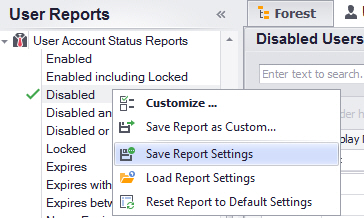
To save the settings of a report, simply right-click on the report and choose "Save Report Settings".
Enter the desired file name for the report definitions file (by default, the file name is the same as the report name).
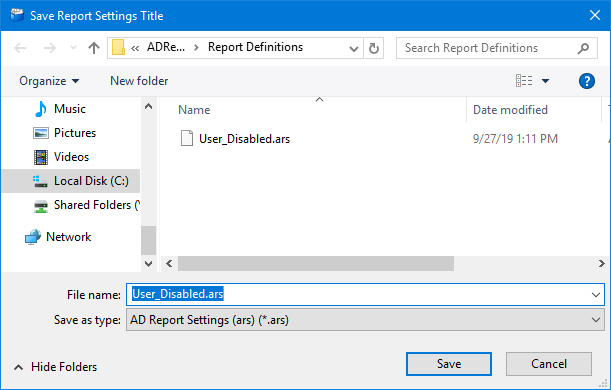
Click Save.
Load Report Settings
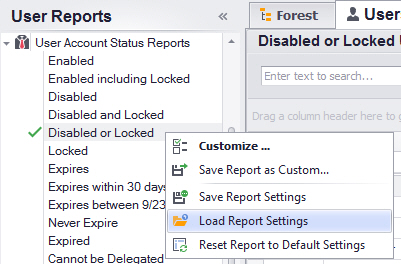
To update a report with saved settings, right-click on the report you wish to modify and select "Load Report Settings".
In the "Load Report Settings" dialog window, choose the report whose settings you want to apply to the currently selected report.
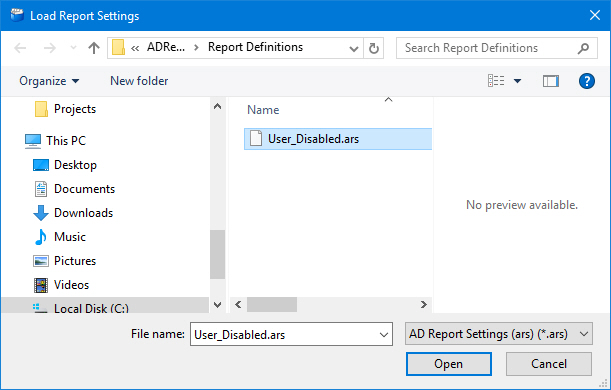
Click Open.
In the confirmation dialog window, click "Yes" to proceed.
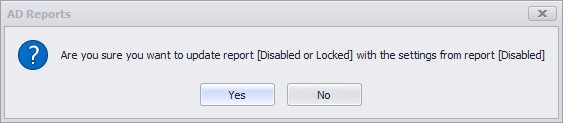
The new settings will be applied, and the report will be reloaded with the updated configuration.