Build a Compliance Evidence Pack
Auditors want evidence that your reports ran, on schedule, and what they found. The Compliance Evidence Pack turns AD Reports' scheduled run history into a dated PDF or Excel document for any period: every scheduled report that ran and whether it was delivered, coverage against PCI-DSS, SOC 2, ISO 27001, HIPAA and NIST 800-53 — including the relevant reports that did not run — and what changed between runs, with space for a reviewer to sign. New in 7.6
How the Evidence Builds Up
The pack is built from your scheduled runs — scheduled reports, audit profiles, Entra ID reports and Hybrid Identity reports. Reports you run by hand are not part of it, so schedule the reports and audit profiles you want evidence for.
Each scheduled run also records what changed since its previous run — the accounts, groups or computers that were added, removed or altered. Only the changes are stored, not the whole report, so it takes very little space.
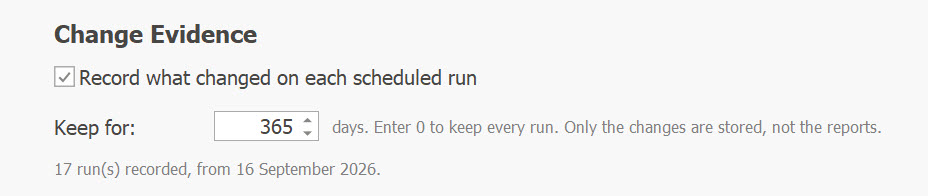
Settings → Scheduler → Change Evidence controls it:
- Record what changed on each scheduled run — on by default; uncheck to stop recording.
- Keep for — 365 days by default. Enter 0 to keep every run.
- The section also shows how much has been recorded so far.
Start with a Ready-Made Compliance Profile
Two built-in audit profiles appear on the Audit page when you upgrade (your own profiles are untouched):
- ★ PCI-DSS Quarterly (22 reports) — privileged access and least privilege, account identification and authentication, configuration standards, and unsupported operating systems.
- ★ SOC 2 Annual (23 reports) — privileged access, account provisioning and deprovisioning, group-based access and effective permissions.
Schedule the profile that matches your audit and every run adds to your evidence. A scheduled audit profile counts toward coverage for every report in it. To build your own set, use the Compliance filter in the audit profile editor.
Generate the Pack
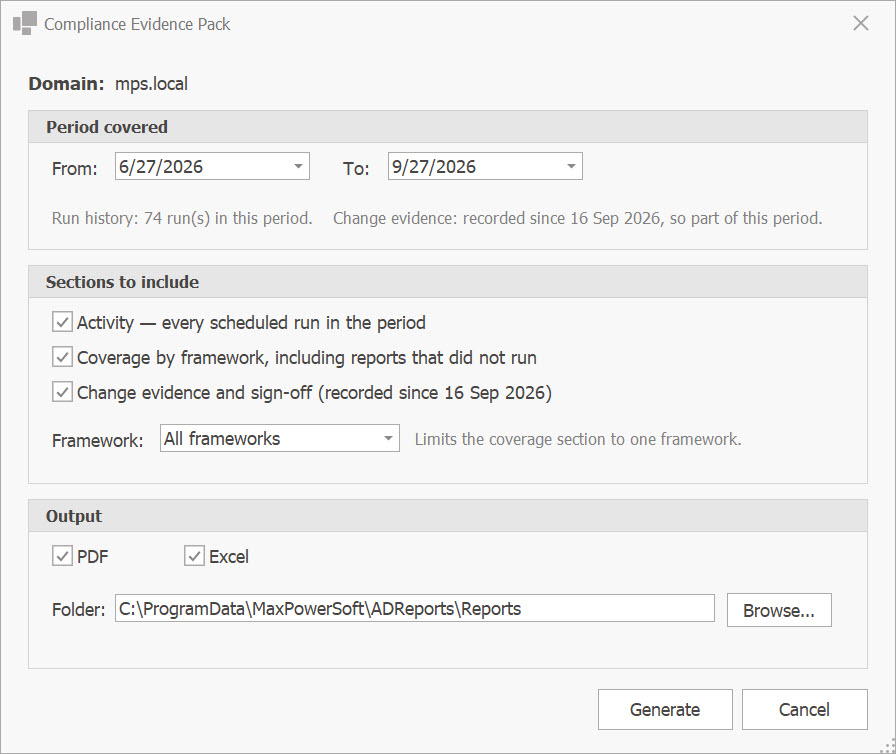
- Open the Audit page and click Evidence Pack on the Audit ribbon.
- Check the Domain at the top of the window — it is the domain selected on the Audit page, or All domains when none is selected.
- Set the Period covered — From and To.
-
Under Sections to include, check the sections you want:
- Activity — every scheduled run in the period
- Coverage by framework, including reports that did not run
- Change evidence and sign-off
- Pick a Framework to limit the coverage section to one, or leave All frameworks.
- Under Output, choose PDF, Excel, or both, and the Folder to save in.
- Click Generate. When the pack is written, AD Reports offers to open the folder.
Before you generate, the window shows what the period can actually evidence — how many runs it contains and how much change evidence has been recorded — and the document repeats it, so a thin section is never mistaken for a quiet period.
What the Pack Contains
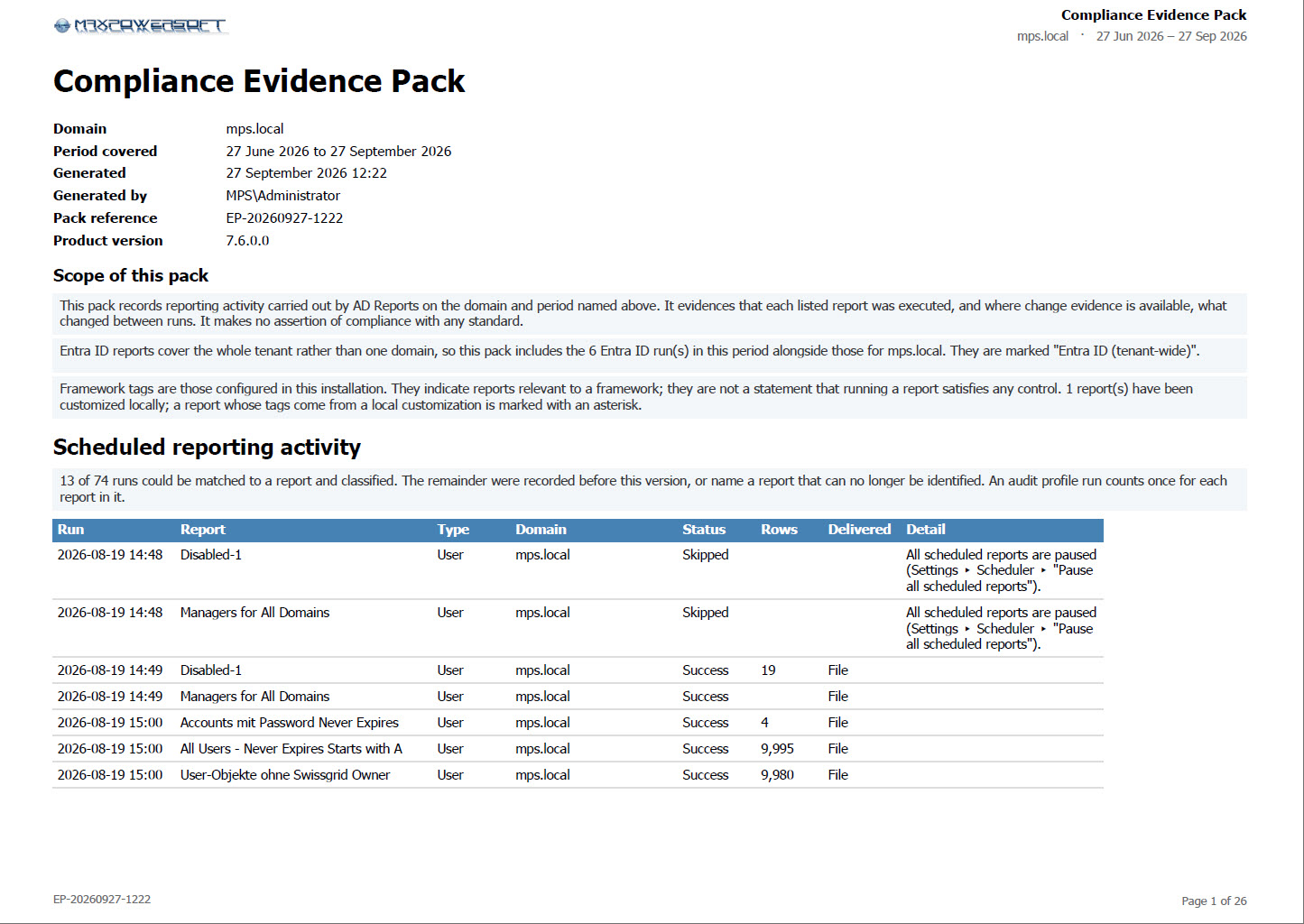
- Cover — the period covered, when and by whom it was generated, a pack reference, the product version, and the scope of the pack. It carries your company logo.
- Scheduled reporting activity — every scheduled run in the period and whether it was delivered.
- Coverage by framework — for each framework, the relevant reports that ran and those listed under Not run during this period. A report that failed shows as failed even when the rest of its audit profile ran; a paused or disabled schedule shows its reports as skipped.
- Change evidence — what changed between runs, counted by run, with space for a reviewer to sign.
- A section you leave out is left out of the document, and the cover says so — there is no empty section that would read as a quiet period.
- Scheduled Entra ID reports cover the whole tenant and are marked Entra ID (tenant-wide).
- A report name shared by several reports is printed with its folder, e.g. Disabled — User Account Status Reports; a custom report appears under its own name.
Adjust the Framework Tags
108 reports ship tagged as relevant to one or more frameworks. Your auditor's view may differ, so the tags are yours to change: in the New/Edit Audit Profile window the Compliance column shows each report's frameworks, and Edit Tags... changes them for the selected report. See Filter by Compliance Framework.
The pack prints the tags as configured in your installation.