How to Apply LDAP Filter to Other Reports
1
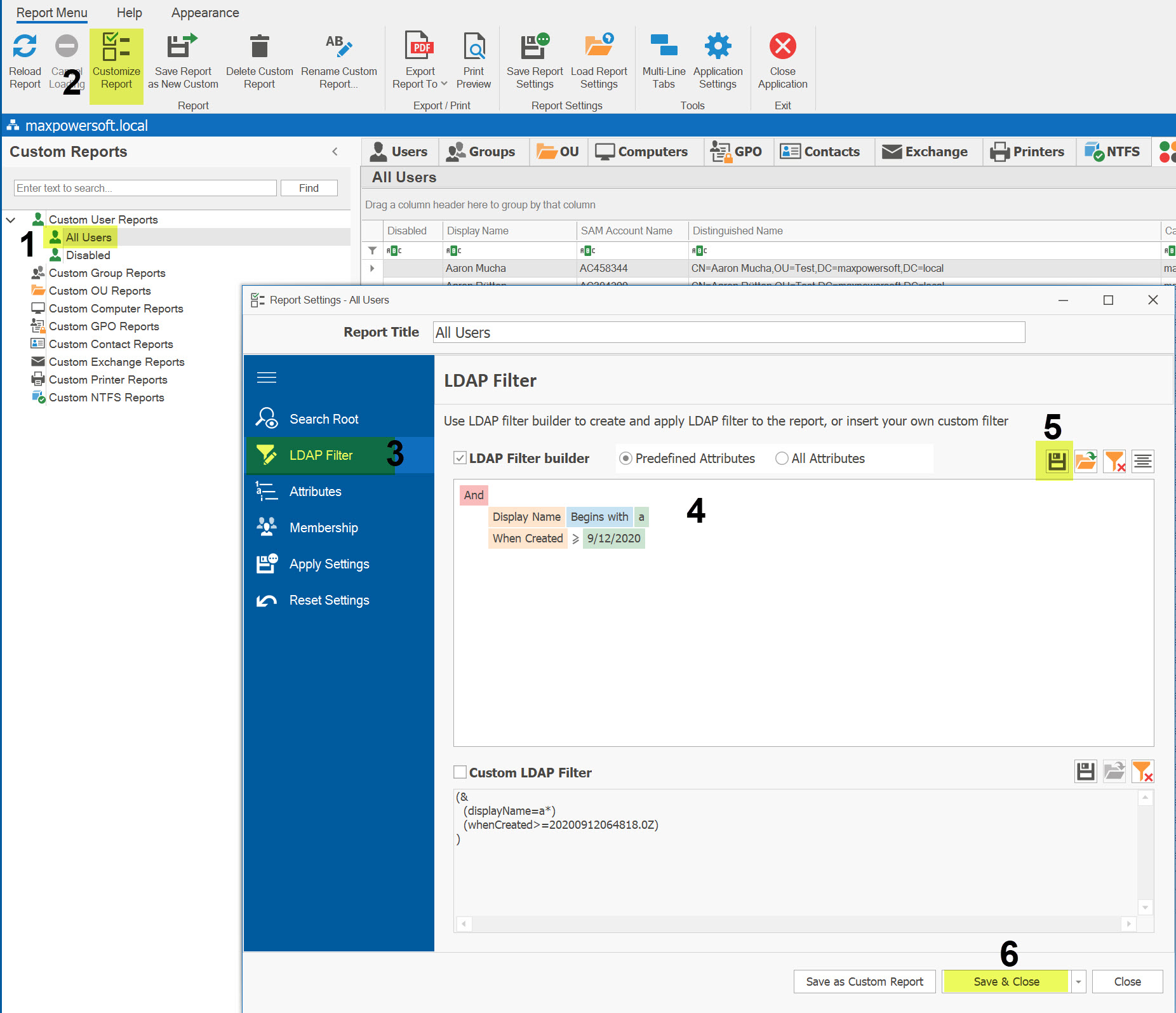
Save an LDAP Filter
If you need to apply an LDAP filter created in one report to other reports, follow these steps:
- Select the report where you want to create the LDAP filter.
- Click Customize Report.
- Navigate to the LDAP Filter page.
- Create the LDAP filter using the built-in filter builder.
- Click the Save to File button to save the filter for future use.
- Close the report wizard.
2
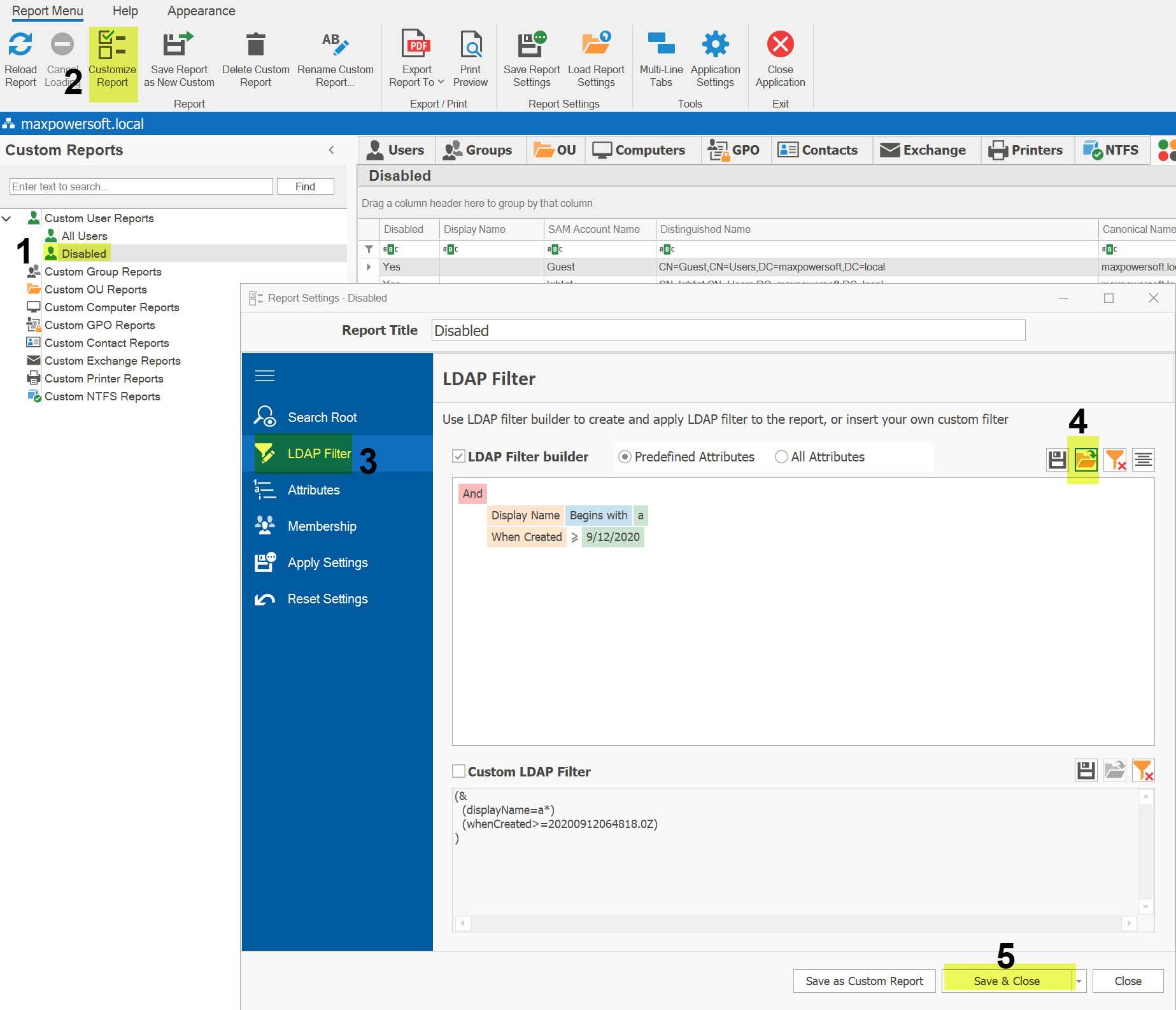
Load and Apply the Filter
To apply the saved LDAP filter to another report, follow these steps:
- Select the other report where you want to apply the filter.
- Click Customize Report.
- Navigate to the LDAP Filter page.
- Click the Load from File button to load the previously saved filter. The LDAP filter will appear in the filter builder area.
- Click Save & Close to apply the filter to the new report.
If you have any questions or need assistance, please don't hesitate to contact us.