Save and Customize Reports for All Domains
In a multi-domain environment, it can be helpful to run reports with similar settings across different domains. In AD Reports, you can create and save custom reports for the current domain or all domains.
Save a Report for All Domains
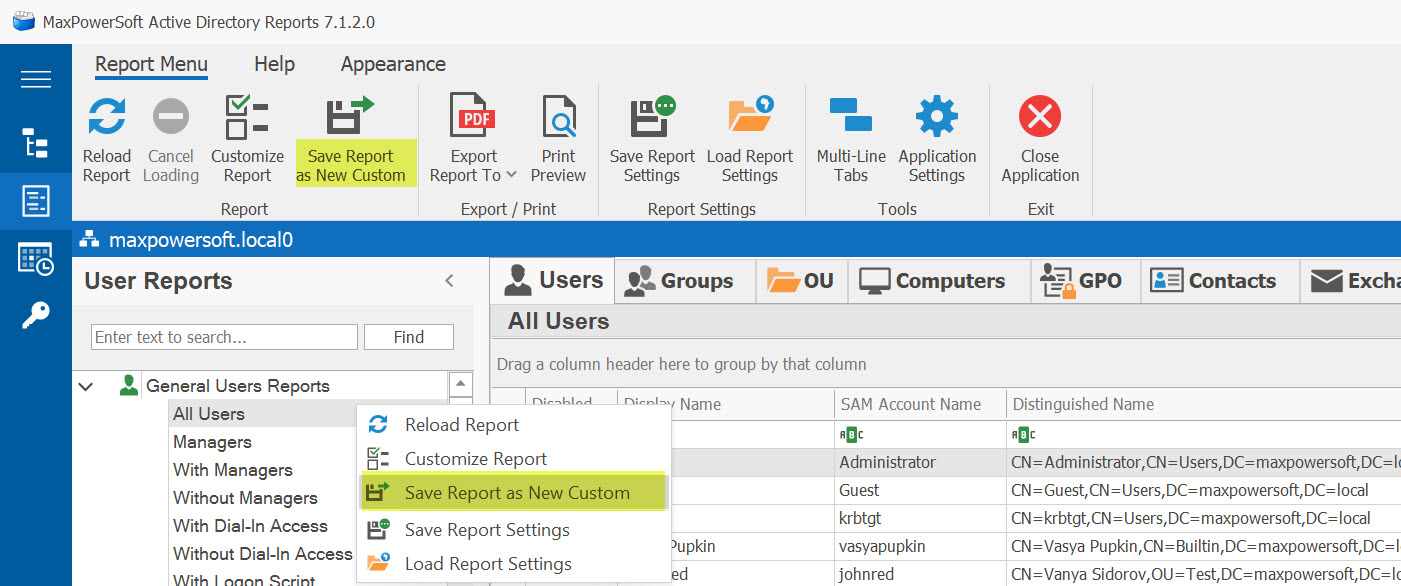
Right-click on any report and select Save Report as New Custom from the pop-up menu. Alternatively, you can select any report from the report tree and click on Save Report as New Custom from the toolbar.
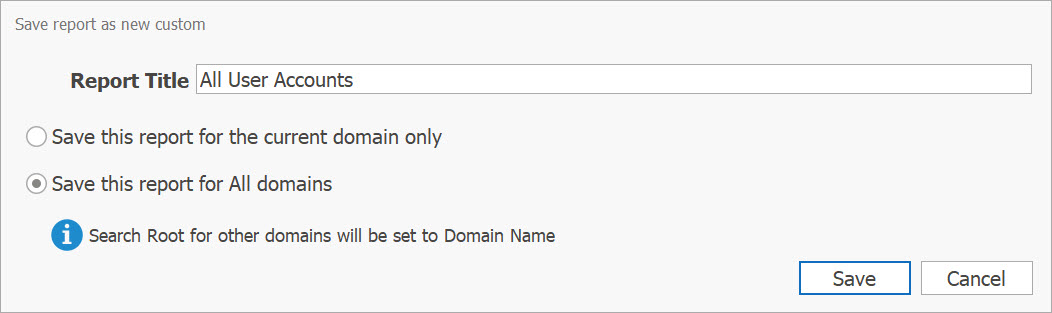
In the new dialog window, enter a new report title and select Save report for All domains. You will see an information message indicating that Search Root of other domains will be set to Domain Name. This is necessary because each domain has a unique name and structure, so we cannot use the Search Root of one domain for another domain. You can customize the Search Root for each individual domain after saving the report.
View the Saved Report
After clicking the Save button, the new custom report will be saved for the current domain and separately for all domains. AD Reports will switch to the Custom reports tab for the current domain and load the newly created custom report.
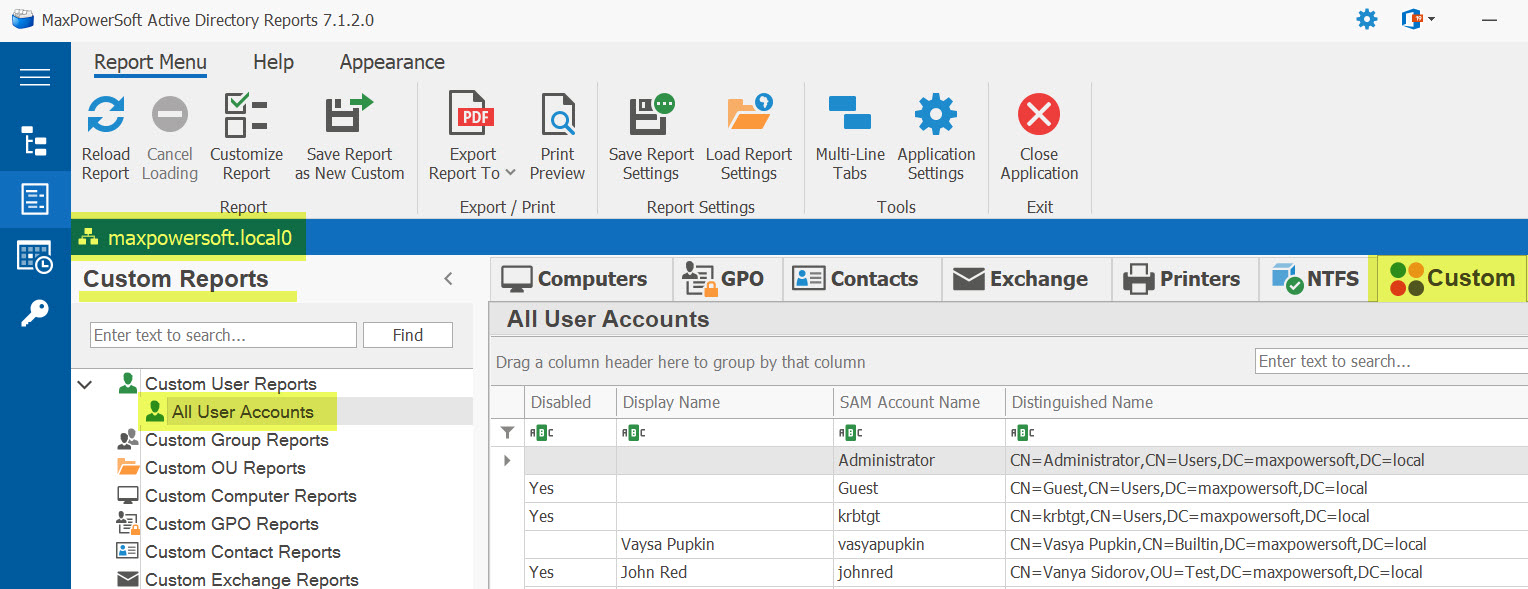
If you switch to another domain, you will find the same custom report saved for each domain.
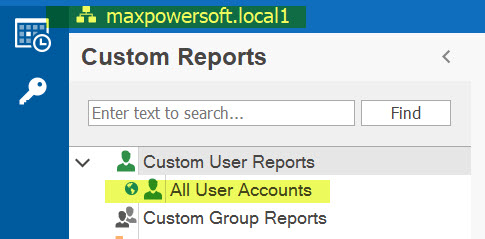
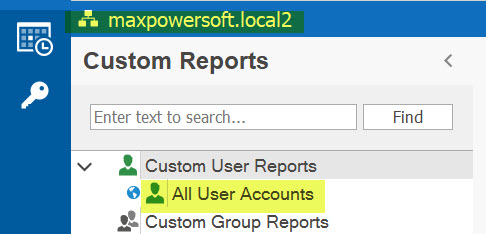
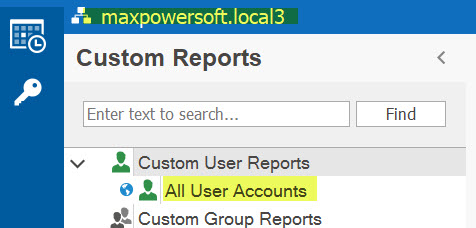
The little blue globe icon
 indicates that this report was saved from another domain as a report for All Domains and has not been updated for the current domain yet. This icon helps identify which reports are already saved or updated for the selected domain and which reports serve as Templates for other domains.
Customize for a Specific Domain
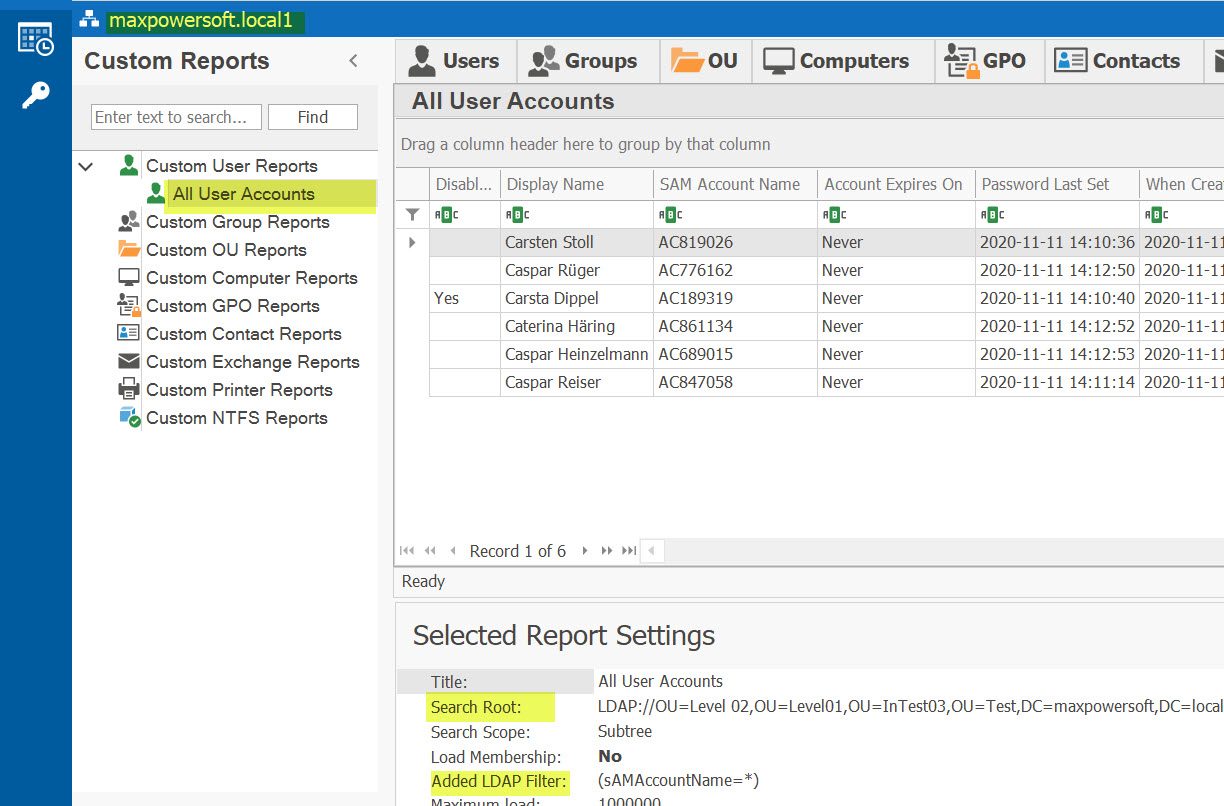
For example, let's switch to another domain, maxpowersoft.local1, and select our newly saved report All User Accounts. Select Customize Report from the toolbar or pop-up menu. Let's change some report settings, such as the Search Root, LDAP Filter, and some attributes:
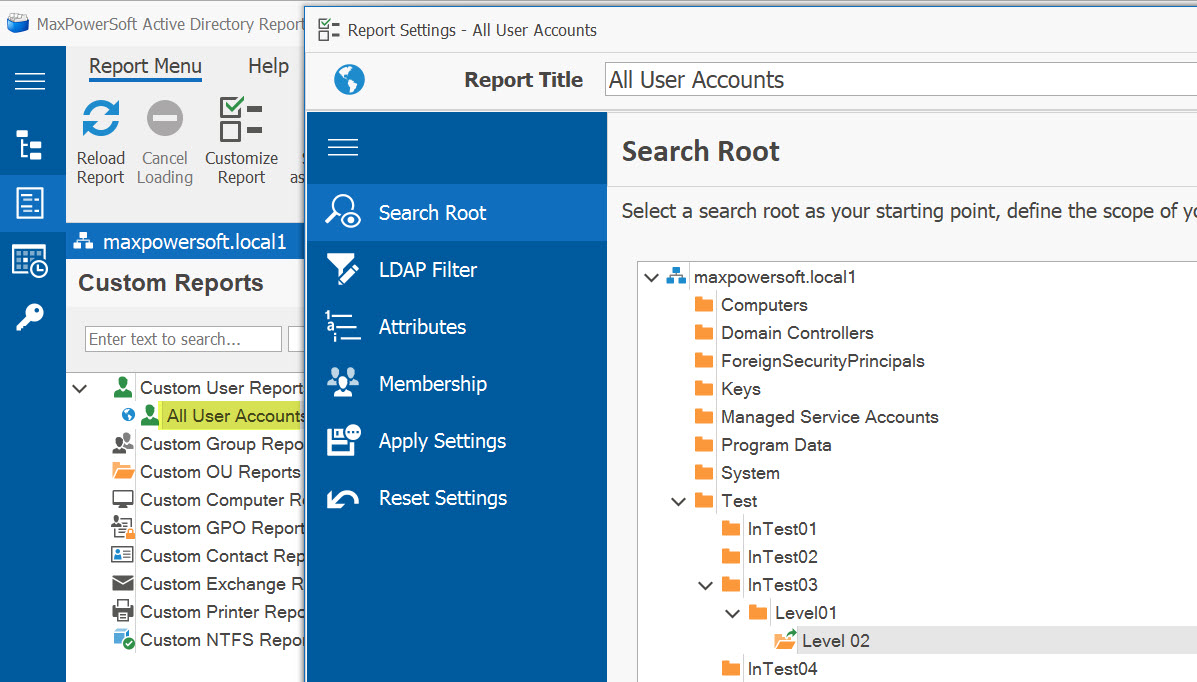
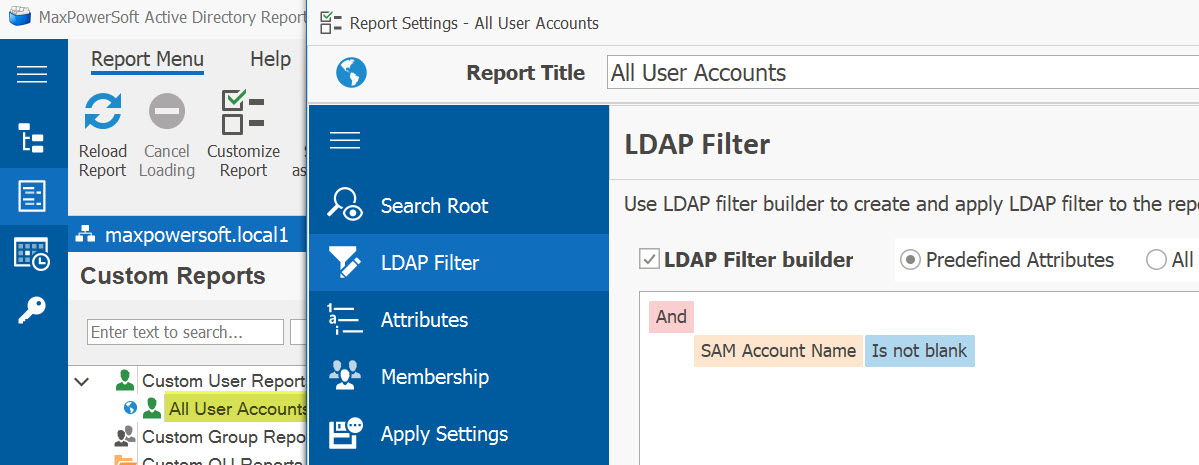
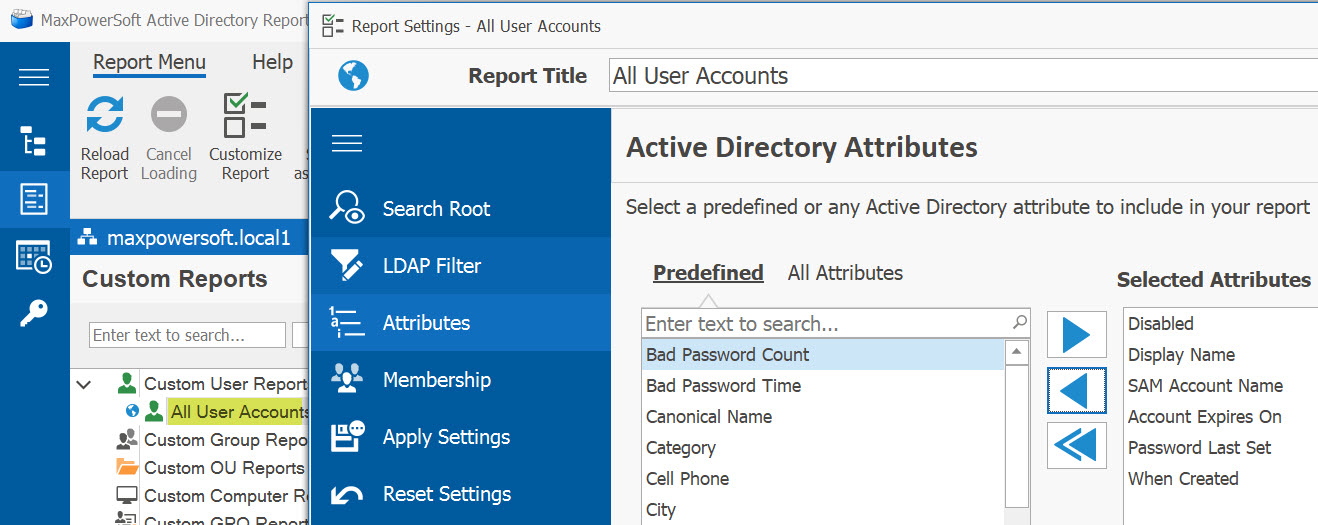
Click Save & Close

The report is saved for the current domain maxpowersoft.local1, reloaded, and the globe
All Domain icon disappears from the report title in the report tree.
The same report settings will also apply to other All Domain reports (reports with the blue globe icon).
The original report from the domain maxpowersoft.local0 will not be updated since it was already saved and updated for that specific domain.
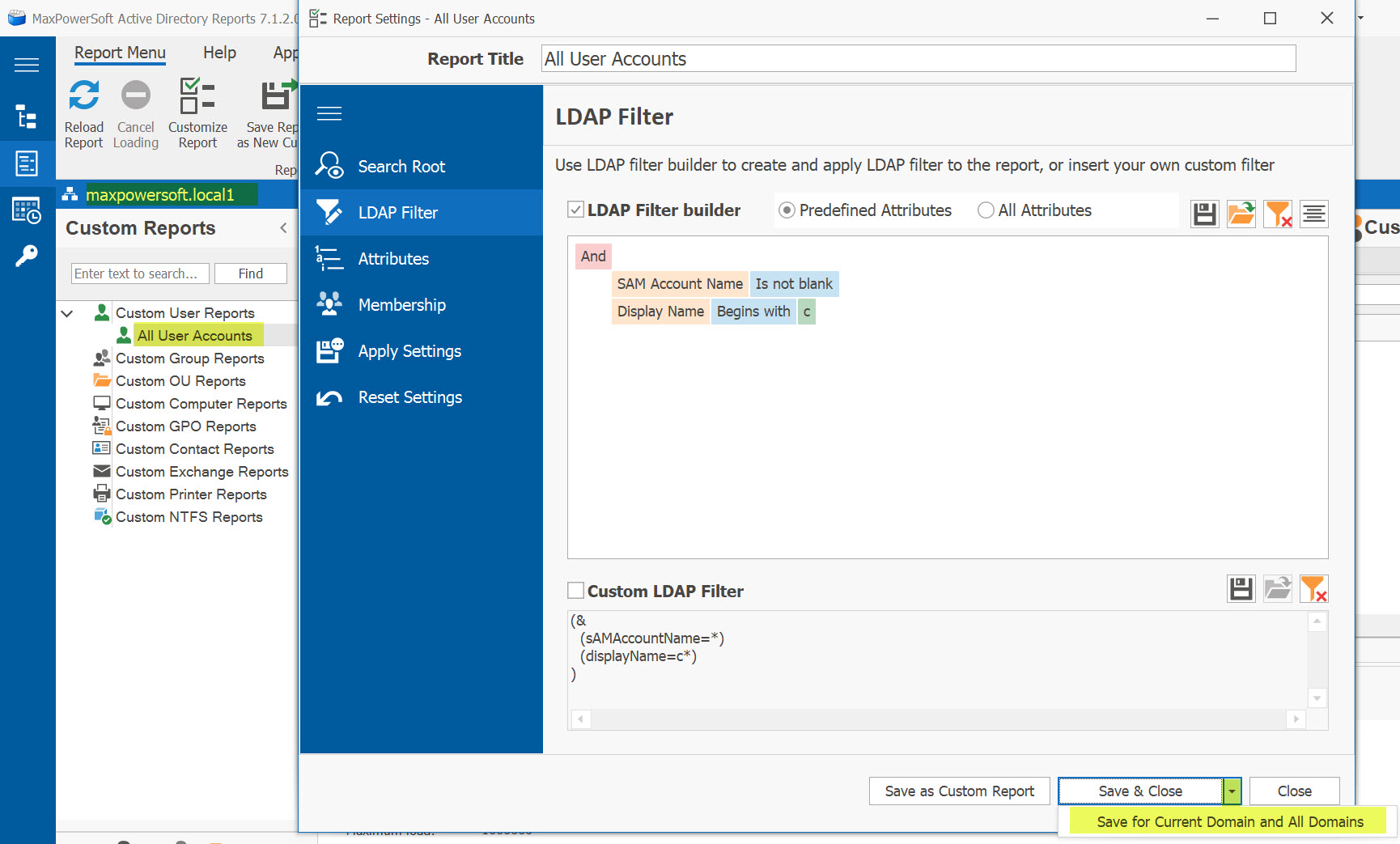
Apply Settings to All Domains
If we want to apply the settings of the newly created custom report to all other domains, we can customize it and select Save for Current Domain and All Domains from the pulldown menu of the Save & Close button. This option is only available for reports saved for a specific domain and will not be available for All Domain reports that are already saved for all domains.
(All Domains report), the option Save for Current Domain and All Domains will not be available. Once the report is saved and the blue globe icon disappears, this option will be available again.
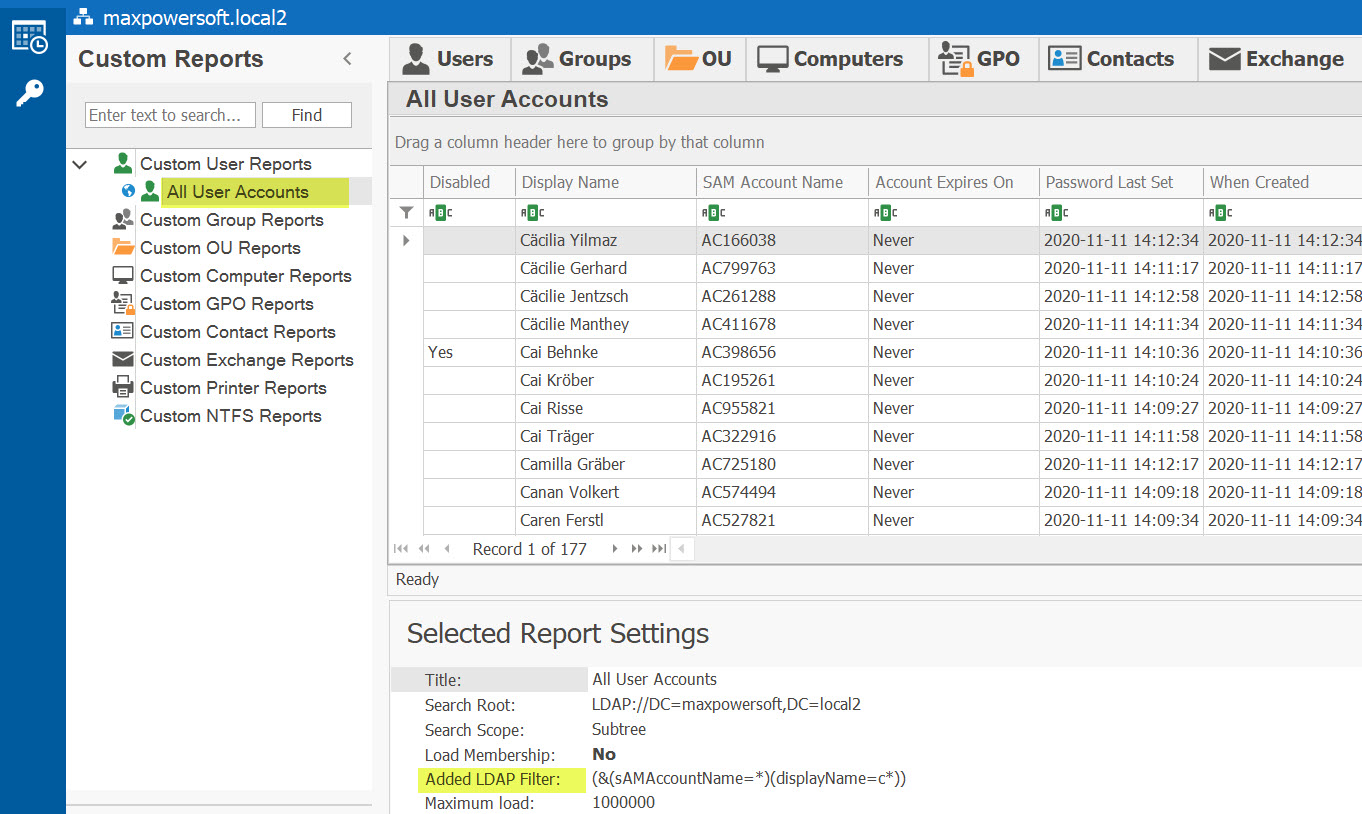
If we load this report in another domain, we can see the new settings have been applied to the All Domain report template.
If we open Report Settings, we can see that this is an All Domain report by the blue globe icon
.
The menu item Save for Current Domain and All Domains is not available in the Save & Close button.
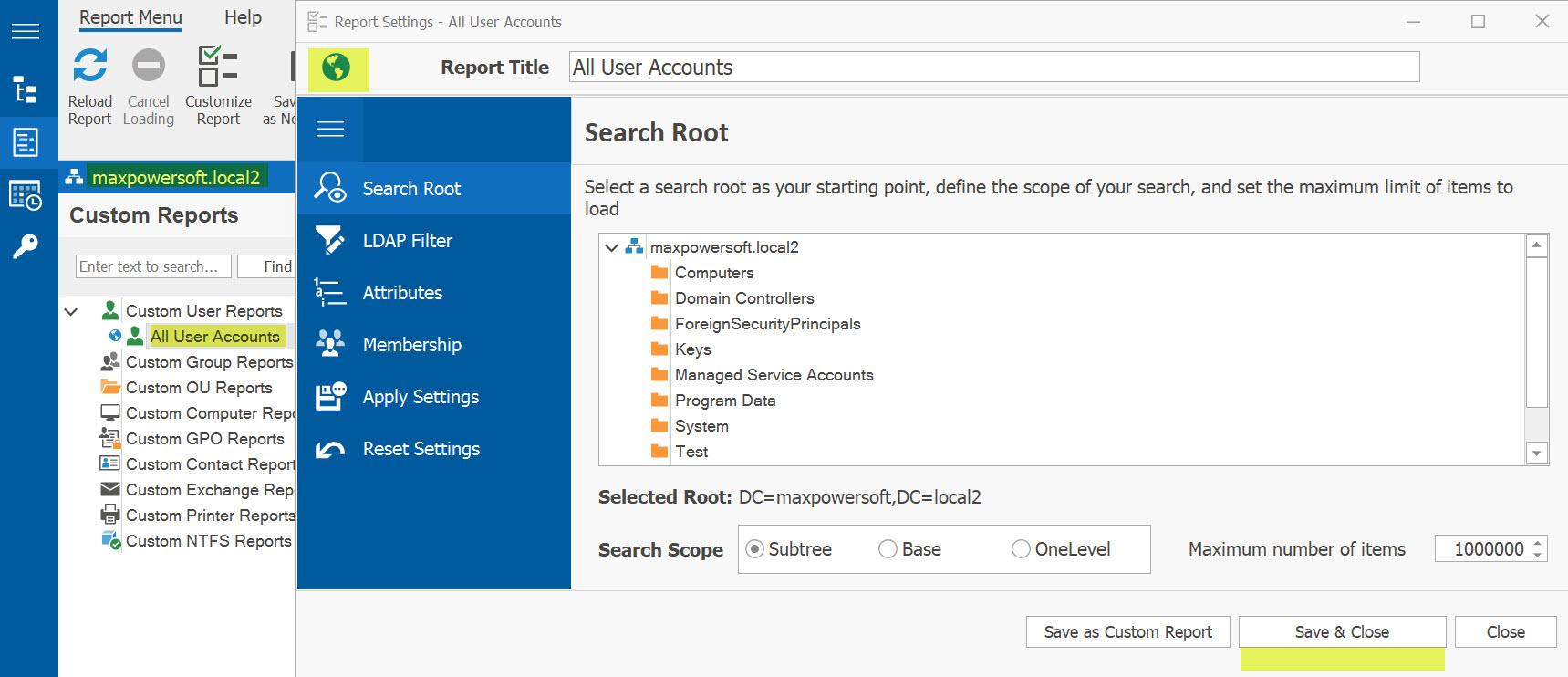
If you click Close, the Settings dialog will be closed and the report will not be updated. If you click Save & Close, and since this report is an All Domain report, it will be saved for all domains and updated for the currently selected domain.