How to Test Scheduler Windows Service
Open the Scheduler Service Dialog
Open Scheduler Service dialog as described in How to use Scheduler Windows Service.
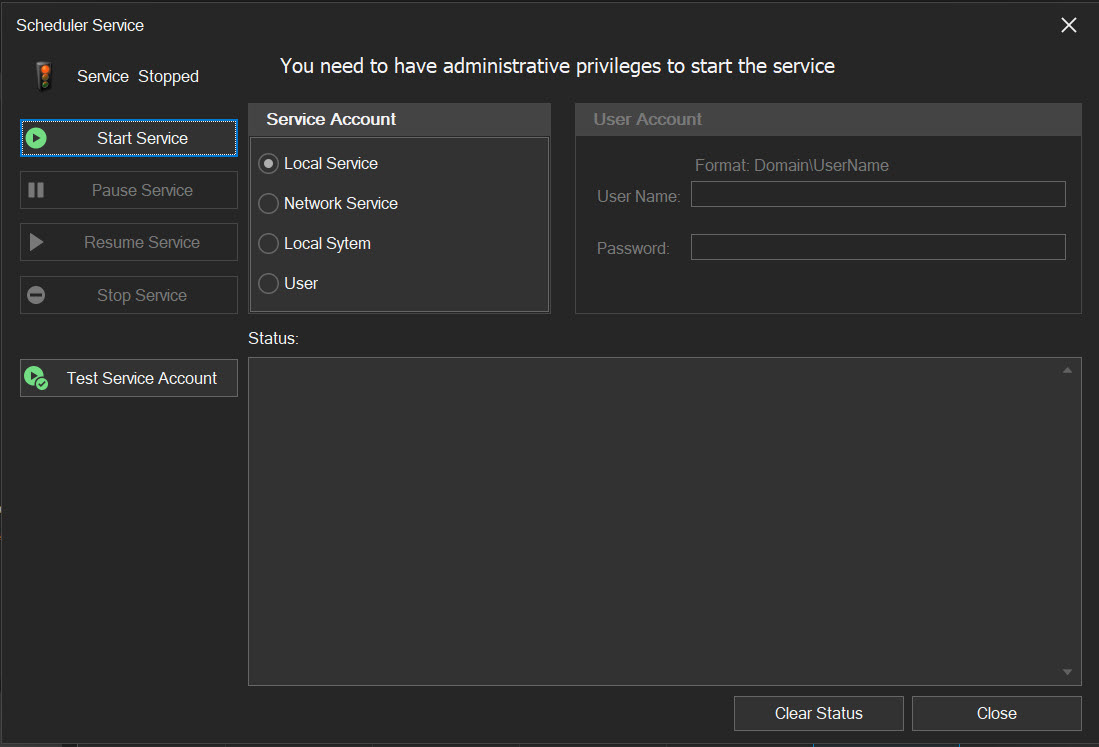
Test the Service Account
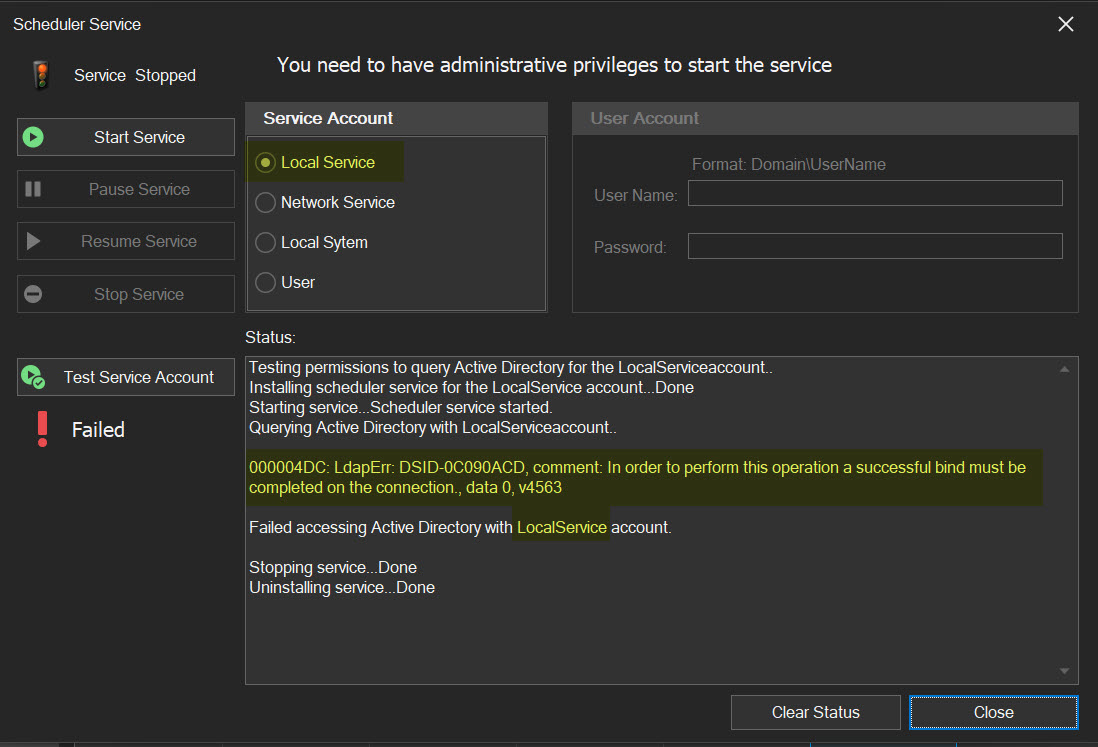
Choose an account to initiate the service, then click the "Test Service Account" button.
If the chosen account lacks the necessary permissions to access Active Directory, an error message will appear in the status log window and a "Failed" status will show up under the "Test Service Account" button. You'll either need to grant this account the required permissions or pick a different account.
Try a Different Account
Choose the "Network Service" account this time and give it another try.
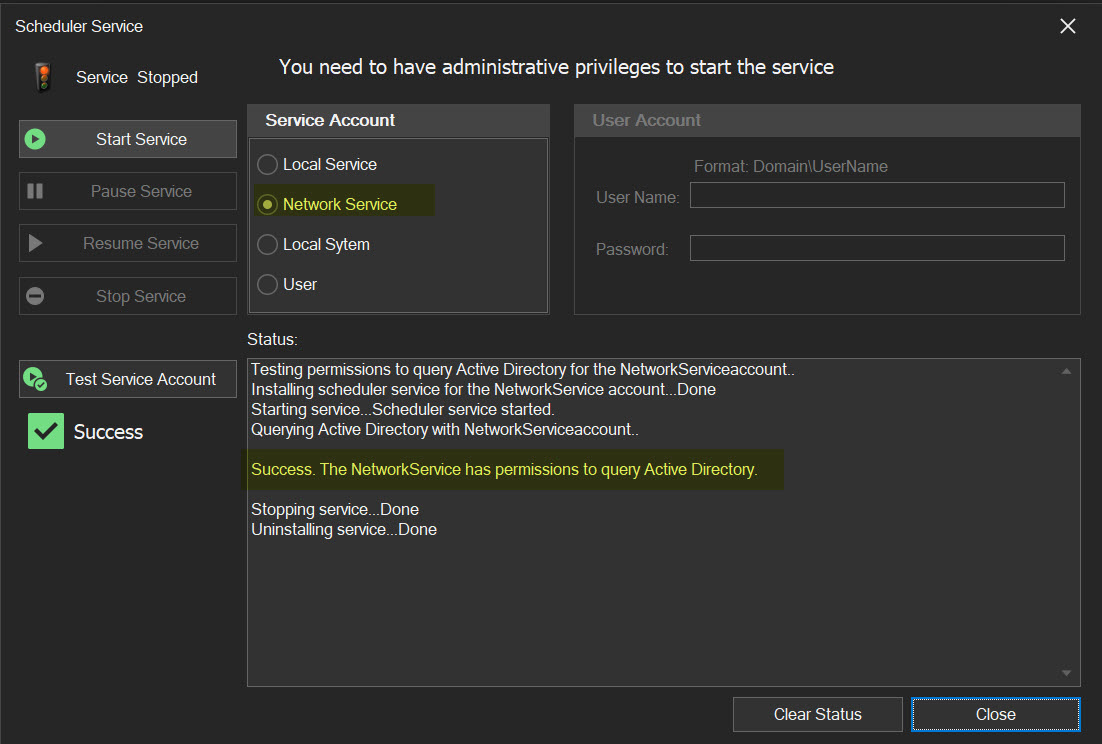
It worked this time. This feature should assist you in deciding which account to use for initiating the scheduler service, preventing missed reports later on. You can now go ahead and start the service.