Azure Applications & Access Reports
AD Reports includes a dedicated Applications & Access tab under Azure Reports with six pre-built reports for auditing app registrations, service principals, role assignments, and license utilization in your Microsoft Entra ID tenant. These reports use the free tier of Microsoft Graph API — no Entra ID P1 or P2 license is required.
Application.Read.All and Directory.Read.All permissions). A consent prompt will appear on first use
if these permissions have not been granted previously.
Navigate to Azure Applications & Access
Click Azure Reports in the left navigation panel, then select the Applications & Access tab. You will see a report tree listing all six available reports.
If you are not yet authenticated, click the Sign In button or follow the Azure Authentication Settings guide to connect your Microsoft admin account.
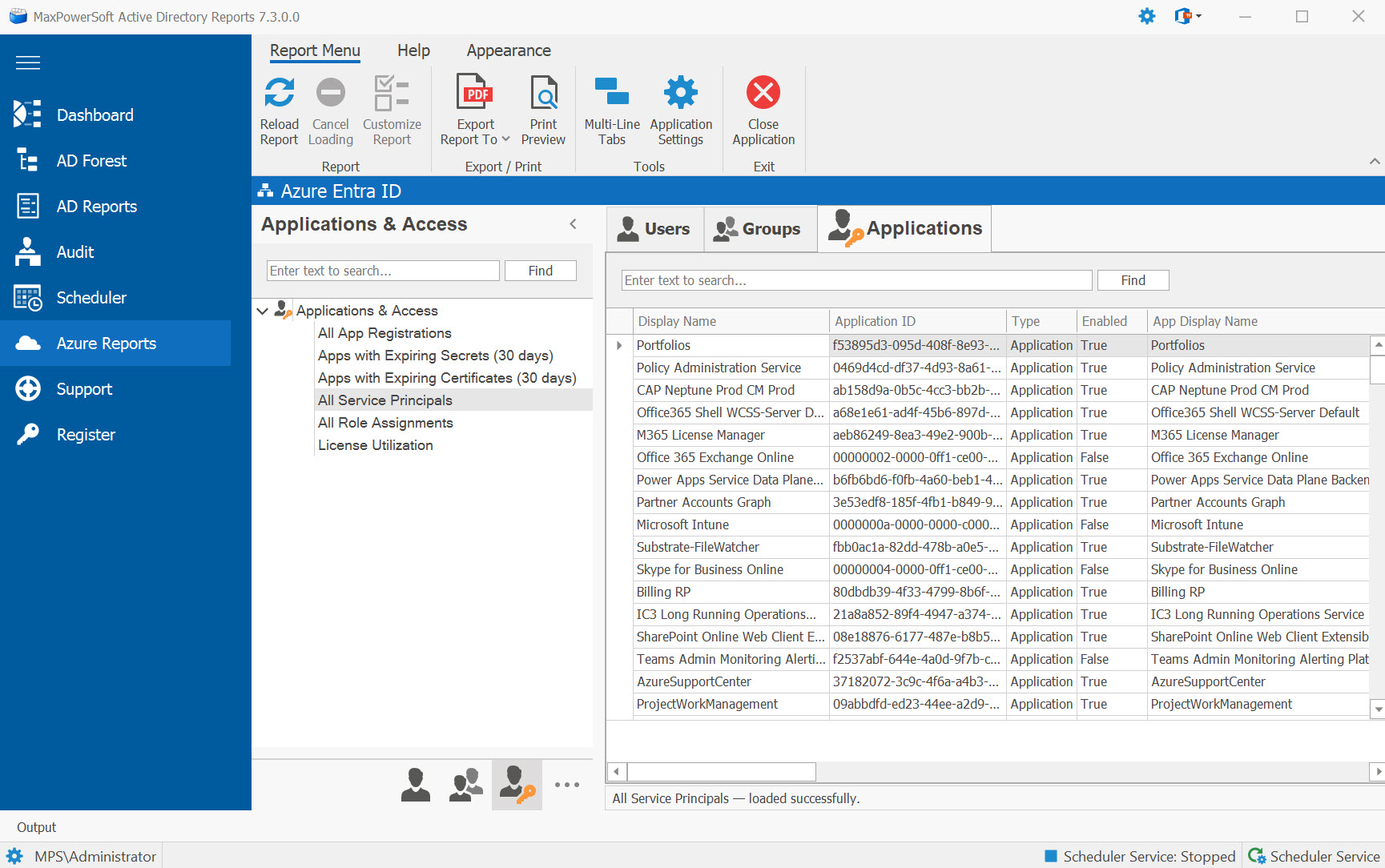
Available Reports
The following six reports are available:
| Report | Description |
|---|---|
| All App Registrations | Lists all application registrations in your Entra ID tenant with display name, application ID, creation date, and sign-in audience. |
| Apps with Expiring Secrets (30 days) | App registrations with client secrets expiring within the next 30 days. Includes a computed Days Until Expiry column. |
| Apps with Expiring Certificates (30 days) | App registrations with certificates expiring within the next 30 days. Includes a computed Days Until Expiry column. |
| All Service Principals | Lists all enterprise applications (service principals) in your tenant with type, enabled status, and associated app ID. |
| All Role Assignments | Lists all Entra ID directory role assignments showing which users and service principals hold admin roles. |
| License Utilization | Shows assigned vs. consumed license counts per SKU with utilization percentage, helping identify unused or over-provisioned licenses. |
Run a Report
Select a report from the tree on the left, then click the Run button (or double-click the report name). The report will query Microsoft Graph API and display the results in the grid.
Monitor Expiring Secrets and Certificates
The Expiring Secrets and Expiring Certificates reports are particularly useful for proactive maintenance. Each report computes a Days Until Expiry column so you can quickly identify credentials that need rotation before they expire and cause service outages.
Review License Utilization
The License Utilization report shows how many licenses are assigned vs. consumed for each subscription SKU. A utilization percentage column helps you spot over-provisioned or underused licenses, which can lead to cost savings.
Export Results
All Azure Applications & Access reports support the same export options as other AD Reports:
- Export to Excel, CSV, PDF, RTF, HTML, and Clean XLSX
- Full Print Preview with customizable headers, footers, and watermarks
- Built-in Search (Find Panel) to filter results in real time