How To Use the Report Results Tab
The Results tab lets you run multiple reports sequentially and keep all results in persistent, closeable tabs. Instead of losing a report when you run the next one, every result is saved as a snapshot that you can review, compare, and export at any time.
How Report Results Work
Every time you run a report in AD Reports, the results are automatically saved to the Results tab. The tab caption shows a live count of saved results — for example, Results (5) means you have five report snapshots saved.
Each result tab displays:
- The report name and record count in the tab caption
- A color-coded status icon: • Green = data returned, • Gray = empty result
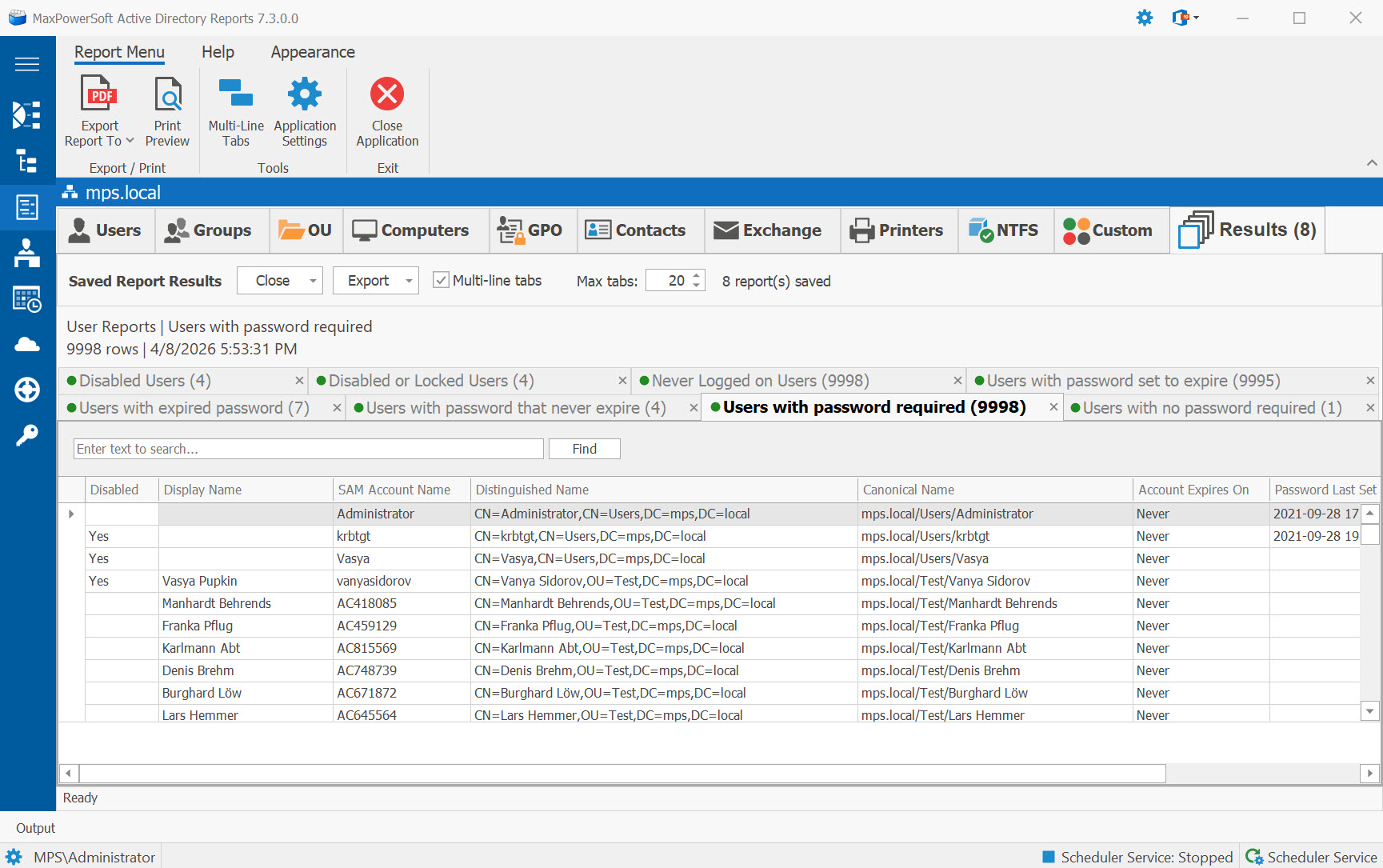
Navigate Between Results
Click any result tab to view its data in the grid. Multi-line tabs are enabled by default for better visibility when you have many results open. The Find Panel and Auto-Filter Row are available on each result grid for quick searching and filtering.
Export from Results
You can export any saved result without re-running the report. Select the result tab you want to export, then use the Export button and select from the context menu to export:
- Excel (
.xlsx) - CSV (
.csv) - Multi-sheet Excel (all open results combined into one workbook)
Close and Manage Tabs
Right-click any result tab to access tab management options:
- Close All — removes all result tabs
- Close All Except Active — closes all tabs except active one
- Close Empty Reports — closes all tabs with empty reports