Computer Platform Readiness Reports
5 ReportsAbout Platform Readiness for Computers New in 7.6.3
The Platform Readiness folder under Computers holds five checks, each listing the computers a Microsoft support date or a dated Microsoft change affects: Windows versions past or near their end of support, and computers not managed by LAPS, with an overdue LAPS password or on legacy LAPS.
The support dates are Microsoft's, by version and edition, last checked on October 30, 2026 — the same dates as the OS Computer Reports page. Each check says Pass or Fail like a security finding, with its severity, why it matters, how to fix it and Microsoft's documentation. Only the LAPS expiration times are read, never a password. The built-in audit profile Platform Readiness runs these with the account checks.
Microsoft's dates, by version and edition
Unmanaged, overdue and legacy LAPS
What was fixed, what is still open, what is new
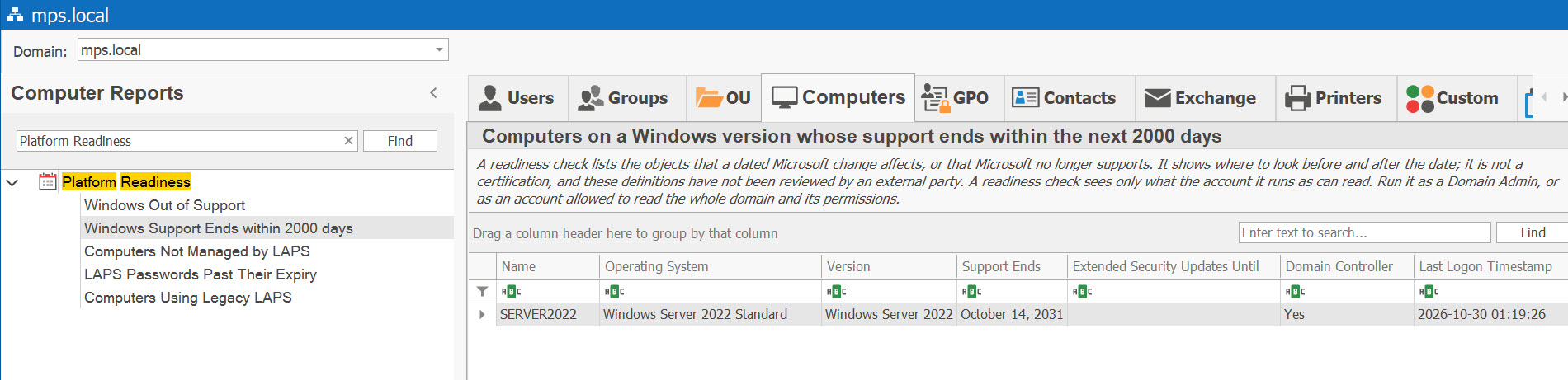
Example: Computer Platform Readiness Reports in AD Reports
Available Reports
Windows Out of Support New in 7.6.3
Severity: High
Enabled computers on a Windows version past Microsoft's end of support, soonest first, with the date support ended and how long Extended Security Updates run, where Microsoft offers them. Versions are matched by name and build, and by edition for Windows 10 and 11; a computer whose operating system the support table does not hold is counted on the status line, never guessed at. Columns: Name, Operating System, Version, Support Ended, Extended Security Updates Until, Domain Controller, Last Logon Timestamp, Distinguished Name.
Why It Matters
After the end of support Microsoft releases no more security updates, except through paid Extended Security Updates where it offers them, so flaws found later stay open — on a domain controller above all. Support dates as Microsoft publishes them on its Windows release information and lifecycle pages, last checked October 30, 2026.
How to Fix
Upgrade or retire the computer, and disable computers nobody uses (see Last Logon Timestamp). Where Extended Security Updates were bought, the Extended Security Updates Until column shows how long updates continue — the directory does not say which computers are enrolled.
Windows Server release information · Windows 11 release information · Windows 10 release information · Extended Security Updates for Windows 10
Windows Support Ends within New in 7.6.3
Severity: Medium
Computers on a Windows version whose support ends within the next 365 days — or another number of days you choose — soonest first. The status line names the nearest end of support, for example “Nearest end of support: Windows 11 23H2 (Enterprise and Education), November 10, 2026, in 10 days.” Columns: Name, Operating System, Version, Support Ends, Extended Security Updates Until, Domain Controller, Last Logon Timestamp, Distinguished Name.
Why It Matters
These computers stop getting security updates on the date shown. Each Windows 11 version is supported 24 months on Home and Pro editions and 36 months on Enterprise and Education. Computers already past the date are in Windows Out of Support.
How to Fix
Plan the upgrade before the date. On Windows 11, installing a later version moves the computer to that version's later date. A computer that cannot be upgraded in time needs replacing, or Extended Security Updates where Microsoft offers them.
Windows Server release information · Windows 11 release information · Windows 10 release information
Computers Not Managed by LAPS New in 7.6.3
Severity: Medium
Enabled computers, other than domain controllers, with no LAPS password expiration time — neither Windows LAPS nor legacy LAPS manages them. Only the expiration times are read, never a password. Columns: Name, Operating System, Version, Last Logon Timestamp, Distinguished Name.
Why It Matters
Without LAPS the local administrator password is often the same on many computers, so one stolen password opens them all. Windows LAPS is built into Windows 11, Windows 10 with the April 2023 update or later and Windows Server 2019 and later; Windows Server 2016 can use only legacy LAPS. When the forest's schema holds neither LAPS schema, every enabled computer is listed and the status line says so.
How to Fix
Extend the schema once (Update-LapsADSchema), give the computers permission to write their password (Set-LapsADComputerSelfPermission on the OU), and apply a Windows LAPS policy that backs up to Active Directory. Disable or remove computers nobody uses.
Windows LAPS overview · Get started with Windows LAPS and Active Directory
LAPS Passwords Past Their Expiry New in 7.6.3
Severity: Low
Computers whose LAPS password is past the time it should have been changed, most overdue first — enabled or not, domain controllers included. Columns: Name, Operating System, LAPS (Windows LAPS or Legacy LAPS), Password Expired On (UTC), Last Logon Timestamp, Distinguished Name.
Why It Matters
LAPS changes the password once its expiration time passes, and Windows LAPS checks every hour. A time in the past means the computer has not changed it — it is off, cannot reach a domain controller, or is out of the policy — so the password Active Directory holds is older than the policy allows.
How to Fix
Disable or remove the computer if nobody uses it. Otherwise check that the policy applies to it, and read its log under Applications and Services Logs → Microsoft → Windows → LAPS → Operational.
Windows LAPS schema and rights reference · Windows LAPS troubleshooting guidance
Computers Using Legacy LAPS New in 7.6.3
Severity: Low
Computers whose local administrator password is kept by legacy Microsoft LAPS, or by Windows LAPS in its emulation mode, in clear text. Columns: Name, Operating System, Version, Password Expires (UTC), Last Logon Timestamp, Distinguished Name.
Why It Matters
Legacy Microsoft LAPS is deprecated: Windows 11 23H2 and later block its installer, and Microsoft no longer changes it. It keeps the password in Active Directory in clear text, and so does Windows LAPS in legacy emulation mode; Windows LAPS can encrypt the password and keep its history.
How to Fix
Follow Microsoft's migration guide: apply a Windows LAPS policy in place of the legacy one, confirm the Windows LAPS expiration time appears, then remove the legacy software. Windows Server 2016 moves when it is upgraded.
Windows LAPS overview · Prepare for Windows LAPS deployment and migration
See These Reports in Action
Try AD Reports free for 14 days — run any of these reports on your own Active Directory.
Download Free Trial View All Features