Re-check Security Findings
Each security finding lists the objects that match a known Active Directory attack pattern, with its severity, why it matters and how to fix it. This routine runs them, works through the ones that fail, and runs them again until they pass, keeping a record of each round. It is for administrators closing what a security review or a penetration test found. The built-in ★ All Security Findings, ★ Pentest Re-check and ★ Five Eyes AD Compromise audit profiles run it.
Choose the Profile and Run It
Three built-in profiles run the findings:
| Profile | Reports | What it runs |
|---|---|---|
| ★ All Security Findings | 43 | Every security finding, the most severe first. |
| ★ Pentest Re-check | 27 | The findings a penetration test report names first, by severity, with every Kerberoastable account (Users with SPNs) and every password that never expires (Password Never Expires). |
| ★ Five Eyes AD Compromise | 24 | The findings for the techniques of the Five Eyes guide Detecting and mitigating Active Directory compromises — 13 of its 18 techniques are checked. |
On the Audit page, select the profile and run it (see Run an Audit). Clicking one finding in the profile's report list opens its result, or runs just that finding when it has not run yet in this session. The platform readiness checks have a routine of their own: Retire Legacy Windows and Prepare for Dated Changes.
Read Pass, Fail and Since Last Run
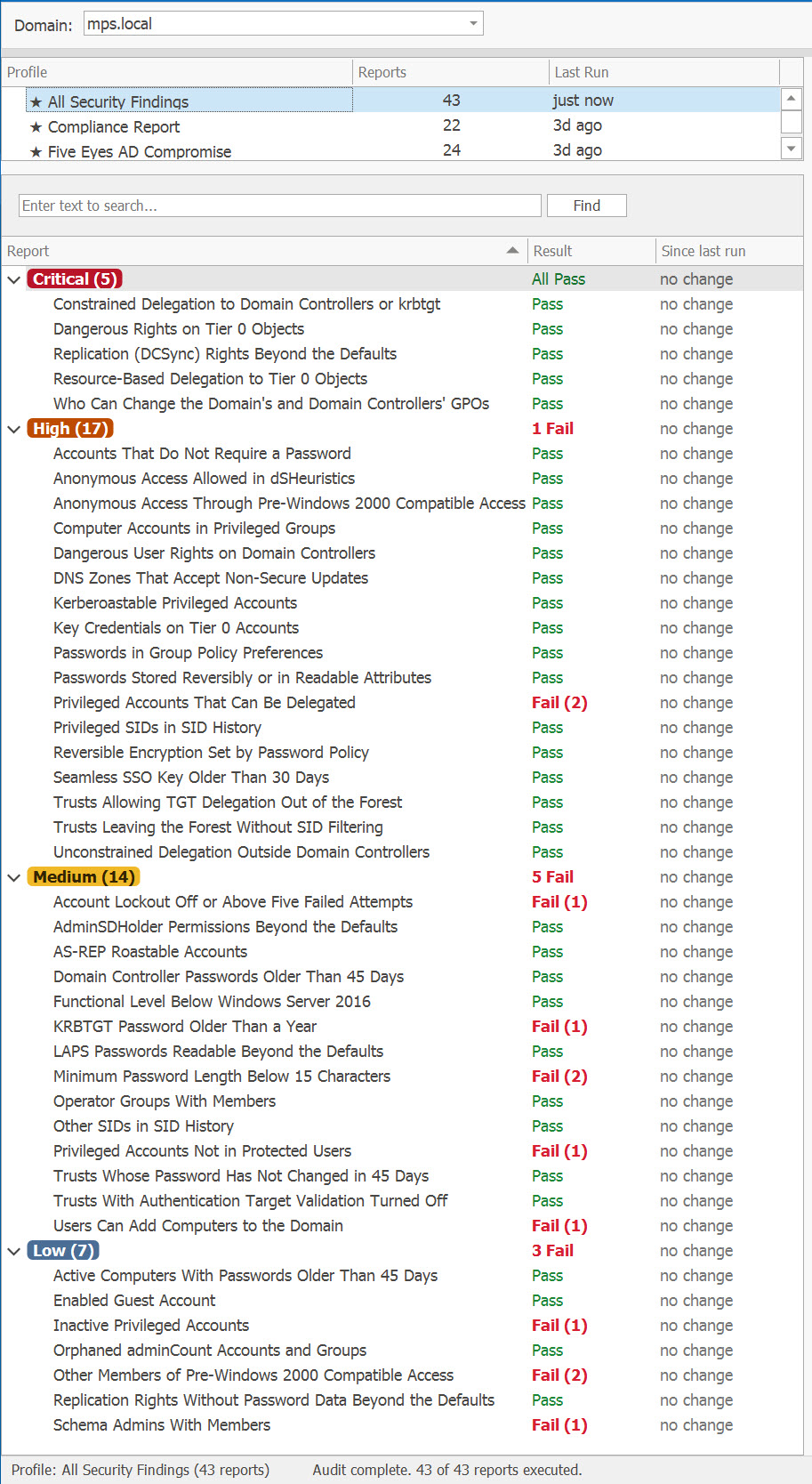
In the profile's report list the findings sit under Critical, High, Medium and Low folders, worst first, with a Result and a Since last run column (see Security Findings and Readiness Checks: Pass or Fail). Type fail in the search box above the list to list only the failures.
- • Fail (2) — two objects match the pattern; the finding's result tab lists them. A finding that cannot read what it needs fails too, and says why, so a missing permission never looks like a clean result.
- • Pass — nothing matched.
- • could not run — the finding did not finish. The workbook's Run Summary calls it Unknown, and the Dashboard's findings grade leaves it out.
Fix What Fails
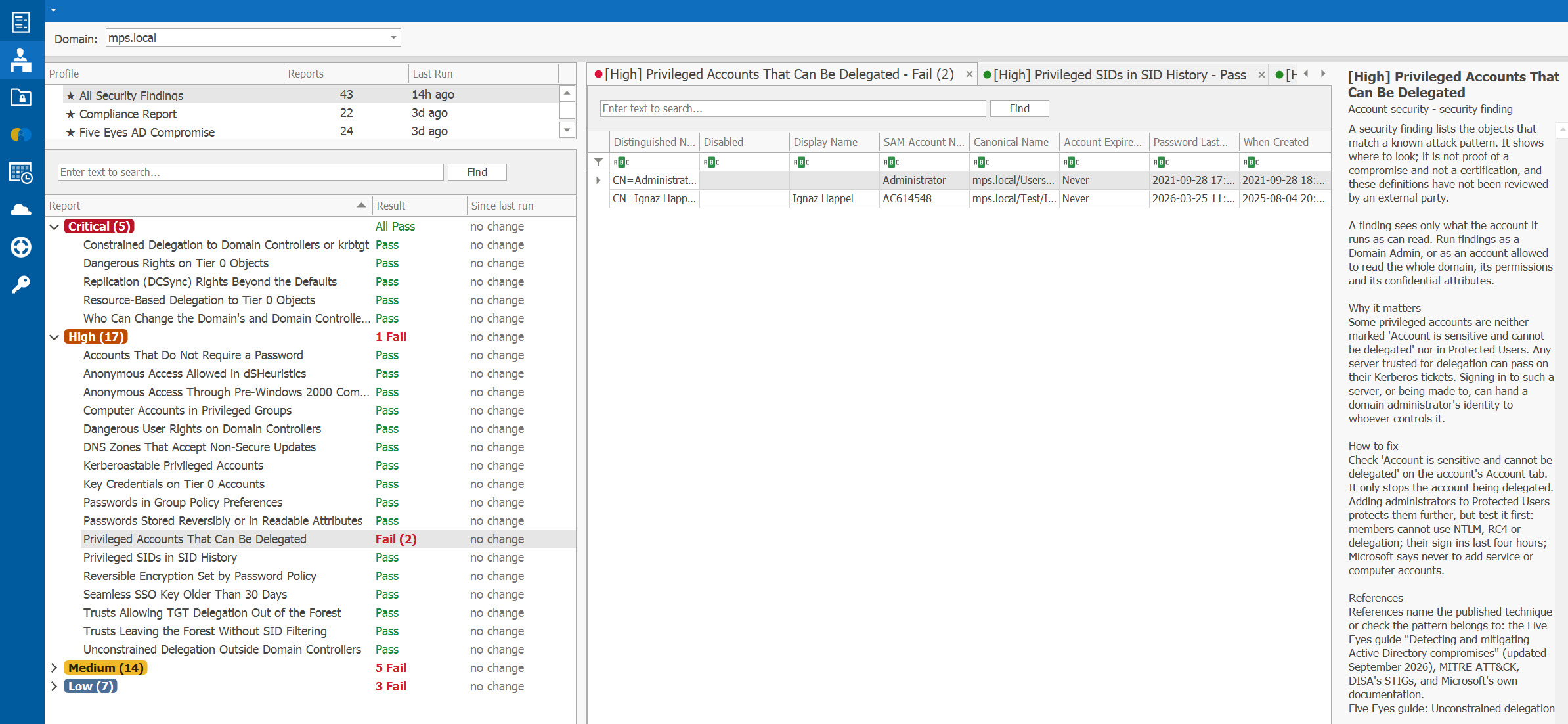
Select a failing finding's result tab: the rows are the objects to fix, and the Finding panel beside them says what the finding is and is not, why it matters, how to fix it and where to read more. Each finding's row in the Security Findings Reports has its Why It Matters and How to Fix too.
Work from the top: a Critical finding that fails holds the Dashboard's findings grade at D, however well the rest do (see Security Findings Score and Grade).
Microsoft's December 2025 guidance on the critical threats to Active Directory names the fix for several findings (Microsoft Windows Server blog):
- remove support for unconstrained delegation — Unconstrained Delegation Outside Domain Controllers;
- add high-risk accounts to Protected Users — Privileged Accounts Not in Protected Users;
- remove non-admin accounts that hold DCSync permissions — Replication (DCSync) Rights Beyond the Defaults;
- rotate the KRBTGT password — KRBTGT Password Older Than a Year.
Run It Again
Run the profile again after fixing. The Since last run column says what moved since the profile last ran on the same domain — “1 fixed, 1 new”, “no change” or “first run” — and hovering a result tab shows the full counts, the date compared with and the objects that were fixed (see See What Changed Since the Last Run). A finding run on its own from the list counts as a run of it too.
- Fixed — the object no longer matches.
- Still open — the object still matches. It counts as the same problem when only its details change: a group that holds a right gains a member, an account is disabled.
- New — an object that did not match at the last run.
Repeat until the failures left are the ones you have decided to accept, and write down why for each — AD Reports records what matched and when, not who fixed it or why a failure stays.
Keep the Record
- The workbook. Export All Reports to Excel (multi-sheet) writes every report on the page into one workbook. Its Run Summary adds each finding's result and severity, and a Findings sheet gives each finding's Severity, Result, Objects, Since last run, Fixed since last run, Why it matters, How to fix and References, with the Five Eyes guide's techniques and the findings that checked each. The file name carries the date and time.
- Scheduled runs. Schedule the profile and each e-mailed workbook says what changed since the last scheduled run — for a finding, “1 fixed, 2 still open, 0 new since 22 Oct 2026 14:05”.
- The Evidence Pack. Scheduled runs of a profile with findings feed the Compliance Evidence Pack's Security findings section: each finding's latest result in the period, or “Did not run in this period” — never Pass — for one that did not run.
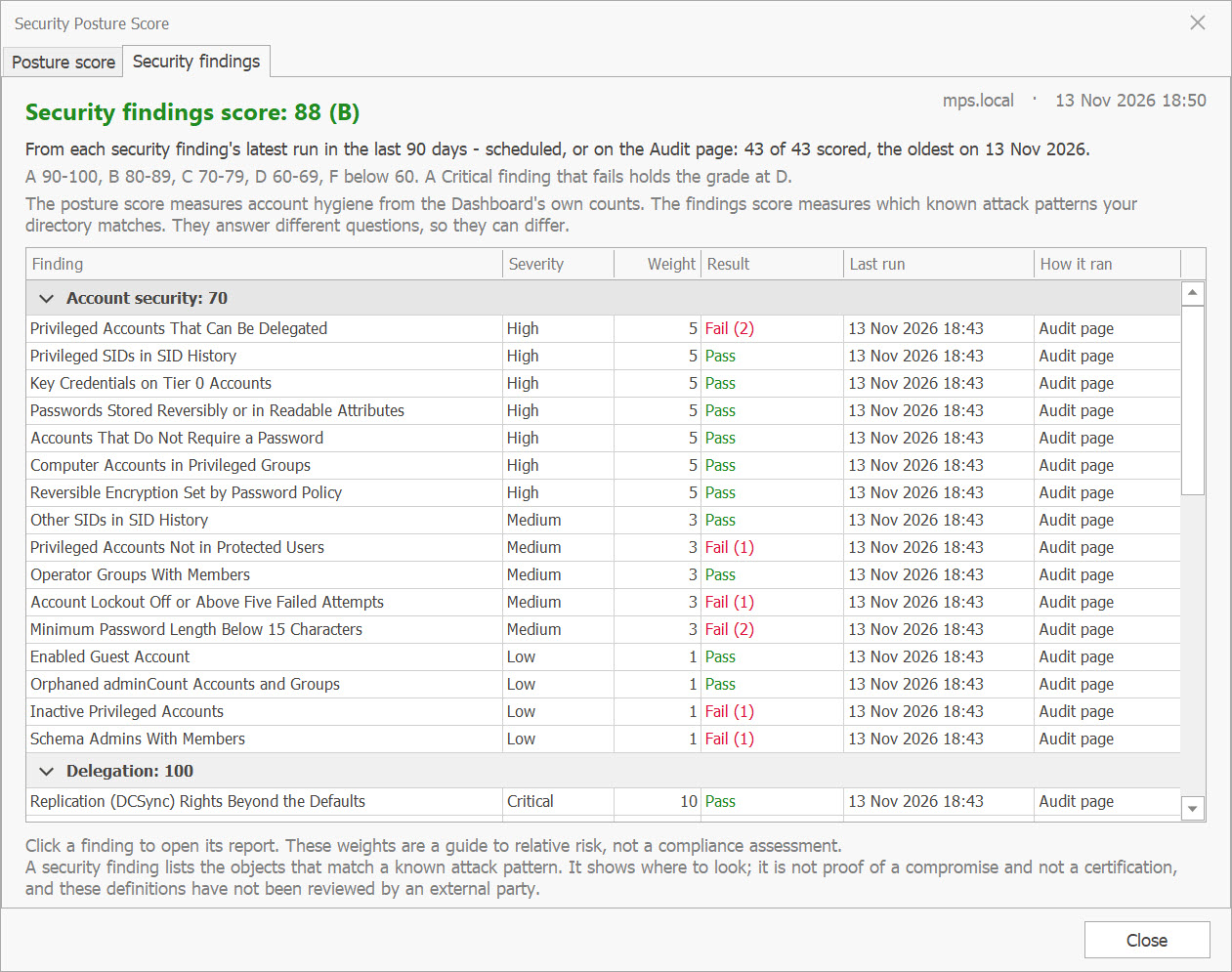
- The grade. The Dashboard's Security findings tab scores the findings from 0 to 100 and grades them from A to F, from each finding's latest run in the last 90 days; a finding not run in that window is left out and counted, never scored as zero (see Security Findings Score and Grade).
Keep your tickets beside them. Auditors prefer populations a system generated to lists kept by hand (Keiter CPA), and want them complete, from parameters that left nothing relevant out (BDO). A finding that passes shows that nothing matched its pattern on the day it ran — evidence, not proof of security.