Review Entra ID
Microsoft Entra ID has its own users, guests, admin roles, apps and devices, and they go stale as Active Directory's do. This routine works through them on the Azure Reports page: inactive users and guests, who holds admin roles, gaps in MFA and Conditional Access, app secrets and certificates about to expire, and devices that no longer sign in. It is for administrators of an Entra ID tenant, hybrid or cloud-only. None of the fourteen built-in audit profiles holds Entra ID reports, so you run these on the Azure Reports page and schedule the ones you want to keep.
Find Inactive Users and Stale Guests
Microsoft has no built-in report of inactive users and points to each user's last sign-in instead. It calls 90 to 180 days a reasonable window in many organizations, and notes that the last sign-in can take up to 24 hours to update (Microsoft Learn).
- Inactive Users (90 days) (P1) — users who have not signed in for 90 days, or never, with a Last Sign-In column. It needs Entra ID P1 and the AuditLog.Read.All permission.
- Licensed Inactive Users (90 days) (P1) — licensed users whose last successful sign-in, interactive or not, is more than 90 days ago, with their licences and how each is assigned.
- User Sign-In Activity (P1) — each user's last sign-in; for a window other than 90 days, filter it with the filter icons in its column headers (see Search and Filter Reports).
- Stale Guest Users (90 days) — guests created more than 90 days ago. It goes by the date a guest was created, not by sign-ins; look the guests up in User Sign-In Activity for when they last signed in.
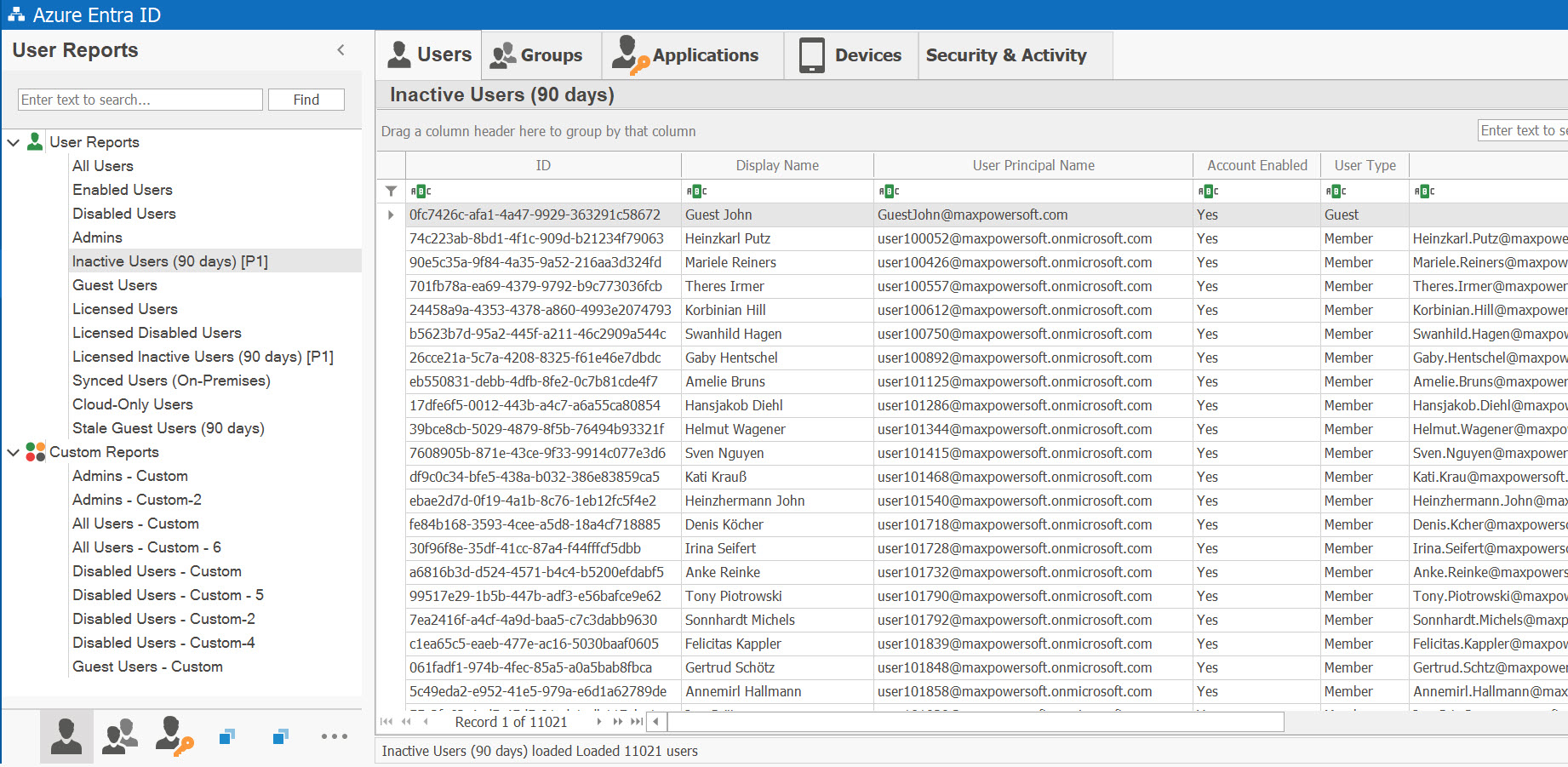
For guests, Microsoft's own inactive-guest report uses 90 days of inactivity by default, and its recommended outcome is to block the guest from signing in for 30 days, then remove it; a deleted guest can be restored for up to 30 days (Microsoft Learn).
A user synchronized from Active Directory is deleted, and restored, in Active Directory, not in Microsoft 365 (Microsoft Learn) — see Clean Up Stale Accounts.
Review Admin Roles and PIM
- All Role Assignments — every role assignment, built-in and custom, directory-wide or limited to an administrative unit or an application, with a Scope column. To read custom and limited roles, sign in with Directory Readers, Global Reader or Privileged Role Administrator (or Global Administrator); with another account the report lists the rest and says on the status bar what it left out.
- Admins — the users assigned to administrative directory roles.
- PIM Eligible Roles, PIM Active Role Assignments and PIM Activation History (P2) — who can activate a privileged role, who holds one now (a Permanent column tells standing admins from time-limited assignments and just-in-time activations), and the record of activations and assignments.
- On the Hybrid Identity page, the Cloud-Only Privileged Admins view lists the high-privilege role holders with no Active Directory account — the admins a review of Active Directory never sees (see the six views).
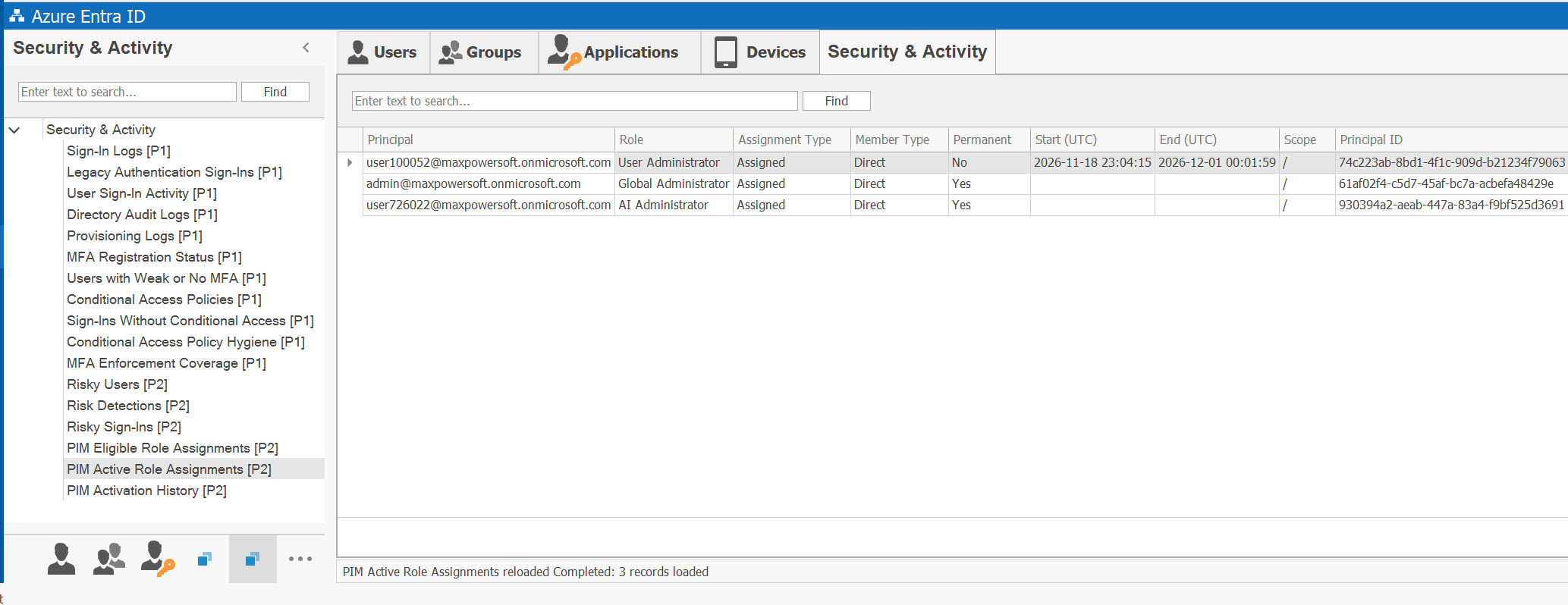
What to look for, by source:
- Global Administrators: fewer than five, says Microsoft (Microsoft Learn); two to eight, says CISA's Entra ID baseline (CISA ScubaGear).
- Privileged role assignments: fewer than ten (Microsoft Learn); no permanent active assignments for highly privileged roles (CISA ScubaGear).
- Synchronized accounts: Microsoft advises against using accounts synchronized from on-premises for Entra ID role assignments (Microsoft Learn) — compare the role holders with Synced Users (On-Premises).
- Emergency access accounts: keep at least two, and check that they work at least every 90 days (Microsoft Learn).
Find MFA and Conditional Access Gaps
On the Security & Activity tab (P1, the risk reports P2):
- MFA Registration — who is registered for MFA or passwordless methods, and who is not.
- Users with Weak or No MFA — users with no MFA registered, or only phishable methods (SMS, voice, e-mail), admins highlighted.
- MFA Enforcement Coverage — whether each user is covered by an enforced “require MFA” Conditional Access policy, group memberships expanded; tenants using Security Defaults count as enforced.
- Conditional Access Policy Hygiene — policies that are not enforcing (report-only or off), accounts excluded from a policy, missing MFA or block controls; Conditional Access Policies is the inventory of every policy.
- Sign-Ins Without Conditional Access and Legacy Authentication Sign-Ins — sign-ins no policy applied to, and sign-ins over POP, IMAP, SMTP and older Office clients.
- Risky Users and Risky Sign-Ins (P2) — what Microsoft Entra ID Protection flagged.
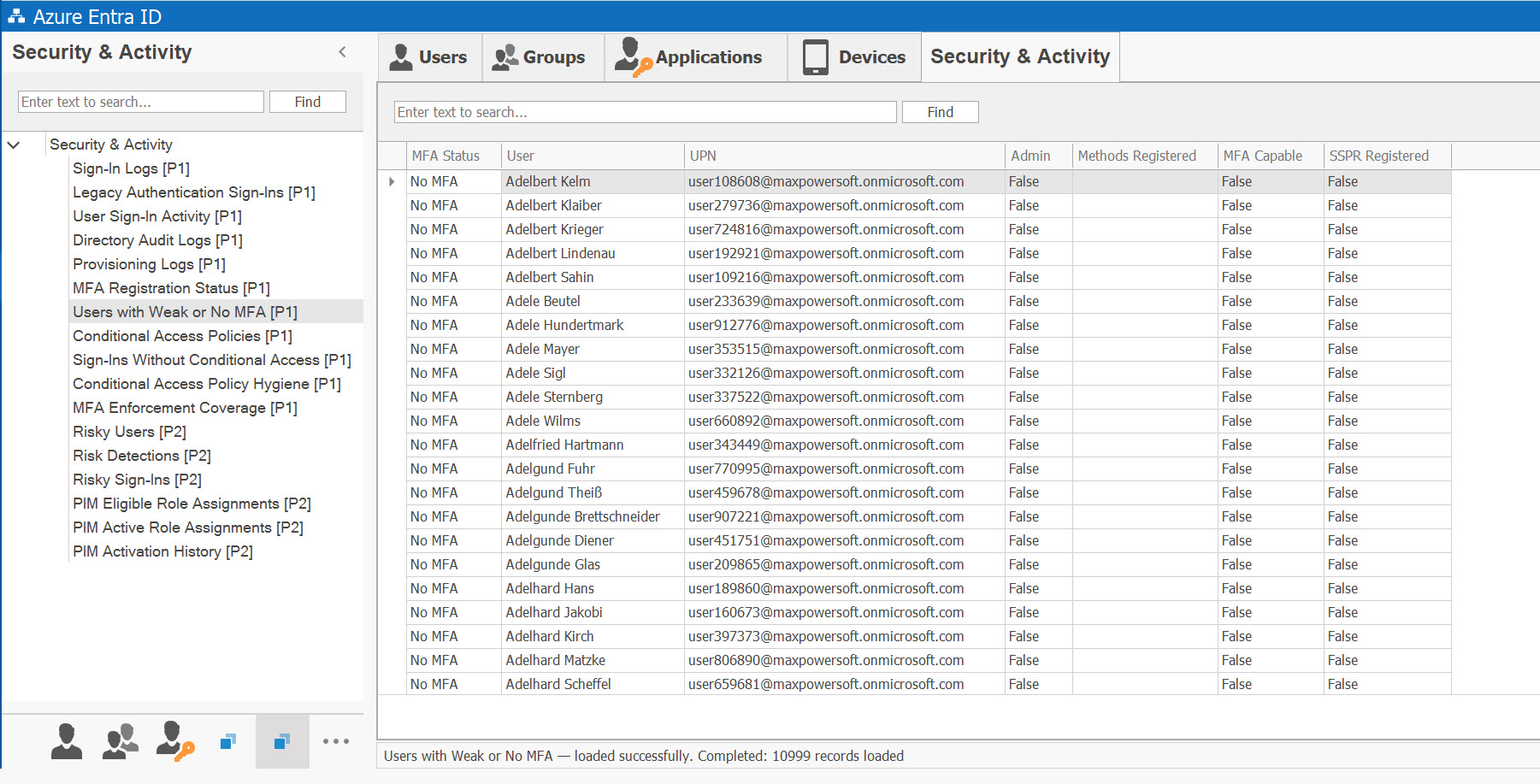
What to look for, by source:
- Microsoft's operations guide: every user with a privileged account enabled for MFA at the very least; sign-in activity used to find who still relies on legacy authentication; the exception groups in Conditional Access policies reviewed regularly; at least one policy on every SaaS application; and no “All users” assignment that takes in guests by accident (Microsoft Learn).
- CISA's baseline: legacy authentication blocked, and phishing-resistant MFA for highly privileged roles (CISA ScubaGear).
- Microsoft's security checks: every high-risk user triaged (Microsoft Learn).
Renew Expiring App Secrets and Certificates
On the Applications & Access tab, run Apps with Expiring Secrets (30 days) and Apps with Expiring Certificates (30 days): the app registrations whose client secrets or certificates expire within 30 days, with a Days Until Expiry column (see Monitor Expiring Secrets and Certificates). Microsoft's own Entra ID recommendation uses the same window: it flags a credential on an app registration that expires within the next 30 days (Microsoft Learn).
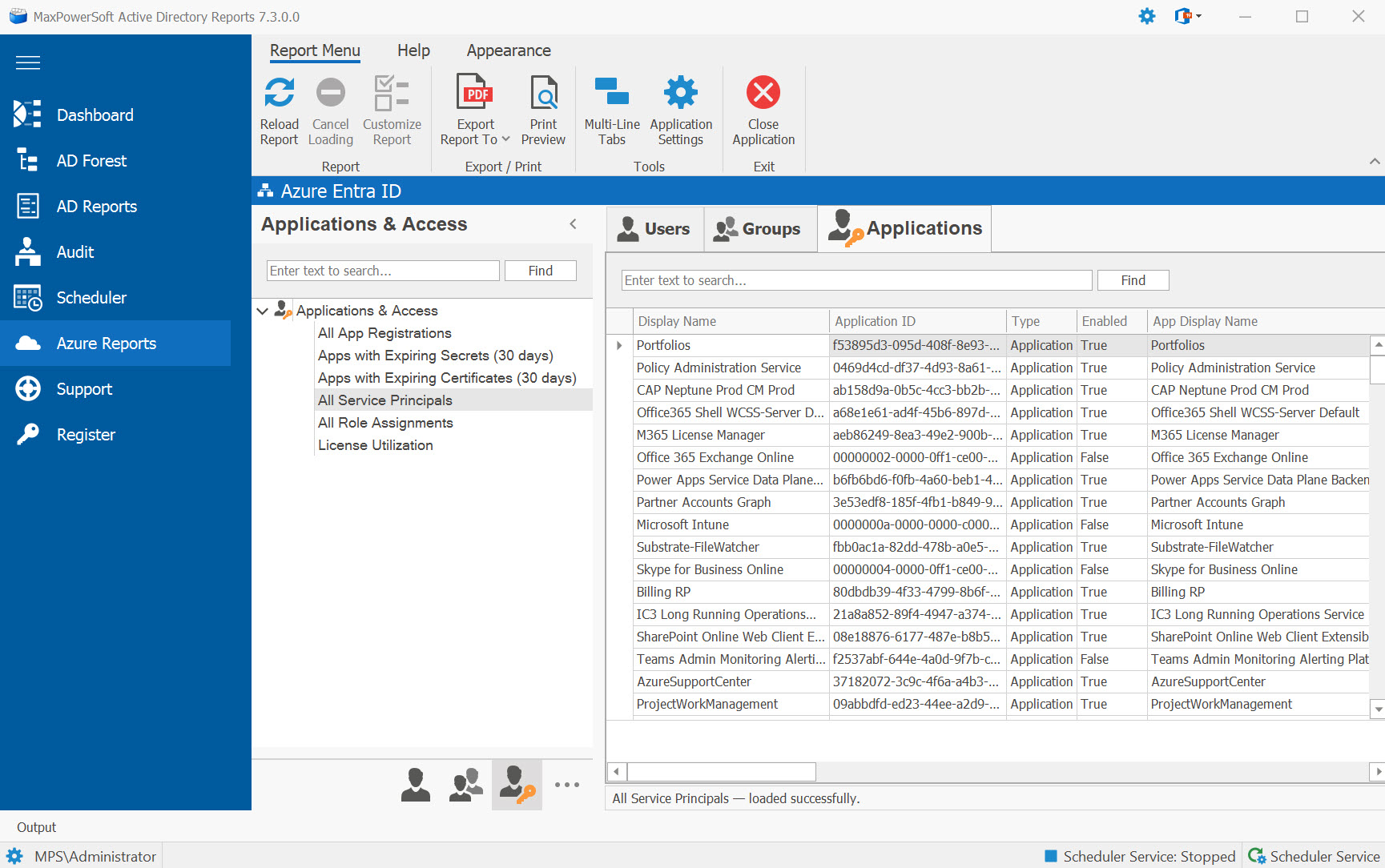
Renew each credential with its app's owner before it expires. Microsoft also recommends removing unused credentials from applications (Microsoft Learn). For the new credential, Microsoft's security checks prefer no client secrets at all, and no certificate valid for longer than 180 days (Microsoft Learn); CISA's baseline limits application passwords to 180 days and certificates to 365 days (CISA ScubaGear).
Clean Up Stale Devices
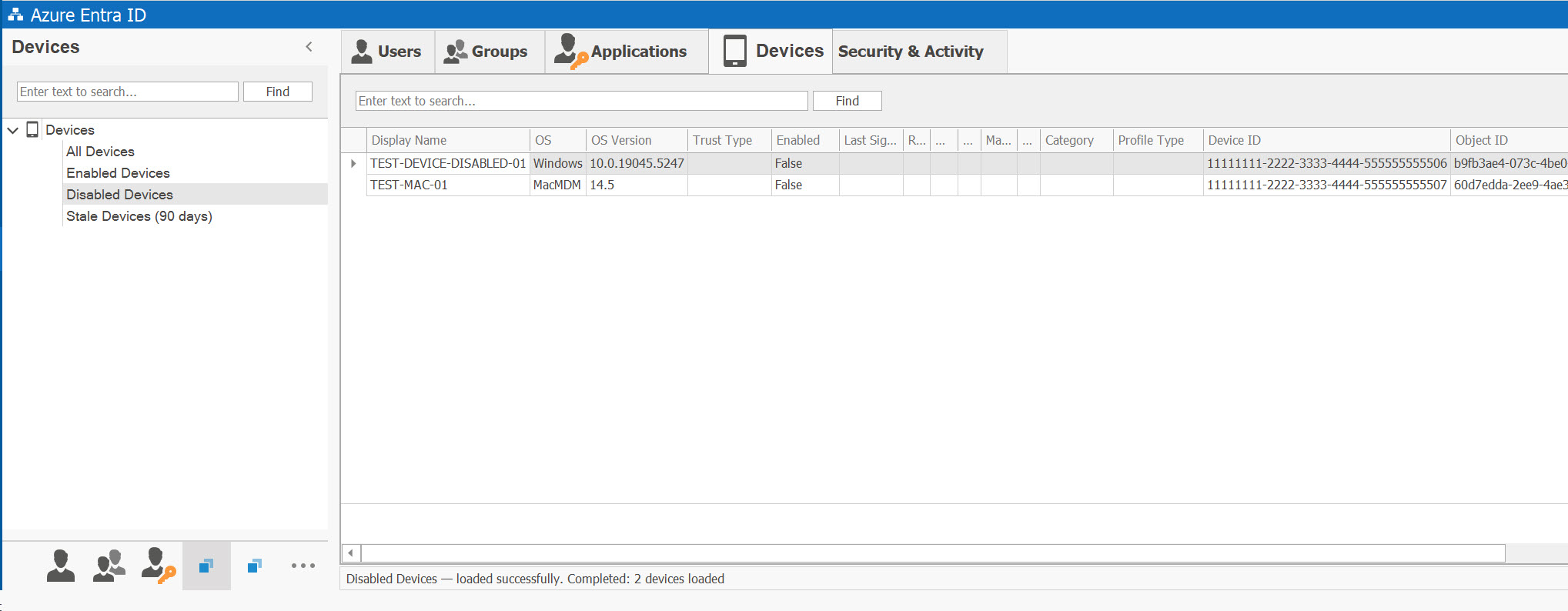
On the Devices tab, Stale Devices (90 days) lists the devices whose last sign-in was more than 90 days ago; combine it with Disabled Devices to find the devices to remove. Microsoft's guidance on stale devices (Microsoft Learn):
- Do not take a timestamp younger than 21 days as a sign of a stale device: Entra ID rewrites it only when it is more than about 14 days old. Some active devices may have a blank timestamp.
- Disable a device for a grace period before you delete it. Microsoft's example disables devices that have not signed in for 90 days, and deletes disabled devices inactive for 120 days.
- Deleting a device deletes its BitLocker recovery keys, and a deleted device cannot be recovered.
- Do not delete system-managed (Autopilot) devices.
- Hybrid-joined devices follow your on-premises policy: disable or delete them in Active Directory and let synchronization carry it (see Check the Inactive Computers).
Schedule the Reports and Keep the Record
Any Azure report can be scheduled: run it, click Schedule, and choose the recurrence, the export folder and the recipients (see Scheduling Azure Reports). Scheduled runs reuse your sign-in — sign in once first — and run whether or not AD Reports is open, as long as the Scheduler Service is installed.
Scheduled Entra ID reports feed the Compliance Evidence Pack, marked Entra ID (tenant-wide). To see what changed between two reviews, save a report as a baseline and compare it later — Azure reports included (see Save & Compare Report Snapshots).
What to keep from each review:
- the dated lists you reviewed, and what you did with each entry;
- the inventory of Conditional Access policies, and the PIM activation record;
- for MFA, the enforcing policies and a per-user enrolment report for the whole population — what a practitioner's worked example for SOC 2 expects (TCSA).
Microsoft's operations guide asks for regular reviews of privileged roles, of access to applications and of external identities, without naming an interval (Microsoft Learn); the only review interval a source names in this guide is the 90 days for emergency access accounts.