Clean Up Stale Accounts
An account nobody uses still works: whoever has its password can sign in with it, and nobody notices. This routine finds the users and computers that have stopped signing in, checks them, disables them, and deletes them after a waiting period. It is written for administrators who look after Active Directory accounts. The built-in ★ Hygiene Check audit profile runs its reports.
How Many Days Make an Account Inactive?
The sources do not agree. Use the number your own policy names — every report in this guide takes any number, the Hygiene Check profile's too (see step 1).
| Source | Inactive after | What it says to do |
|---|---|---|
| CIS Controls, Safeguard 5.3 | 45 days | Delete or disable dormant accounts after 45 days of inactivity, where supported. |
| PCI DSS 8.2.6, as Microsoft Learn quotes it | 90 days | Remove or disable inactive user accounts within 90 days of inactivity. |
| Active Directory Pro | 90 days | Treat users and computers whose lastLogonTimestamp has not changed for 90 days as inactive; disable them, wait 90 days, then delete. |
| Microsoft (Services Hub assessment) | 180 days | Look for users whose password or last logon is more than six months old; disable them, wait several weeks, and delete them if no issues were reported. |
Run the Hygiene Check Profile
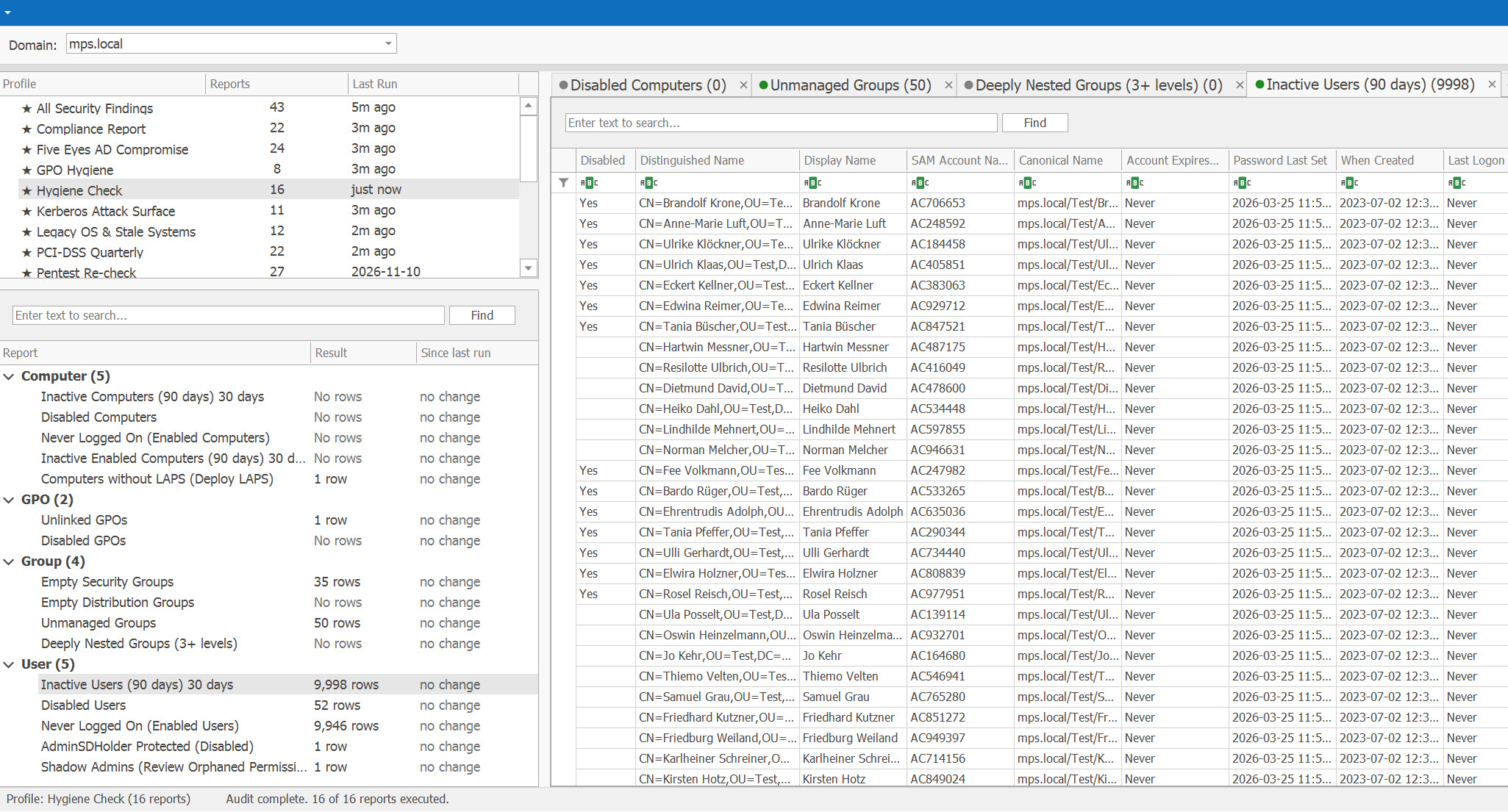
On the Audit page, select ★ Hygiene Check and run it (see Run an Audit). Seven of its 16 reports are about accounts:
- Inactive Users for XX Days and Never Logged on Enabled — users, read from every domain controller. The profile runs the first as Inactive Users (90 days).
- Inactive Computers for (Timestamp), Inactive Enabled Computers for (Timestamp) and Never Logged on Enabled (Timestamp) — computers, read from the replicated Last Logon Timestamp; the profile names the first two Inactive Computers (90 days) and Inactive Enabled Computers (90 days).
- Disabled User Accounts and Disabled Computer Accounts — the accounts disabled earlier, waiting to be deleted.
The other nine — empty, unmanaged and deeply nested groups, unlinked and disabled GPOs, computers without LAPS and two AdminSDHolder reports — are clean-up of another kind; for the AdminSDHolder ones, see Review Privileged Access.
The “90 days” is only part of the name. The profile runs each report with the number of days saved for it on the AD Reports page — 30 until you change it — and shows that number after the name: Inactive Users (90 days) 30 days in the picture. To look back 90 days, right-click the report on the AD Reports page, choose Customize... and set the number of days on the Dates page; the profile then runs it with your number.
Check the Inactive Users
Two families of reports answer the same question in different ways:
-
The Logon Status Reports — the ones the profile runs — read
lastLogonfrom every domain controller: exact, but each run scans them all (see Reports with Non-Replicated Attributes). -
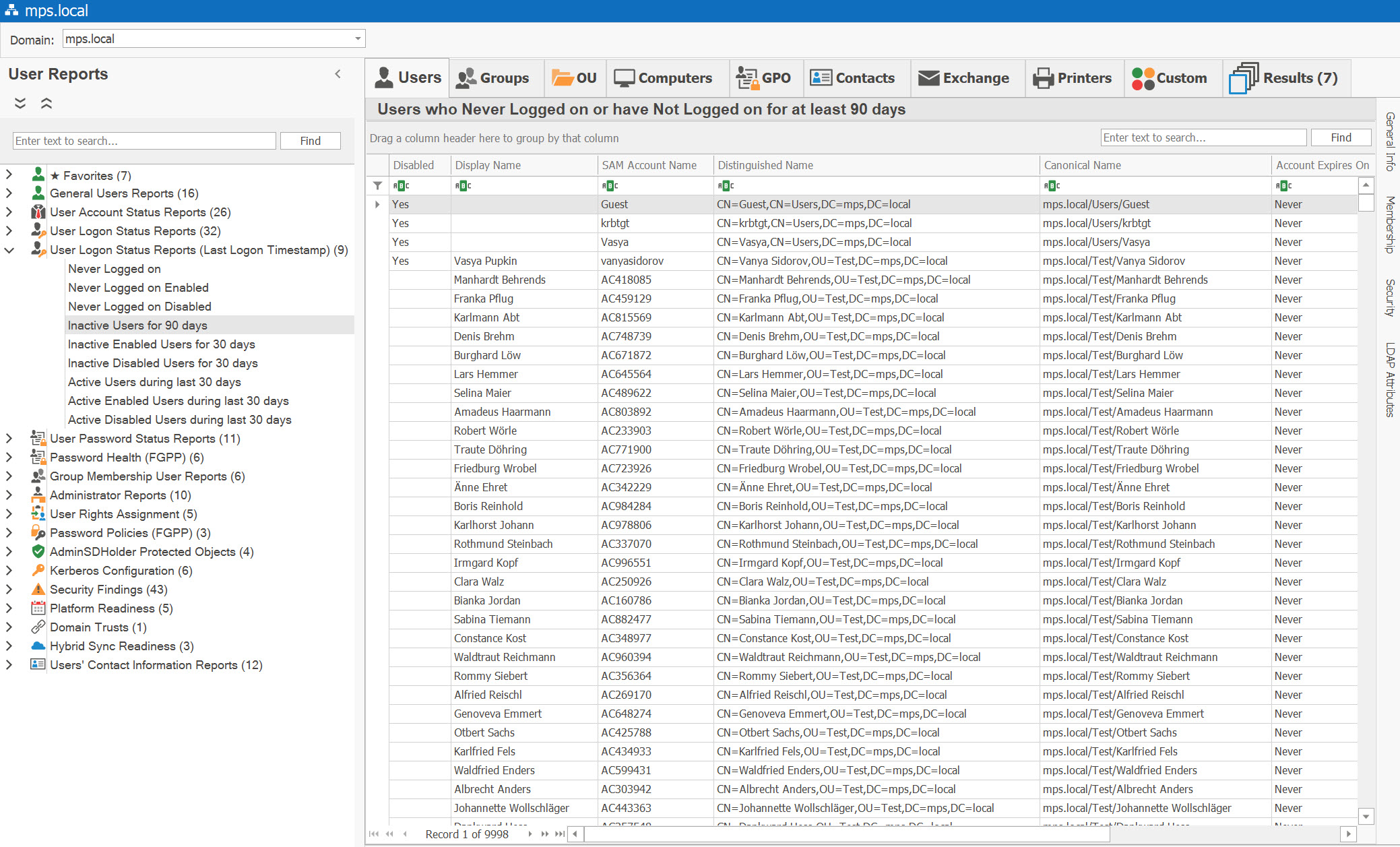
The User Logon Status Reports (Last Logon Timestamp) read the
replicated
lastLogonTimestampin one query, but it can lag the last sign-in by up to 14 days, by design (Microsoft AskDS). With these, choose a threshold well above 14 days, and confirm with the Logon Status report before you delete anything.
Before you disable anyone, take out the accounts that are quiet on purpose:
- Long absences and service accounts. People on long leave and service accounts may not sign in for a long time; Microsoft advises several checks and safeguards so that accounts still in use are not disabled or deleted (Microsoft Learn). Active Directory Pro keeps an exclusion list — interns, contractors, extended leave, and field laptops that rarely reach the domain (Active Directory Pro). Compare your list with Service Accounts.
-
Accounts that never signed in. Never Logged on Enabled
lists new accounts as well as abandoned ones. For these, Active Directory Pro applies its 90 days to the creation date
(
whenCreated) instead. Select an account and the Account Lifecycle Timeline on the Security tab of the detail pane shows when it was created, last set its password and last logged on.
Send the final list to the other administrators and the help desk, before or after you disable the accounts, as Active Directory Pro does.
Check the Inactive Computers
The profile's computer reports read the Last Logon Timestamp, up to 14 days behind; the Computer Logon Status Reports scan every domain controller when you need the exact date.
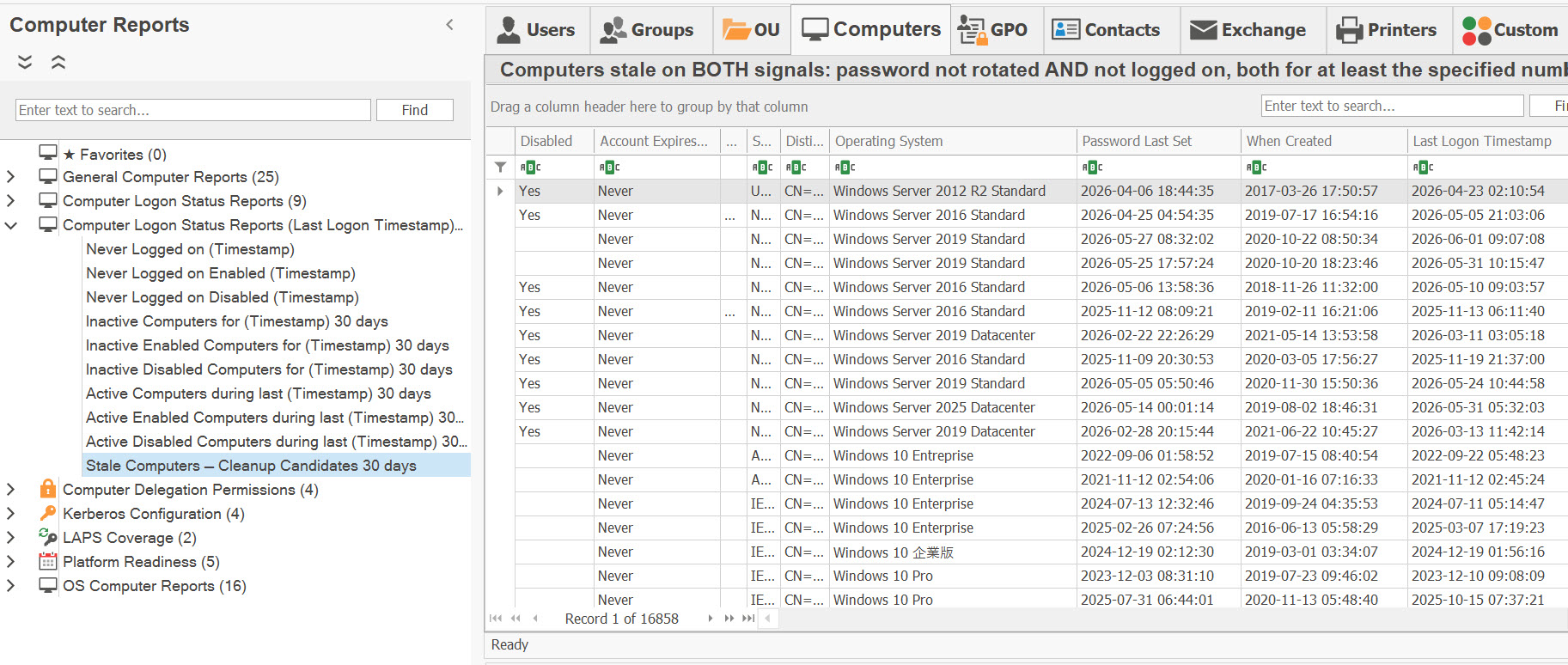
For the list to act on, run Stale Computers — Cleanup Candidates, which is not in the profile: computers that have neither logged on nor changed their password for at least the number of days you choose. Because both dates must be old, a computer that still changes its password is left out, even when its logon date looks old.
- Check your asset records before you delete a computer account, and especially one that was pre-staged and never used: Never Logged on Enabled (Timestamp) lists those.
- Hybrid-joined devices are cleaned up here, in Active Directory: Microsoft says they follow your on-premises policy for stale devices — disable or delete them in Active Directory and let synchronization carry the change to Entra ID (Microsoft Learn). The devices registered only in Entra ID are in Review Entra ID.
Disable First, Delete Later
A disabled account can be enabled again at once if someone turns out to need it. The practitioner routine and Microsoft's agree on the order:
- Save the list. With the candidate report in the Results tab, History → Save Active Report to History on the Results toolbar keeps it as a dated baseline (see Save the Active Report as a Baseline). Export it as well, for the record.
- Disable the accounts with your usual tools. Active Directory Pro also moves them to an Inactive OU and writes the date and the administrator's initials in each description, so anyone can see when and by whom.
- Wait. Active Directory Pro waits 90 days; Microsoft says to wait several weeks and delete if no issues were reported.
- Check that nothing still needs them — a mailbox, files they own, a rollback — then delete them. Inactive Disabled Users for XX Days and Inactive Disabled Computers for (Timestamp) list the disabled accounts that have also been inactive for the days you set.
- Check the result. Run the report again and choose History → Compare Active Report with Saved...: the Diff tab's Removed sub-tab lists what has gone since the baseline (see Read the Diff Tab). Deleted User Accounts and Deleted Computers list the deleted objects that are still in the Recycle Bin or tombstone.

Repeat the Routine and Keep the Record
How often. Active Directory Pro runs a clean-up every 30 days (Active Directory Pro); CIS wants every active account validated as authorized at least quarterly, Safeguard 5.1 (CIS Controls). Schedule the profile to match: each e-mailed workbook opens with a Run Summary of every report it ran, and says what changed since the last scheduled run — “1 no longer listed, 2 still listed, 0 new” (see See What Changed Since the Last Run). To be told of each day's disabled accounts as well, the daily status e-mail can list the accounts disabled since the last one.
What to keep from each round:
- the candidate list as exported, with its date and the number of days you used — the Audit page's exports carry the date and time in their file name (see Export Audit Results);
- the exceptions you kept, and why;
- what you disabled and when, and what you deleted after the wait — the Diff tab's Removed list;
- the approval or ticket behind the deletions: AD Reports records what the directory held, not who approved a change.
Auditors prefer a list that a system produced to one kept by hand, and may ask for the parameters that produced it (Keiter CPA). A scheduled profile runs the same reports each time, and its runs build the Compliance Evidence Pack.