Retire Legacy Windows and Prepare for Dated Changes
A computer on a Windows version past its end of support gets no more security updates, and Microsoft's dated changes — to Kerberos encryption, to LAPS, to delegated managed service accounts — affect accounts and computers that look fine today. This routine finds both, before the date and after it. It is for administrators who plan upgrades and keep the domain ready for Microsoft's changes. The built-in ★ Platform Readiness and ★ Legacy OS & Stale Systems audit profiles run it.
Run Platform Readiness and Legacy OS & Stale Systems
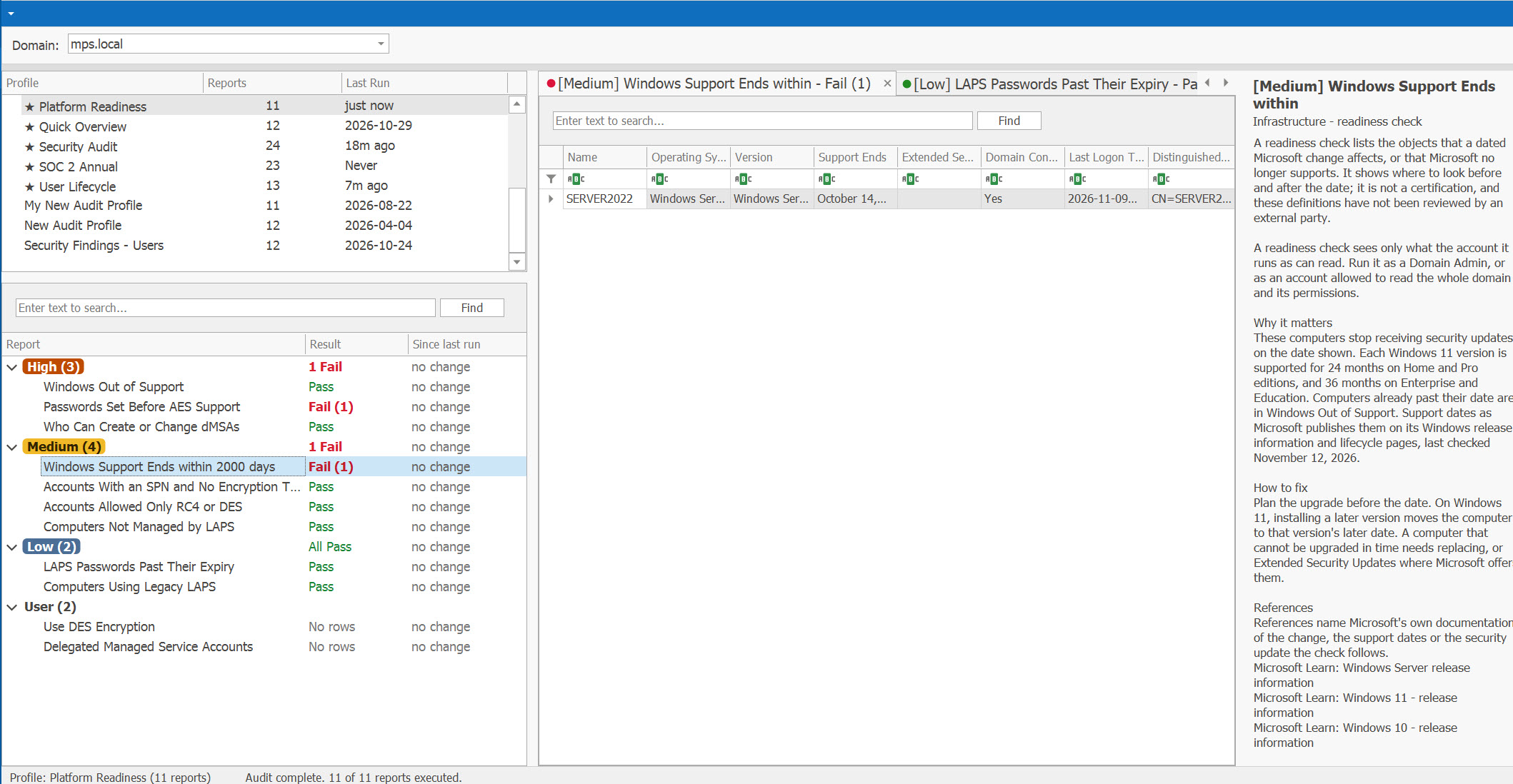
On the Audit page, run both profiles (see Run an Audit):
- ★ Platform Readiness (11 reports) — the five computer checks: Windows versions out of support or near it, and LAPS coverage; the account checks for Microsoft's Kerberos changes and for who can create dMSAs, with the list of dMSAs; and Use DES Encryption. Each check says Pass or Fail with its severity, as a security finding does (see Security Findings and Readiness Checks: Pass or Fail).
- ★ Legacy OS & Stale Systems (12 reports) — the computers on Windows NT, 2000, XP, Vista and 7 and on Windows Server 2003, 2008 and 2012, with Inactive Computers for (Timestamp) (Inactive Computers (90 days) in the profile), Never Logged on Enabled (Timestamp), Disabled Computer Accounts and Computers without LAPS.
A legacy computer nobody uses needs no upgrade: disable it. The inactive and never-logged-on reports point to those (see Check the Inactive Computers). Despite its name, Inactive Computers (90 days) looks back the number of days saved for the report on the AD Reports page, 30 until you change it (see Run the Hygiene Check Profile).
Find Windows Out of Support or Near It
- Windows Out of Support (High) — enabled computers on a Windows version past Microsoft's end of support, soonest first, with the date support ended and how long Extended Security Updates run where Microsoft offers them. A computer whose operating system the support table does not hold is counted on the status line, never guessed at.
- Windows Support Ends within (Medium) — computers whose Windows version leaves support within the next 365 days, or the number of days you choose; the status line names the nearest end of support.
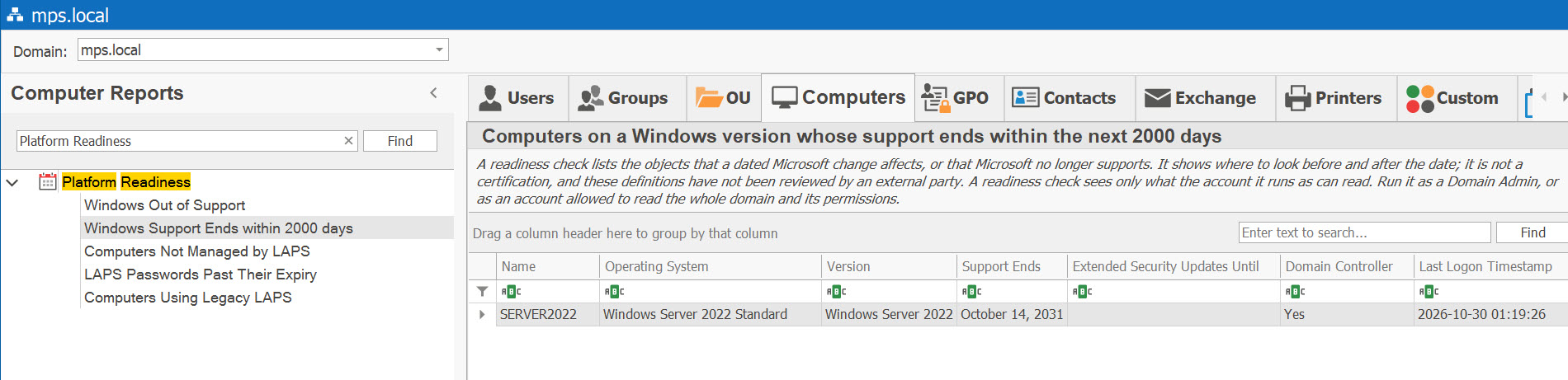
The dates are Microsoft's, by version and edition, last checked on November 12, 2026; the OS Computer Reports page shows them in its Windows OS support lifecycle quick reference. Among them:
- Windows 10 Home, Pro, Enterprise and Education left support on October 14, 2025, and the Extended Security Updates for Windows Server 2012 and 2012 R2 ended on October 13, 2026.
- Extended support for Windows Server 2016 ends on January 12, 2027, and support for Windows 10 Enterprise LTSC 2021 ends the same day.
- Each Windows 11 version is supported for 24 months on Home and Pro, and 36 months on Enterprise and Education.
What to do. Upgrade or retire each computer, and disable the ones nobody uses — the Last Logon Timestamp column shows which. Where Extended Security Updates were bought, the Extended Security Updates Until column shows how long updates continue; the directory does not say which computers are enrolled. Microsoft's best practices for Active Directory list isolating legacy systems as a tactical measure and decommissioning them as a strategic one, and name outdated operating systems among the most common ways in (Microsoft Learn).
The version reports in Legacy OS & Stale Systems list computers by the name of their version, whatever the date: Windows NT Computers through Windows Server 2012/2012 R2. Windows 8/8.1 and Windows 10 are not in that profile: run Windows 8/8.1 Computers and Windows 10 Computers, or rely on Windows Out of Support, which goes by Microsoft's dates.
Check Accounts for Microsoft's Kerberos Changes
Since Microsoft's April 2026 update, domain controllers treat accounts without AES keys, or without encryption types set, differently, and Windows Server 2025 domain controllers issue no RC4 ticket-granting tickets. Three checks list the accounts affected — users, computers and managed service accounts:
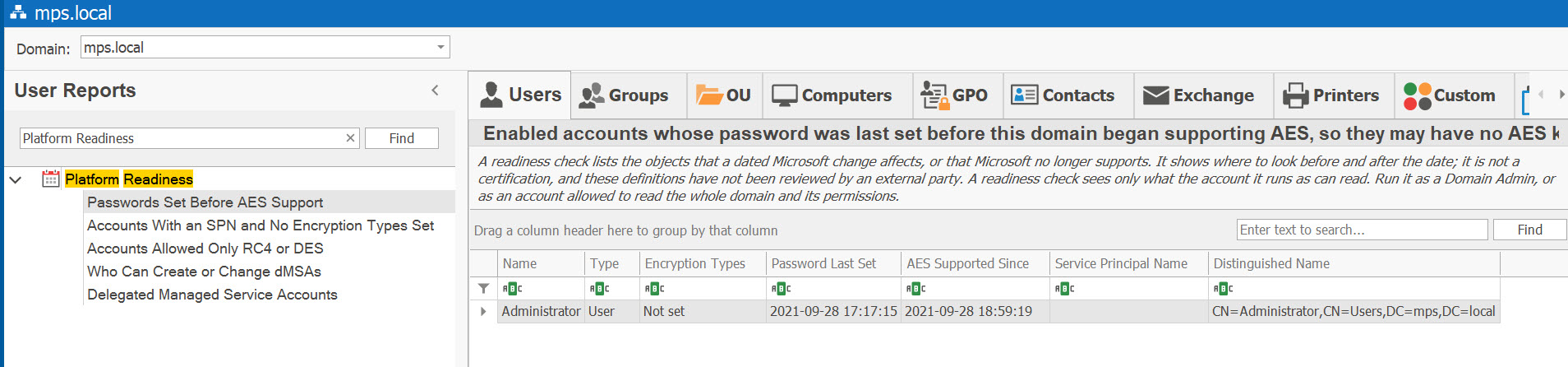
- Passwords Set Before AES Support (High) — enabled accounts whose password was last set before the domain began supporting AES, so they may have no AES keys. Domain controllers refuse tickets for such a service account when its encryption types are not set, or set to AES only. Change the password, which creates the AES keys — in the service that uses the account too — or move the service to a group managed service account.
- Accounts With an SPN and No Encryption Types Set (Medium) — domain controllers now give them AES-only tickets, so a service with an RC4-only keytab, or an RC4-only device, fails. Confirm that the service supports AES, re-export its keytab with AES keys, then set the types.
- Accounts Allowed Only RC4 or DES (Medium) — their tickets use RC4 or DES and can be Kerberoasted, and they cannot sign in with Kerberos through a Windows Server 2025 domain controller. Set the AES types once the service supports them. Accounts set to use only DES are in Accounts with DES Encryption (Use DES Encryption in the profile).
Check LAPS and Who Can Create dMSAs
Without LAPS, the local administrator password is often the same on many computers. Three checks, and one broader report, cover it:
- Computers Not Managed by LAPS (Medium) — enabled computers, other than domain controllers, that neither Windows LAPS nor legacy LAPS manages. Windows LAPS is built into Windows 11, Windows 10 with the April 2023 update or later, and Windows Server 2019 and later; Windows Server 2016 can use only legacy LAPS.
- LAPS Passwords Past Their Expiry (Low) — computers that have not changed their LAPS password when they should have: switched off, unable to reach a domain controller, or outside the policy.
- Computers Using Legacy LAPS (Low) — legacy Microsoft LAPS is deprecated, Windows 11 23H2 and later block its installer, and it keeps the password in clear text. Move these computers to Windows LAPS.
- Computers without LAPS, in Legacy OS & Stale Systems, is broader: every computer that has none of the LAPS attributes set.
Windows LAPS backs up nothing until a policy says where: its BackupDirectory setting defaults to Disabled. Its password age defaults to 30 days (Microsoft Learn).
For delegated managed service accounts (dMSAs), new in Windows Server 2025:
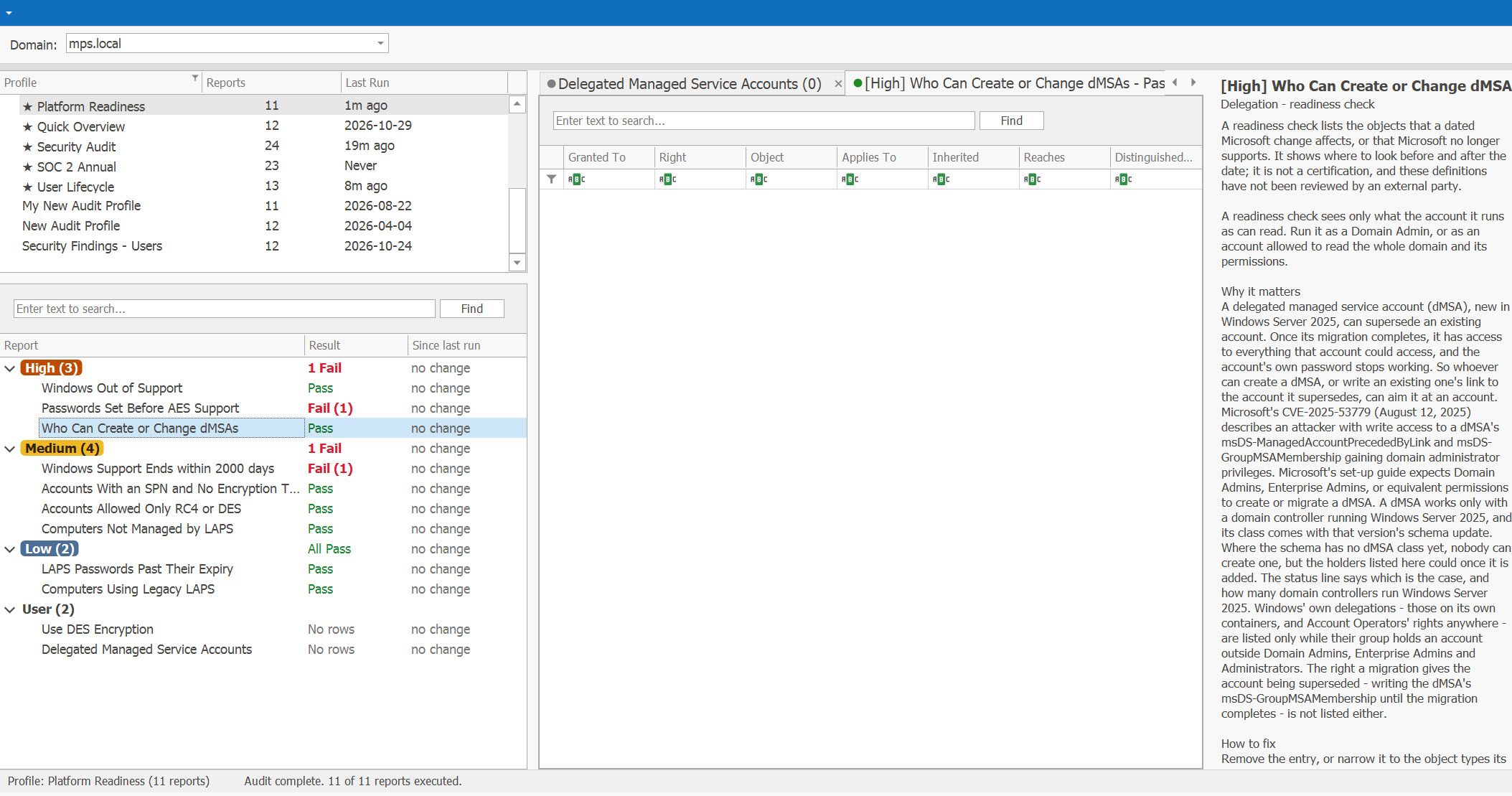
- Who Can Create or Change dMSAs (High) — accounts beyond the Windows defaults that can create a dMSA or change one. A dMSA can supersede an account and then has all of its access, a Domain Admin's included (Microsoft's CVE-2025-53779, August 2025). It works only with a Windows Server 2025 domain controller and that version's schema; without them nobody can create one yet, but the holders listed could once the schema has the class. Remove or narrow the entries, and keep every Windows Server 2025 domain controller on the August 12, 2025 updates or later.
- Delegated Managed Service Accounts — every dMSA with the account it supersedes: an inventory, not a check.
Run Again and Keep the Record
Run Platform Readiness again after each change: like the security findings, its checks say what was fixed, what is still open and what is new (see See What Changed Since the Last Run). Schedule it, and the Compliance Evidence Pack's Platform readiness section shows each check's latest scheduled run in the period — Pass, Fail and how many objects, or Did not run, never Pass.
None of the sources gives an interval for this check; Microsoft's dates set the pace. Windows Support Ends within looks 365 days ahead unless you choose more.
What to keep:
- the dated list of computers out of support or near it, with the plan for each — upgrade, replace, retire or isolate — and its date;
- the exceptions you accepted, and why;
- the Extended Security Updates you bought, from your licensing records;
- the readiness results after each change.