Review Privileged Access
The members of the administrative groups can change anything in the domain, so their accounts are the ones an attacker looks for first. This routine lists who holds those rights — directly, through nested groups, or left over from an old membership — and which of those accounts are exposed to Kerberoasting or delegation, or no longer used. It is written for administrators and security reviewers. The built-in ★ Security Audit audit profile runs the membership and exposure reports; the privileged-account security findings add Pass or Fail.
How Often to Review
No two sources name the same interval. Microsoft's answer is to keep the groups empty day to day and be told of every change.
| Source | What it asks |
|---|---|
| Microsoft | No day-to-day accounts in Enterprise Admins, Domain Admins or the built-in Administrators; members are added for a task when needed, and auditing alerts on any change to the groups' membership or properties. |
| Active Directory Pro | Review privileged group changes weekly; audit privileged group membership quarterly. |
| FedRAMP High, as Microsoft Learn maps it | Review privileged accounts monthly. |
| PCI DSS 7.2.4, as Microsoft Learn quotes it | Review all user accounts and their access privileges at least once every six months. |
| CIS Controls, Safeguard 6.8 | Review access control to confirm that all privileges are authorized at least annually. |
Run the Security Audit Profile
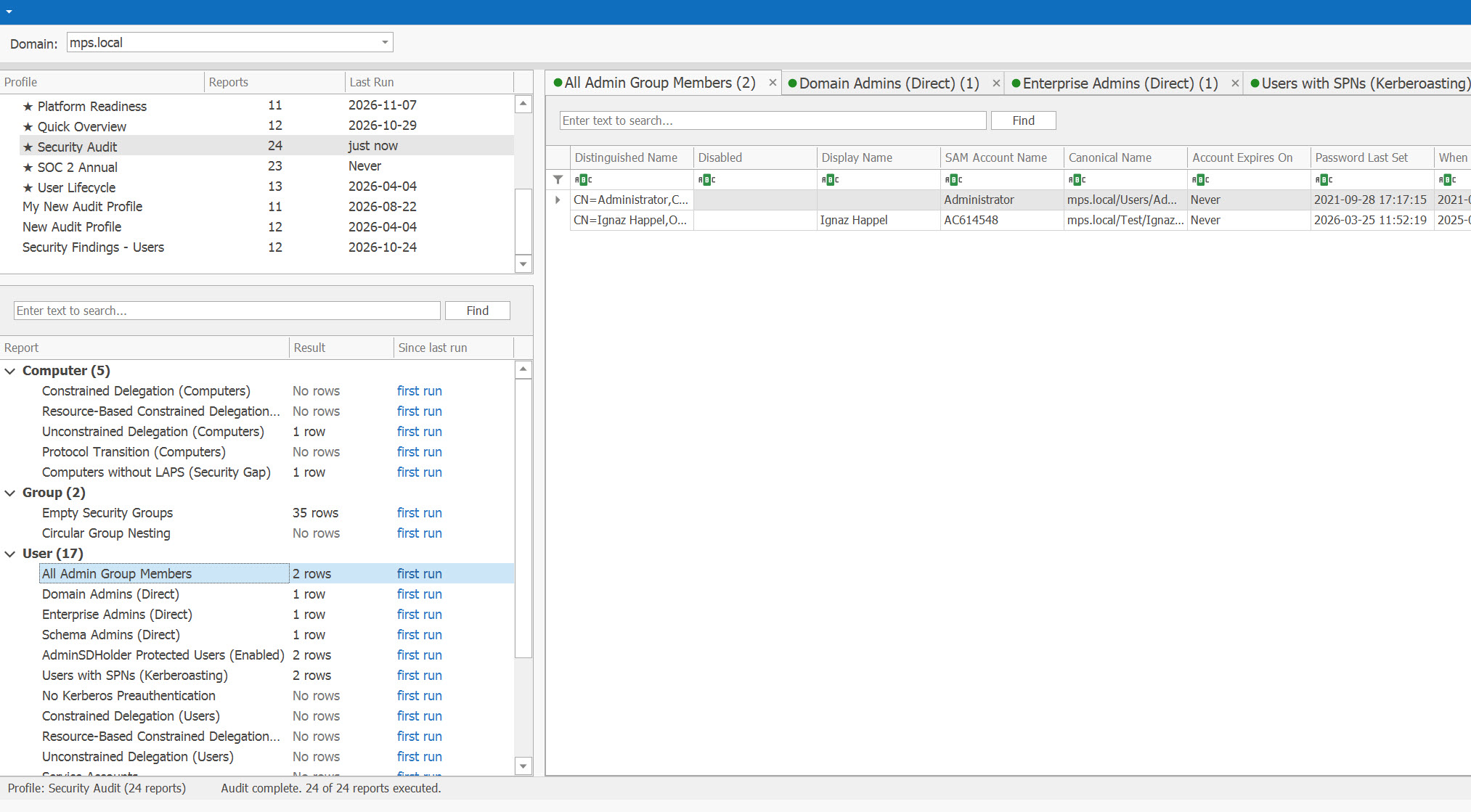
On the Audit page, select ★ Security Audit and run it (see Run an Audit). Its 24 reports fall into three groups:
- Who holds the rights: All Admins, Domain Admins (Direct Members), Enterprise Admins (Direct Members), Schema Admins (Direct Members), Protected Users (Enabled), Shadow Admins and All Rights (User Rights Assignment).
- Kerberos and delegation: Users with SPNs, SPN + Password Never Expires, No Kerberos Preauthentication, constrained and resource-based constrained delegation for users and computers, unconstrained delegation (Trusted for Kerberos Delegation, Computers Trusted for Kerberos Delegation) and protocol transition for computers.
- Account settings and the rest: Service Accounts, Password Never Expires, Password Not Required, With Encrypted Password (Reversible Encryption), empty security groups, circular group nesting and computers without LAPS.
The security findings about privileged accounts are not in this profile. They are in ★ All Security Findings; to run just them with this routine, add them to a profile of your own — steps 2 to 4 name them.
Review Who Is in the Admin Groups
All Admins lists the members of Administrators, Domain Admins, Enterprise Admins and Schema Admins — primary, direct and nested. Compare it with Admins (Direct Members Only): an account in the first list and not in the second gets its rights through a nested group, which is easy to miss.
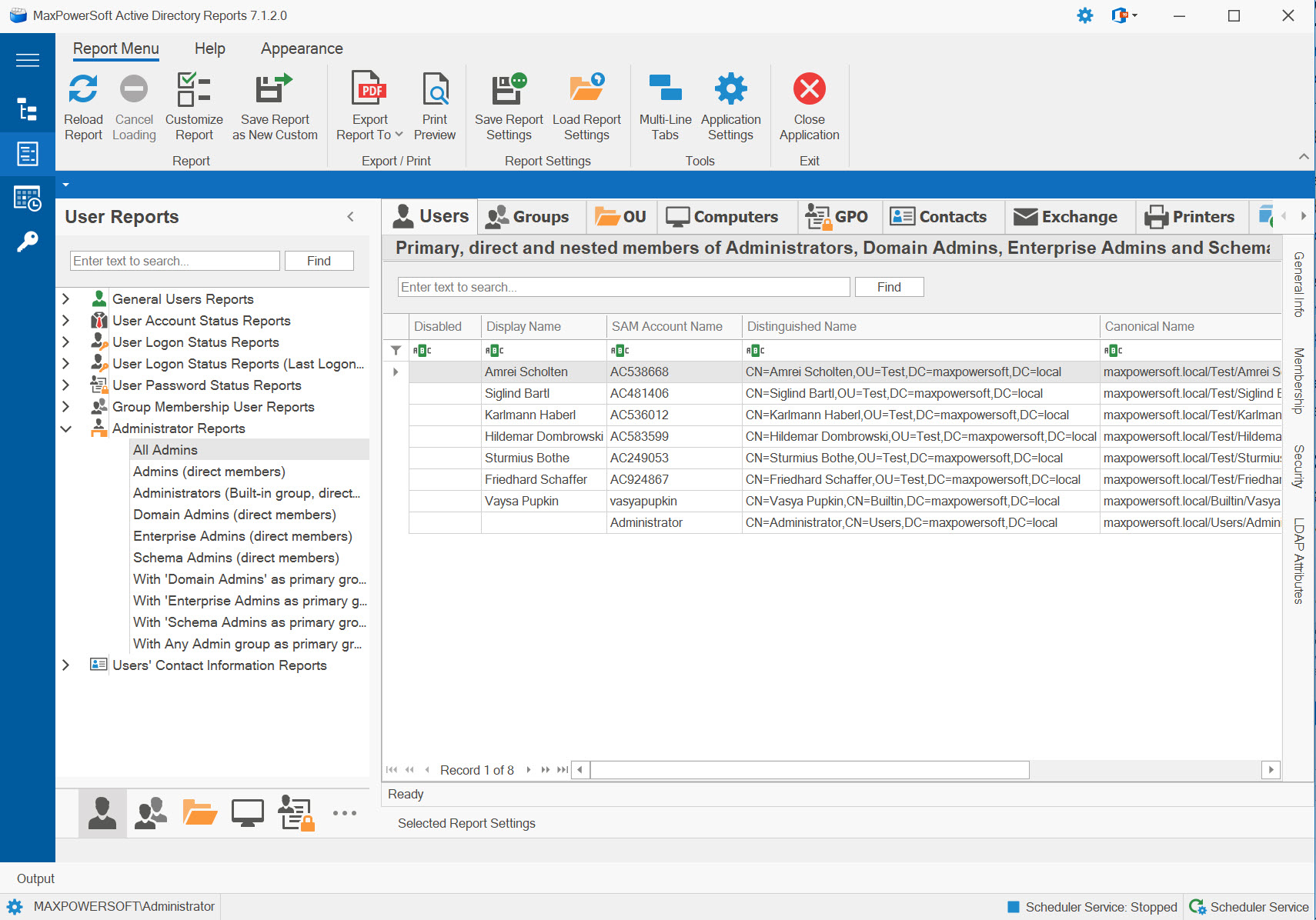
For each account, ask whether a person needs these rights today. In Microsoft's model, Enterprise Admins holds no users day to day — the forest root domain's Administrator account possibly excepted — and neither Domain Admins nor the built-in Administrators holds the accounts people work with every day. Microsoft also notes that assessments commonly find these groups holding far too many accounts (Microsoft Learn).
- Schema Admins (Direct Members) should be empty except while the schema changes: the finding Schema Admins With Members fails otherwise, as DISA's STIG wants.
- Operator Groups With Members lists the members of Account Operators, Server Operators, Print Operators and Backup Operators, who can sign in to every domain controller.
- Computer Accounts in Privileged Groups lists computers and managed service accounts in the admin groups: whoever controls such a computer holds the group's rights.
- Groups of your own that grant administrative rights — on servers or workstations, say — are not in these reports. List their members with Users in a Specific Group, or load a group's members, nested ones included, with Load Group Members.
Find Admin Rights Left Behind
When an account or group joins a protected group, Windows marks it with adminCount and gives it
AdminSDHolder's permissions; leaving the group changes neither. Three reports find what was left:
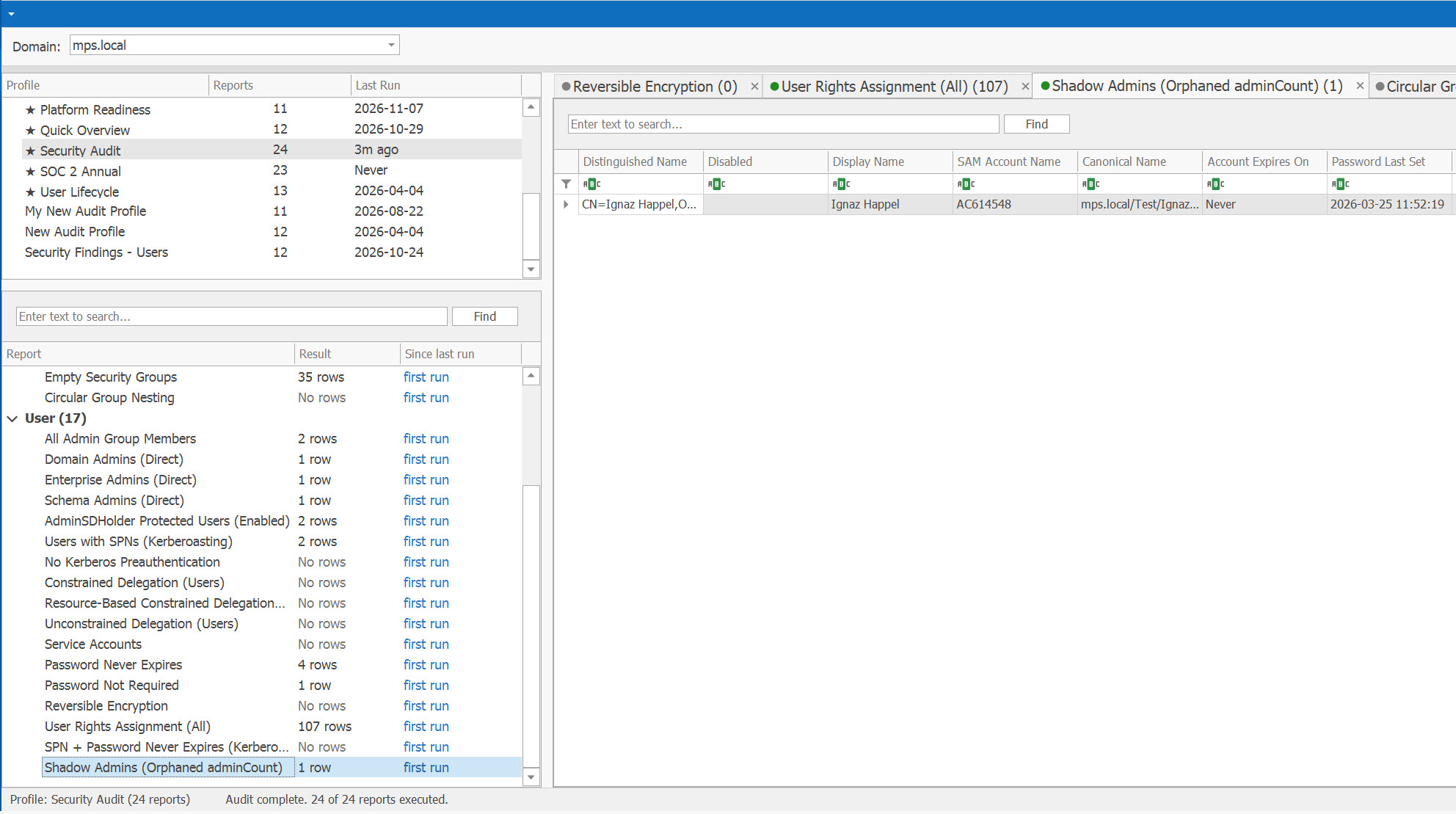
- Shadow Admins — every user account with adminCount=1 except the built-in ones Windows marks as critical: today's administrators, and the accounts that kept the mark after leaving. Compare it with All Admins.
- Orphaned adminCount Accounts and Groups — the finding lists only the accounts and groups no longer in any protected group. Disable or remove an account nobody uses; otherwise turn its inheritance back on and clear adminCount, as its How to Fix says.
- Protected Users (Disabled) — disabled accounts that still carry the mark; the Hygiene Check profile runs it.
Rights can also be held outside the groups. These findings list them:
- Privileged SIDs in SID History — a privileged SID in an account's SID history acts as membership without the account appearing in the group.
- Replication (DCSync) Rights Beyond the Defaults and Dangerous Rights on Tier 0 Objects — who beyond the Windows defaults can read every account's password hash from a domain controller, or take control of the domain's most privileged objects. Microsoft's December 2025 guidance says to remove non-admin accounts that hold DCSync permissions (Microsoft Windows Server blog).
- AdminSDHolder Permissions Beyond the Defaults — an entry on AdminSDHolder is copied to every protected account and group, about once an hour.
Check What Exposes Each Privileged Account
An administrator who should keep the rights can still hold them in an exposed account. These findings list such accounts:
- Kerberoastable Privileged Accounts (High) — a privileged account with a service principal name: any domain user can request a ticket for it and try to crack its password offline. Remove the SPN if nothing uses it; otherwise use a group managed service account.
- Privileged Accounts That Can Be Delegated and Unconstrained Delegation Outside Domain Controllers (both High) — a server trusted for delegation can pass on an administrator's ticket. Check Account is sensitive and cannot be delegated on each privileged account.
- Privileged Accounts Not in Protected Users (Medium) — test before you add an account to Protected Users: NTLM and RC4 stop working for it.
- Inactive Privileged Accounts (Low) — privileged accounts with no sign-in for 90 days, or never, by Last Logon Timestamp. PingCastle's rule waits six months before it flags an inactive admin account (PingCastle). Disable the account, or take it out of the groups.
Microsoft's December 2025 guidance names two of these fixes itself: remove support for unconstrained delegation, and add high-risk accounts to Protected Users (Microsoft Windows Server blog).
Watch for Changes and Keep the Record
Between reviews. Schedule All Admins, or the whole profile, so that changes come to you: a scheduled report can e-mail only what changed since its last run, and the daily status e-mail can list what your scheduled reports recorded as changed, with the Administrator and AdminSDHolder reports right after the findings and readiness checks. Both compare runs: who made a change is not recorded, and a change made and undone between two runs does not show. Microsoft wants auditing configured to alert on any change to these groups; a comparison of runs does not replace it.
After each review, save the lists you reviewed as a baseline (History → Save Active Report to History); at the next review, compare: the Added sub-tab lists every account that gained rights in between (see Common Use Cases).
What to keep from each review:
- the dated lists you reviewed — the run's workbook, whose Run Summary lists every report it ran, the empty ones included;
- for each account kept, who decided and why; for each removal, the change and its date;
- the comparison made after the removals.
PCI DSS 7.2.4 asks that inappropriate access is addressed and that management acknowledges the access that remains is appropriate (Microsoft Learn). ENISA's examples of evidence for privileged accounts include the list of users with privileged access and the records of access reviews and revocations (ENISA). The decisions and the sign-off are yours: AD Reports supplies the lists, and the Compliance Evidence Pack's change evidence has space for a reviewer to sign.